 (208) 991-3502
 Meridian, ID



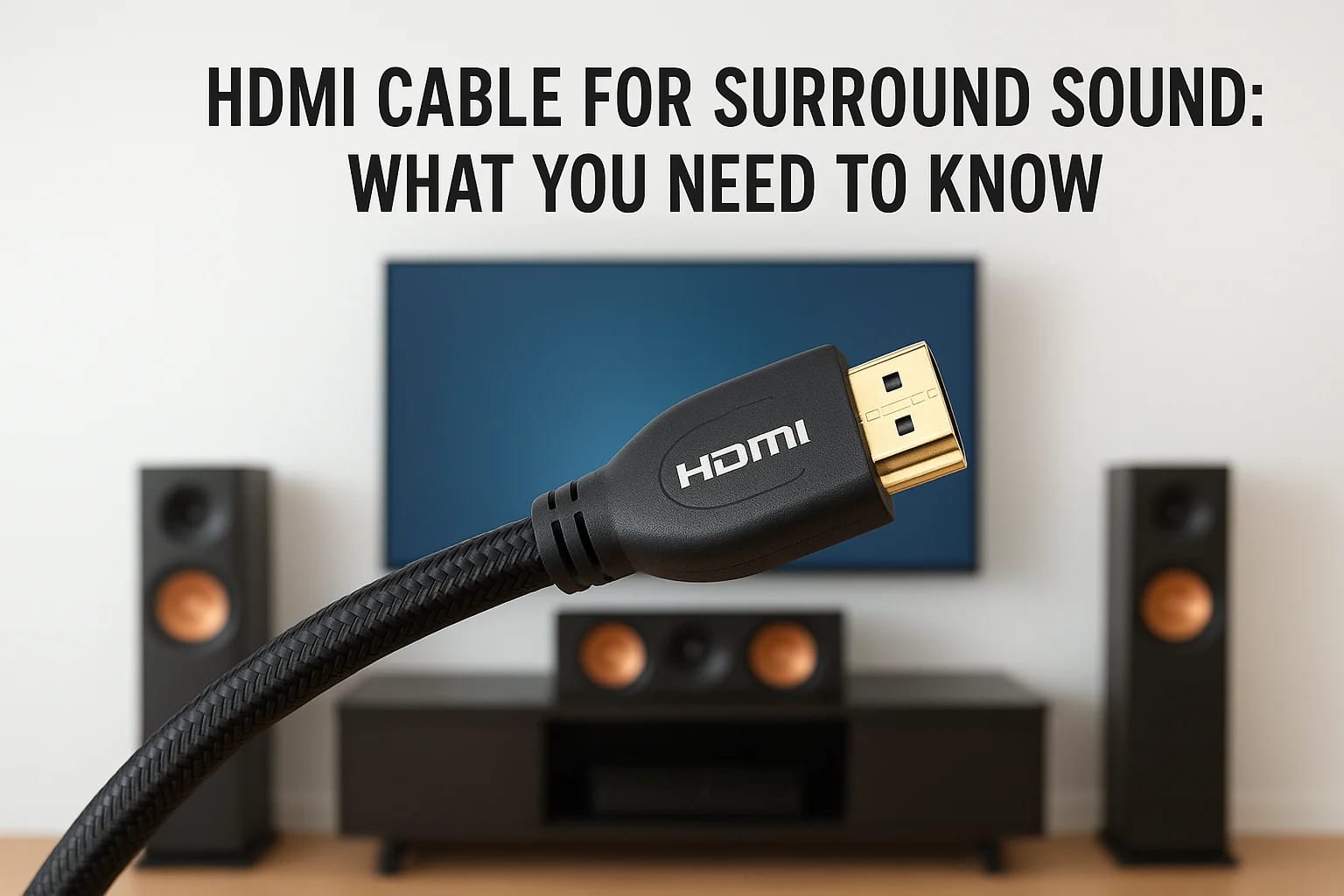

You just spent real money on a surround sound system, and the audio still cuts out or drops to stereo. Nine times out of ten, the problem isn't your receiver or your speakers. It's the hdmi cable for...
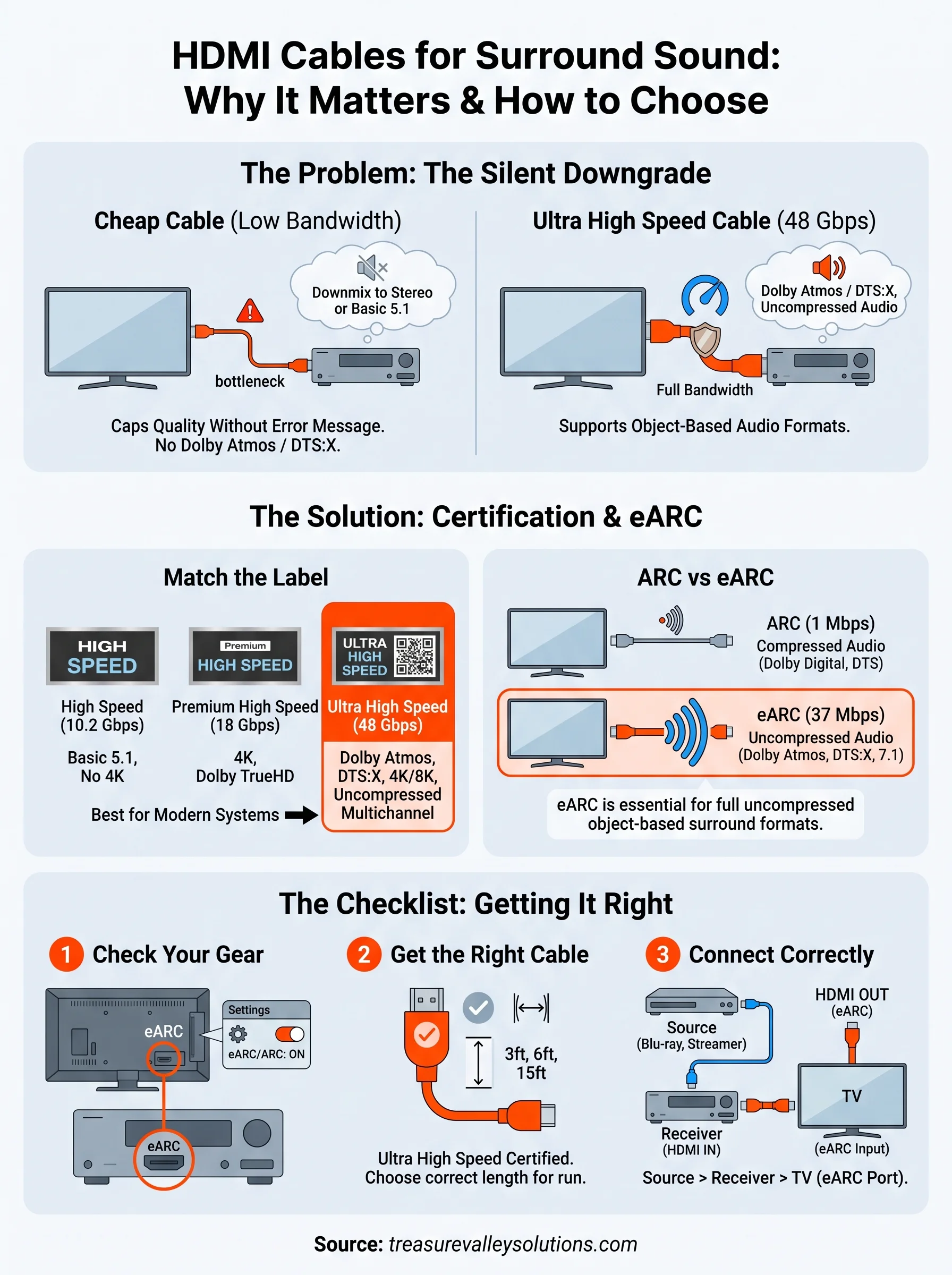
You just spent real money on a surround sound system, and the audio still cuts out or drops to stereo. Nine times out of ten, the problem isn't your receiver or your speakers. It's the hdmi cable for surround sound system connections you grabbed from a junk drawer or a bargain bin online. Not every HDMI cable moves enough data to carry object-based audio formats like Dolby Atmos or DTS:X, and using the wrong one quietly caps your sound quality without throwing an obvious error.
Here's the short answer: you need a cable rated for HDMI 2.1 (or at minimum a Premium High Speed HDMI cable) that supports ARC or eARC, since eARC is what actually unlocks uncompressed, multi-channel surround formats between your TV and receiver.
In this article, we'll break down what ARC and eARC actually do, how to tell a genuinely capable cable from marketing hype, and which specs matter when you're wiring a home theater. We work on these setups every week across the Treasure Valley, so we'll point you toward exactly what to buy and what to skip.
Why the right HDMI cable matters for surround sound
HDMI cables look identical from the outside, but the copper and shielding inside them determine how much data can move every second. Your surround sound system doesn't just need a video signal, it needs a separate audio stream carrying six, eight, or even more channels of uncompressed or object-based sound. When the cable can't keep up with both streams at once, something has to give, and it's usually the audio quality you paid extra for.
Bandwidth is the whole story
Every HDMI cable has a bandwidth ceiling, and that ceiling decides which surround formats can actually pass through. Older HDMI 1.4 cables top out around 10.2 Gbps, which was fine for basic 5.1 audio but chokes on modern formats. HDMI 2.0 pushed that to 18 Gbps, enough for most Dolby Digital and DTS setups. HDMI 2.1, the current standard, jumps to 48 Gbps, which is what lets you run 4K or 8K video at high frame rates alongside full Dolby Atmos or DTS:X tracks without compression.
| Cable Standard | Max Bandwidth | Surround Formats Supported |
|---|---|---|
| HDMI 1.4 | 10.2 Gbps | Dolby Digital, basic 5.1 |
| HDMI 2.0 | 18 Gbps | DTS-HD, Dolby TrueHD (limited) |
| HDMI 2.1 (48G) | 48 Gbps | Dolby Atmos, DTS:X, uncompressed multichannel |
This is why a five-dollar cable from a big-box store can technically "work" while still robbing you of the surround experience you're chasing. It'll pass a picture and some sound, but it won't have the headroom for the full object-based audio stream that makes Atmos sound like it's coming from above and around you instead of just left and right.
Why the drop happens quietly
Here's what makes this frustrating for homeowners: an undersized cable rarely fails outright. Instead, your receiver silently downgrades the signal to something it can handle, usually a compressed stereo or basic 5.1 mix, with zero warning on screen. You'll notice your surround speakers going quiet or your subwoofer losing punch, but nothing in the menu tells you the cable is the culprit. We've walked into more than a few living rooms in Meridian and Eagle where a brand-new receiver and speaker package sounded flat, and the fix was swapping a $6 cable for a certified one.
A cable that's too weak for your system won't throw an error, it'll just quietly hand you worse sound.
Getting a proper hdmi cable for surround sound system setup solves this before it starts. It's the cheapest part of your whole home theater and the easiest thing to get wrong, since most people assume any HDMI cable does the same job.
Distance and cable quality compound the problem
Longer cable runs make bandwidth loss worse, especially with unshielded or poorly manufactured cables. If your receiver sits in a cabinet ten or fifteen feet from the TV, a cheap cable that barely handles 48 Gbps at three feet may not hold that bandwidth over the longer distance. Signal degradation shows up as dropouts, flickering, or audio that cuts in and out during action scenes with heavy bass. Active HDMI cables, which include a small signal booster chip, solve this for longer runs, but only if they're still rated for the full 48 Gbps standard. Skipping this detail is one of the most common reasons we get called out to troubleshoot a "broken" surround system that was never broken at all, just underpowered.
How to choose the right HDMI cable for your system
Shopping for cables gets confusing fast because every package claims to be "premium" or "4K ready." Ignore the marketing copy and look for the actual certification label, since that's the only thing backed by testing. The HDMI Licensing Administrator runs an official certification program, and cables that pass it carry a QR code you can scan to verify authenticity on their site. If a cable doesn't mention a certification tier at all, assume it's built to the cheapest spec that still lets the seller call it "HDMI."
Match the label to your gear
Different certification tiers exist for a reason, and matching one to your receiver and TV keeps you from overpaying or underbuying.
| Certification | Bandwidth | Best For |
|---|---|---|
| High Speed | 10.2 Gbps | Older 5.1 setups, no 4K |
| Premium High Speed | 18 Gbps | 4K TVs, Dolby TrueHD |
| Ultra High Speed (48G) | 48 Gbps | Dolby Atmos, DTS:X, 4K/8K HDR |
For a modern surround sound system running Atmos or DTS:X through a 4K or 8K display, the Ultra High Speed certification is the only one worth buying. Anything less puts you back in the silent-downgrade situation we covered above.
Account for cable length honestly
Length matters more than most buyers expect. A three-foot cable and a fifteen-foot cable carrying the same signal don't behave the same way, even with identical certification. Passive cables under six feet almost always hold their full bandwidth. Once you get past ten to fifteen feet, especially with in-wall runs behind drywall, signal loss becomes a real risk even on a certified cable. If your receiver sits across the room from your TV, spend the extra few dollars on an active cable with a built-in signal booster rather than assuming length doesn't matter.
Buy for your actual cable run, not the shortest demo unit on the store shelf.
Don't skip the connector and jacket quality
Budget cables cut corners on the parts you can't see. Gold-plated connectors resist corrosion better over years of use, and braided or double-shielded jackets reduce interference from nearby power cables or speaker wire. Neither of these fixes a bandwidth problem, but both extend the life of a good cable and reduce the odds of an intermittent connection working itself loose behind your equipment rack. When you're choosing an hdmi cable for a home theater system, treat the connector build as a tiebreaker between two cables that already meet the same certification, not a substitute for checking that certification in the first place.
HDMI ARC vs eARC: which one do you actually need
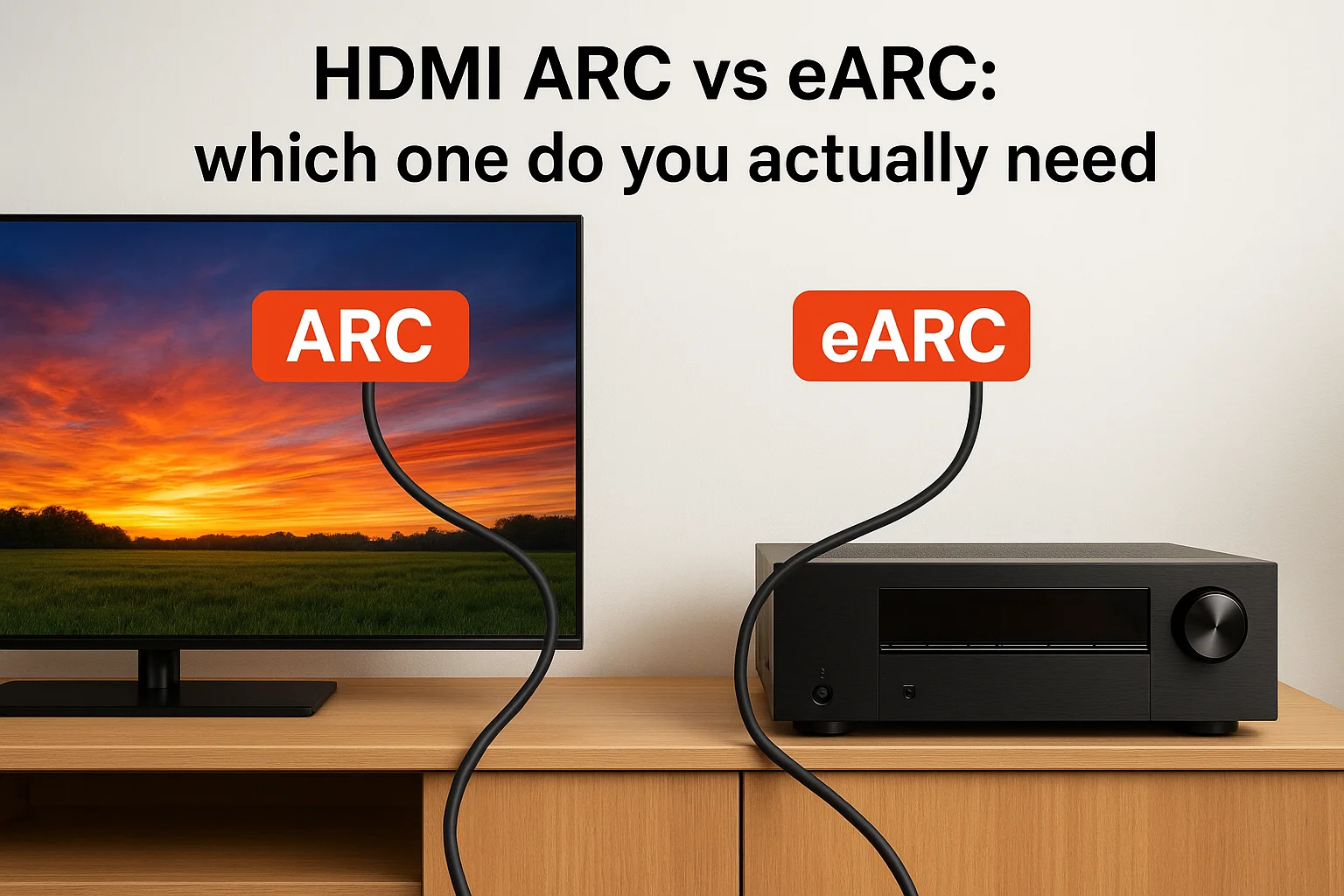
ARC and eARC both send audio from your TV back to your receiver over a single HDMI cable, but they're not interchangeable. ARC (Audio Return Channel) has been around since HDMI 1.4 and handles compressed audio like standard Dolby Digital just fine. eARC (Enhanced Audio Return Channel), introduced with HDMI 2.1, carries far more bandwidth and supports uncompressed, object-based formats. If your goal is genuine Dolby Atmos or DTS:X through your surround sound system, ARC simply can't move enough data to do it justice.
What each one actually supports
Grasping the difference matters more than most spec sheets let on, since a mismatched port will quietly bottleneck a system that's otherwise capable of full surround sound.
| Feature | ARC | eARC |
|---|---|---|
| Max bandwidth | ~1 Mbps | ~37 Mbps |
| Audio formats | Dolby Digital, DTS | Dolby Atmos, DTS:X, uncompressed 5.1/7.1 |
| HDMI version required | 1.4+ | 2.1 (with eARC support) |
| Cable needed | High Speed or better | Ultra High Speed (48G) |
If your gear only has ARC, you're capped at compressed sound no matter how good your cable is.
Check your actual hardware, not just the box
Many TVs and receivers sold in the last few years advertise HDMI 2.1 support but only implement eARC on one specific port, often labeled directly on the back panel. Skipping that label is one of the most common mistakes we see during installs in Boise and Nampa, where a customer swears the receiver is HDMI 2.1 but the audio still won't pass Atmos. Open your TV's settings menu and look for an eARC toggle, since some models ship with it disabled by default even when the hardware supports it. Your receiver needs the matching capability too, so check both ends before you assume a cable swap will fix anything.
When ARC is still good enough
Not every setup needs eARC, and pretending otherwise wastes money. If you're running a basic 5.1 system with an older AV receiver, or you mostly watch cable TV and streaming content that tops out at standard Dolby Digital, ARC handles that workload without any noticeable compromise. Pushing for eARC only pays off when your source material, streaming service, or Blu-ray player actually outputs Atmos or DTS:X and your receiver can decode it. Buying an eARC-rated cable for an ARC-only system won't hurt anything, but it won't unlock features your hardware can't use either. Verify what your receiver and TV both support before spending extra on capability you can't take advantage of yet.
Getting this piece right for your hdmi cable for surround sound system setup means checking three things together: the port label, the settings menu, and the cable rating. Miss any one of them and you're back to the silent downgrade problem, just with a different cause.
Step-by-step: connecting your surround sound system
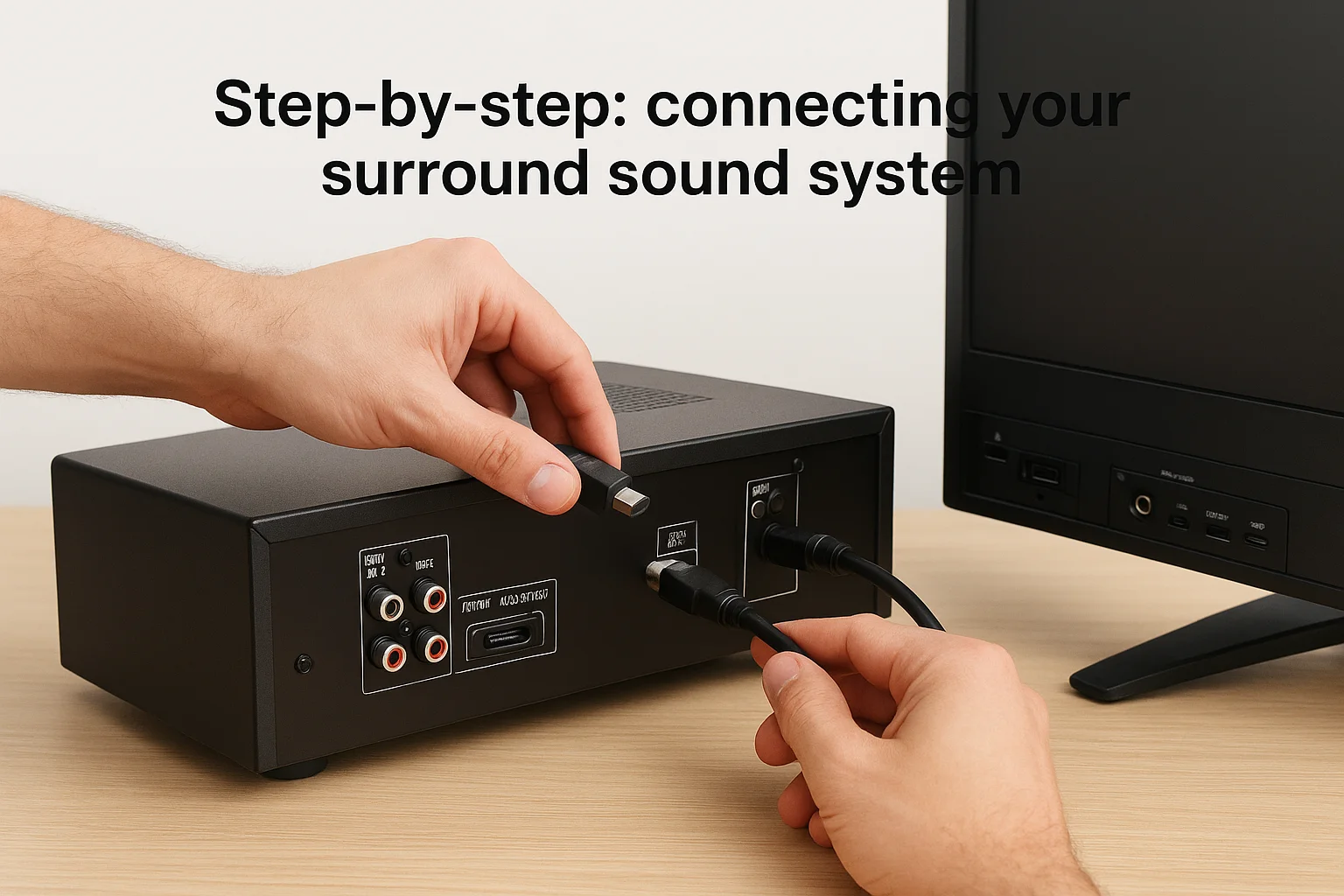
Wiring a surround sound system correctly takes fifteen minutes if you follow the right order. Most of the calls we get in Meridian and Boise trace back to a skipped step here, not a bad component. Work through the sequence below before you touch any settings menu, and you'll avoid the guesswork that usually leads to a support call.
Get the physical connections right first
Start with the cables themselves, since a mistake here undoes everything you do later in the settings menu.
- Run your Ultra High Speed HDMI cable from your source (Blu-ray player, streaming box, or game console) directly into an HDMI input on your receiver, not the TV.
- Connect a second Ultra High Speed cable from the receiver's HDMI OUT (ARC/eARC) port to the TV's labeled eARC or ARC input. This port is almost never the same as your other TV inputs, so check the back panel labeling carefully.
- Confirm every connector is fully seated. A cable that looks plugged in but sits slightly loose is one of the most common causes of intermittent dropouts.
- Power on the TV first, then the receiver, then your source device. HDMI handshakes happen more reliably in this order.
Plug your source into the receiver, not the TV, or your surround channels never get the signal.
Enable eARC or ARC in your settings
Once everything is physically connected, the software side needs a nudge. Open your TV's audio settings and look for an option labeled eARC, ARC, or "HDMI device control." Turn it on if it isn't already, since several TV brands ship with it disabled by default even on capable hardware. Switch your TV's audio output setting to "External Speakers" or "Receiver" instead of "TV Speakers," or the signal has nowhere to go. On the receiver side, select the correct HDMI input and confirm its audio settings aren't forcing a downmix to stereo.
Confirm the format is actually passing through
After enabling ARC or eARC, most receivers display the incoming audio format on their front panel or app during playback. Look for "Dolby Atmos" or "DTS:X" specifically, not just "Dolby Digital," which means you're still getting a compressed fallback. Play a source you know outputs true Atmos, a demo scene or a supported streaming title, and watch that display. If it still shows a basic format, double check the cable rating and the eARC toggle again before assuming the hardware itself is at fault. Testing this way saves you from chasing a "broken" receiver that's actually working exactly as configured.
Fixing common HDMI audio and video problems
Even a correctly wired surround sound system runs into HDMI hiccups, and most of them trace back to a handful of repeat offenders. Before you assume a component is broken, run through the checks below, since swapping cables or resetting a handshake solves the majority of calls we get across the Treasure Valley.
No sound, or audio that drops in and out
Silence or intermittent dropouts almost always point to a cable or handshake problem rather than a dead receiver. Unplug and reseat every HDMI connector first, since a connector that looks fully inserted can still sit loose enough to cause dropouts during bass-heavy scenes. If reseating doesn't fix it, swap in a known-good Ultra High Speed cable to rule out a marginal one, especially on longer runs behind drywall.
Before you blame the receiver, swap the cable. It fixes more "broken" systems than any settings menu does.
HDCP handshake errors
A black screen, flickering picture, or an on-screen message about HDCP (High-bandwidth Digital Content Protection) means your devices aren't agreeing on copy-protection credentials. This happens more often with longer cable runs, cheap HDMI switches, or mixing HDMI 1.4 and 2.1 gear in the same signal chain. Power-cycling every device in the chain, starting with the source and ending with the TV, resolves this more often than people expect.
Audio works but video doesn't, or the reverse
When one signal passes and the other doesn't, the cable itself is rarely the cause since audio and video travel together over the same HDMI connection. Check these instead:
- Input selection: confirm the TV and receiver are both set to the same HDMI input you physically wired.
- Audio output setting: verify the TV is set to "External Speakers" or "Receiver," not "TV Speakers."
- Downmix settings: check the receiver isn't forcing a stereo downmix that masks a bigger issue.
- Firmware: outdated firmware on either the TV or receiver breaks eARC compatibility more often than manufacturers admit.
When a factory reset actually helps
If you've checked cables, inputs, and settings and the problem persists, a factory reset on the receiver's HDMI settings (not the whole unit) often clears a corrupted handshake that's otherwise invisible. This differs from a full reset, which wipes your speaker calibration and input names along with the bug. Try the targeted HDMI reset first, and only escalate to a full reset if the issue survives that step. Most hdmi cable for surround sound system complaints we investigate resolve at one of these stages, well before anyone needs to replace hardware.
When it makes sense to call a professional installer
Some HDMI troubleshooting is a five-minute fix. Other setups involve enough zones, cable runs, and gear that DIY turns into a weekend lost behind an equipment rack. Knowing where that line sits saves you money on parts you didn't need and prevents you from tearing into walls you can't easily patch. If you've worked through every step above and the surround sound still won't cooperate, or the install itself involves more than a TV and one receiver, that's your signal to bring in help.
Multi-room or whole-home systems
Once you're distributing audio and video to more than one room, HDMI extenders, matrix switches, and longer in-wall runs enter the picture, and a single miscalculated cable length can undermine the whole system. A hdmi cable for surround sound system setup that only serves one living room is forgiving. A whole-home system that routes a 4K Atmos signal to three rooms through a matrix switcher is not, since every added component introduces another point where bandwidth or handshake compatibility can fail. Professionals carry signal testers and know which extenders actually hold 48 Gbps over 30 or 40 feet, which isn't information you'll find printed clearly on most retail packaging.
Once you're routing signal to more than one room, guesswork gets expensive fast.
New construction and in-wall wiring
Builders and homeowners planning a remodel face a different problem: the cable has to go inside a wall before drywall goes up, and mistakes here mean cutting into a finished surface later. Pre-wiring for a home theater during construction is exactly the kind of project where a professional installer earns their fee, since they'll plan conduit runs, leave access points, and choose in-wall-rated cable that meets fire code, none of which a big-box store clerk will tell you about. Treasure Valley Solutions works directly with residential builders across Meridian, Boise, and Eagle for this reason, wiring the surround sound infrastructure before walls close up so nobody's fishing cable through insulation later.
When troubleshooting hasn't fixed it
Even with clean wiring, some problems resist DIY fixes because they involve firmware quirks, mismatched HDCP versions, or a receiver that's quietly failing on one specific HDMI board. If you've reseated cables, verified certifications, toggled eARC, and the audio still won't pass Atmos correctly, that's a sign the issue sits deeper than a cable swap can reach. A licensed technician can isolate whether the fault lives in the TV, the receiver, or the cable itself, usually faster than another round of online troubleshooting guides. Calling for a diagnostic visit at that point costs less than replacing gear that was never actually broken.
Getting the sound right in your home
The right hdmi cable for surround sound system connections aren't complicated once you know what to look for: Ultra High Speed certification, eARC support on both ends, and a cable rated for your actual run length. Get those three things right, and you'll stop chasing phantom "broken" gear that was never the problem in the first place. Most surround sound complaints we see in Meridian, Boise, and Eagle trace back to a five-dollar cable, not a faulty receiver.
Still, some setups outgrow a weekend DIY fix, especially once multiple rooms, in-wall runs, or new construction enter the picture. That's when a second set of trained hands saves you time and money instead of costing you more. If your surround sound still isn't performing the way it should, or you'd rather have it done right the first time, reach out to our team and we'll get your home theater sounding the way it was designed to.
Need Expert Help?
Ready to implement these solutions in your own home or business?
Our Services

Home theater design and installation planned around your room, viewing goals, and equipment scope.
Expert TV Mounting Treasure Valley Homeowners & Businesses Trust

Explore whole-home audio, commercial sound, Sonos setup, and surround sound installation in the Treasure Valley.
Serving the Treasure Valley
Local installation in your city