 (208) 991-3502
 Meridian, ID



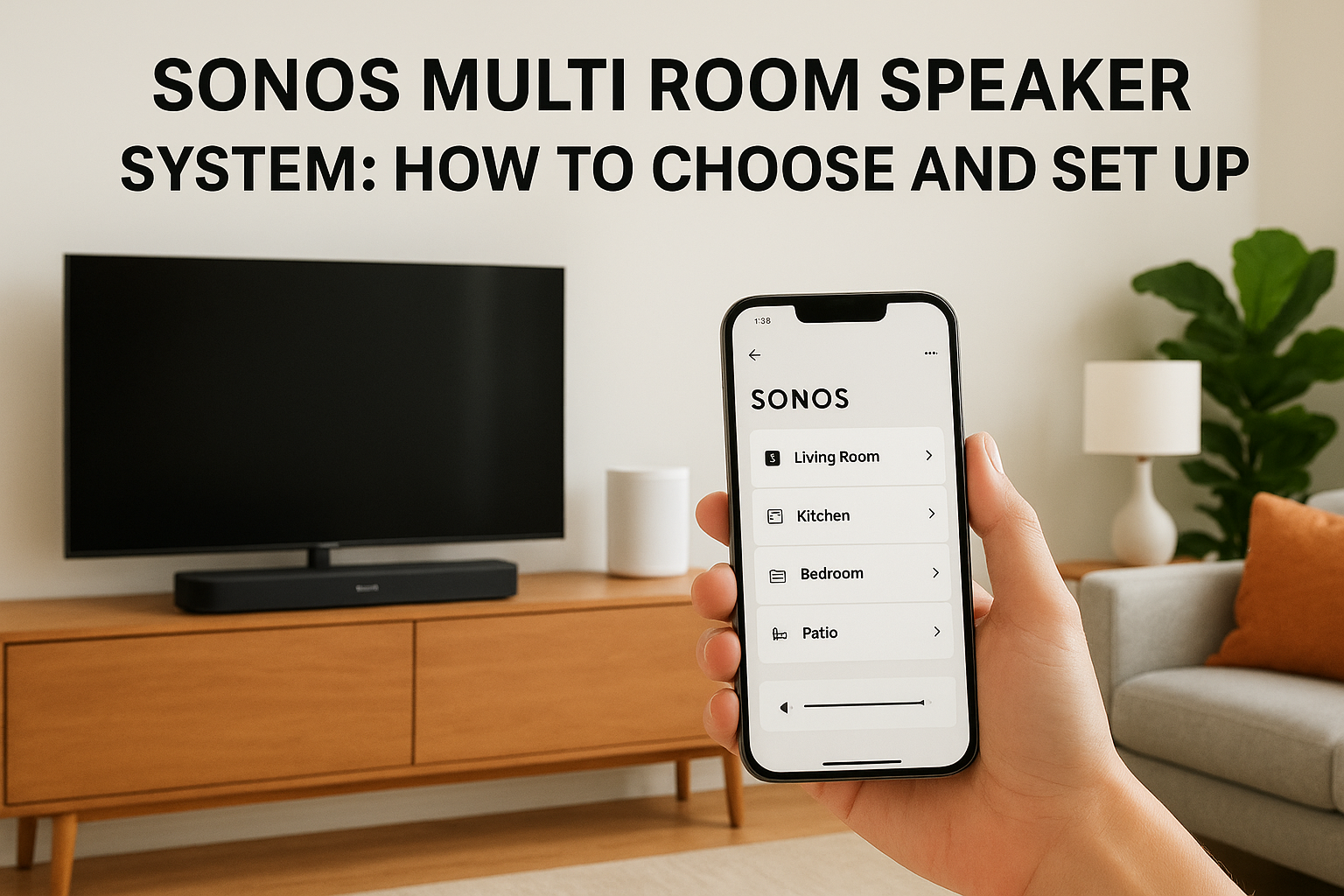

Want music in every room without running a mess of wires or juggling five apps? A Sonos multi room speaker system is one of the easiest ways to get there. It is also easy to buy the wrong pieces, end...
Want music in every room without running a mess of wires or juggling five apps? A Sonos multi room speaker system is one of the easiest ways to get there. It is also easy to buy the wrong pieces, end up with dead zones, or pay for speakers that overlap in purpose.
Here is the short answer. Sonos speakers connect over your Wi-Fi network and group together in one app, so you can play the same song everywhere or different music in each room. You build the system one room at a time. Start with a soundbar or a Era 300 where you listen most, then add smaller speakers like the Era 100 or Roam elsewhere. Your Wi-Fi quality matters more than the speaker count.
Below, we walk through how the system works, how to match speakers to each room, and how to set it up step by step. We install multiroom audio across the Treasure Valley, so we also cover the network and placement mistakes we see most often, and when it makes sense to bring in a pro.
How a Sonos multiroom system works
Sonos skips the old model of a receiver in a closet with speaker wire running through the walls. Instead, each speaker is a self-contained player, and together they form a Sonos multi room wireless speaker system that you control from one app. Once you understand the pieces, buying decisions get much easier.
Every speaker is its own player
Each Sonos speaker has its own amplifier and Wi-Fi radio. It pulls music straight from the internet, whether that is Spotify, Apple Music, or Amazon Music. Your phone is only a remote, so the music keeps playing when you leave the room or when your phone battery dies.
That design is why multiroom audio Sonos style scales so well. Adding a room means plugging in one more speaker and adding it in the app. You never rewire or buy a bigger amplifier, and you can start with a single room and grow over several years.
The four parts of the system
Every setup, from a two-speaker apartment to a ten-room house, is built from the same four parts.
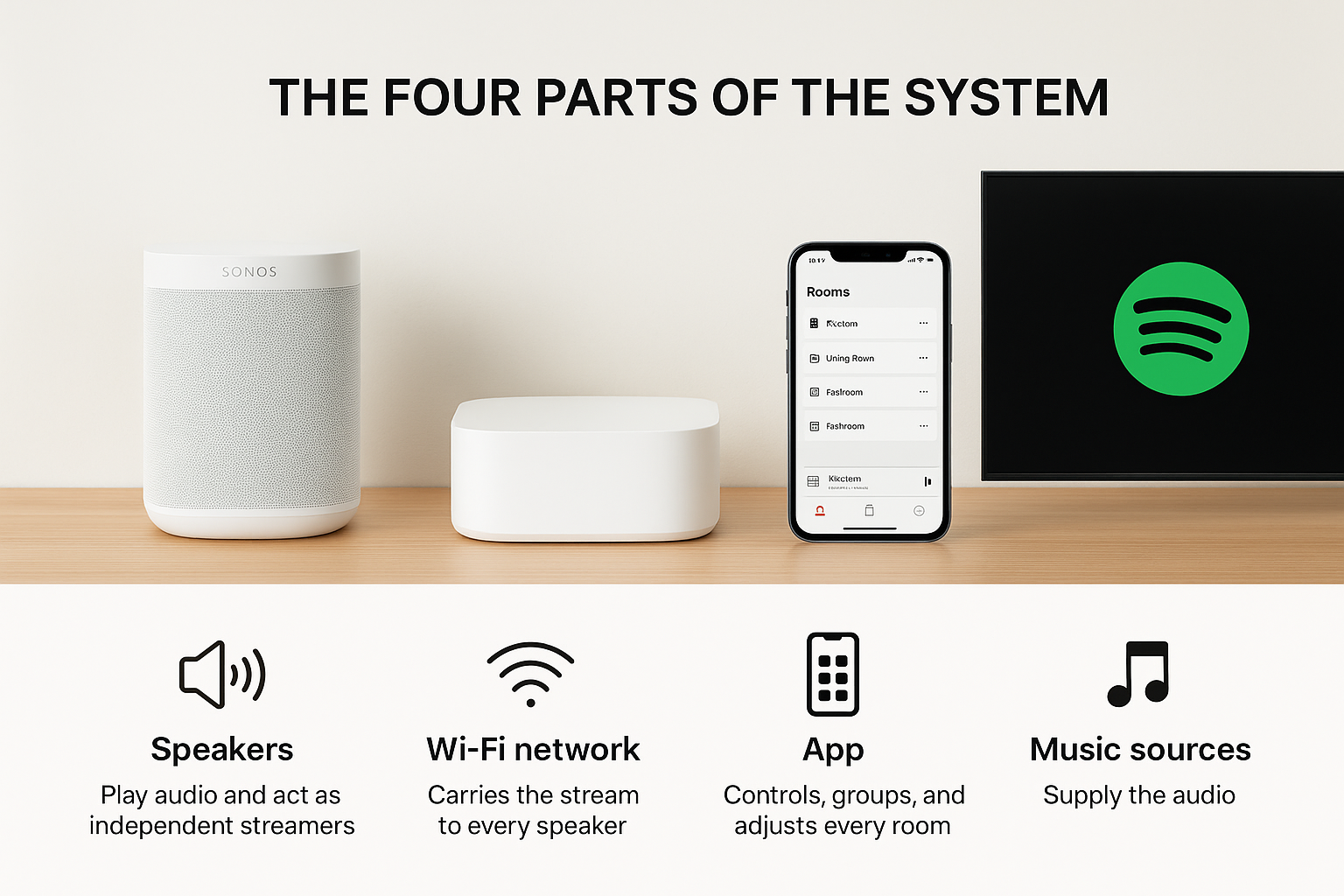
| Part | What it does | Example |
|---|---|---|
| Speakers | Play audio and act as independent streamers | Era 100, Era 300, Roam, Beam, Arc |
| Wi-Fi network | Carries the stream to every speaker | Router plus mesh nodes |
| Sonos app | Controls, groups, and adjusts every room | iOS or Android app |
| Music sources | Supply the audio | Streaming services, internet radio, your own library |
How grouping works
Grouping is what turns separate speakers into a Sonos whole home audio setup. In the app you tap the rooms you want and they play the same track in sync. Each room keeps its own volume, so the kitchen can be loud while the bedroom stays quiet. Ungroup them, and the living room plays jazz while the garage plays a podcast.
You can also pair speakers inside a single room. Two matching speakers become a left and right stereo pair. A soundbar can add rear speakers for surround sound. Those paired setups still show up as one room in the app, which keeps things simple.
Sonos does not run wires between rooms. It runs on your network, so your Wi-Fi is the real backbone of the system.
Why your network matters most
Because every speaker streams on its own, a weak network causes the problems people blame on the speakers. Ten speakers playing at once put real demand on your router, and dropouts and lag almost always trace back to Wi-Fi coverage, not to the hardware.
The fix is cheap compared with new speakers. Use a mesh Wi-Fi system or additional access points if your router sits at one end of the house. Wire your router and mesh nodes with Ethernet where you can, and plug in any speaker that has a port, such as a soundbar. Check coverage in the rooms you plan to use before you buy, which is exactly what the next step covers.
Step 1. Map the rooms you want covered
Before you buy anything, sketch your floor plan and mark every room where you want sound. A sonos multi room speaker system works best when you plan the whole house first, even if you only buy one speaker this month. That plan keeps you from doubling up on gear later.
List each room and how you use it
Grab a notes app or a sheet of paper and write down each space. Next to it, note what you do there and how loud it gets. A kitchen with a range hood and a dishwasher needs more output than a bedroom used for winding down. Treat an open-concept kitchen and living area as one zone, since one strong speaker fills it better than two weak ones.
| Room | Main use | Priority |
|---|---|---|
| Living room | TV, movies, parties | Start here |
| Kitchen | Background music, podcasts | High |
| Primary bedroom | Alarms, evening playlists | Medium |
| Patio | Entertaining, weather exposure | Later |
| Bathroom | Morning news | Low |
Rank the list, then buy for your top two or three rooms first. You can add the rest as your budget allows, because every new speaker joins the same app.
Test Wi-Fi in every room
Now walk the house with your phone. Your goal is to find weak spots before a speaker lands in them, since a speaker in a dead zone will drop out no matter how much it cost.
- Stand where the speaker will sit.
- Play a song from a streaming app and listen for two minutes.
- Watch for stutters, buffering, or a signal bar that drops.
- Mark any problem room on your floor plan.
- Note the nearest power outlet, since every Sonos speaker except the Roam needs wall power.
A Sonos speaker is only as reliable as the Wi-Fi signal in the spot where you place it.
If two or more rooms fail the test, fix the network first. Add a mesh node near the weak area, or run Ethernet to a spare access point. That small step often saves more frustration than any speaker upgrade, and it makes the next step, choosing speakers, a much cleaner decision.
Step 2. Choose the right speaker for each room
With your floor plan in hand, you can match gear to space. The goal is one speaker sized to each room, not the biggest model everywhere. A good Sonos multi room speaker system mixes sizes, and Sonos refreshes models often, so check its current lineup before you order.
Match the speaker to the room
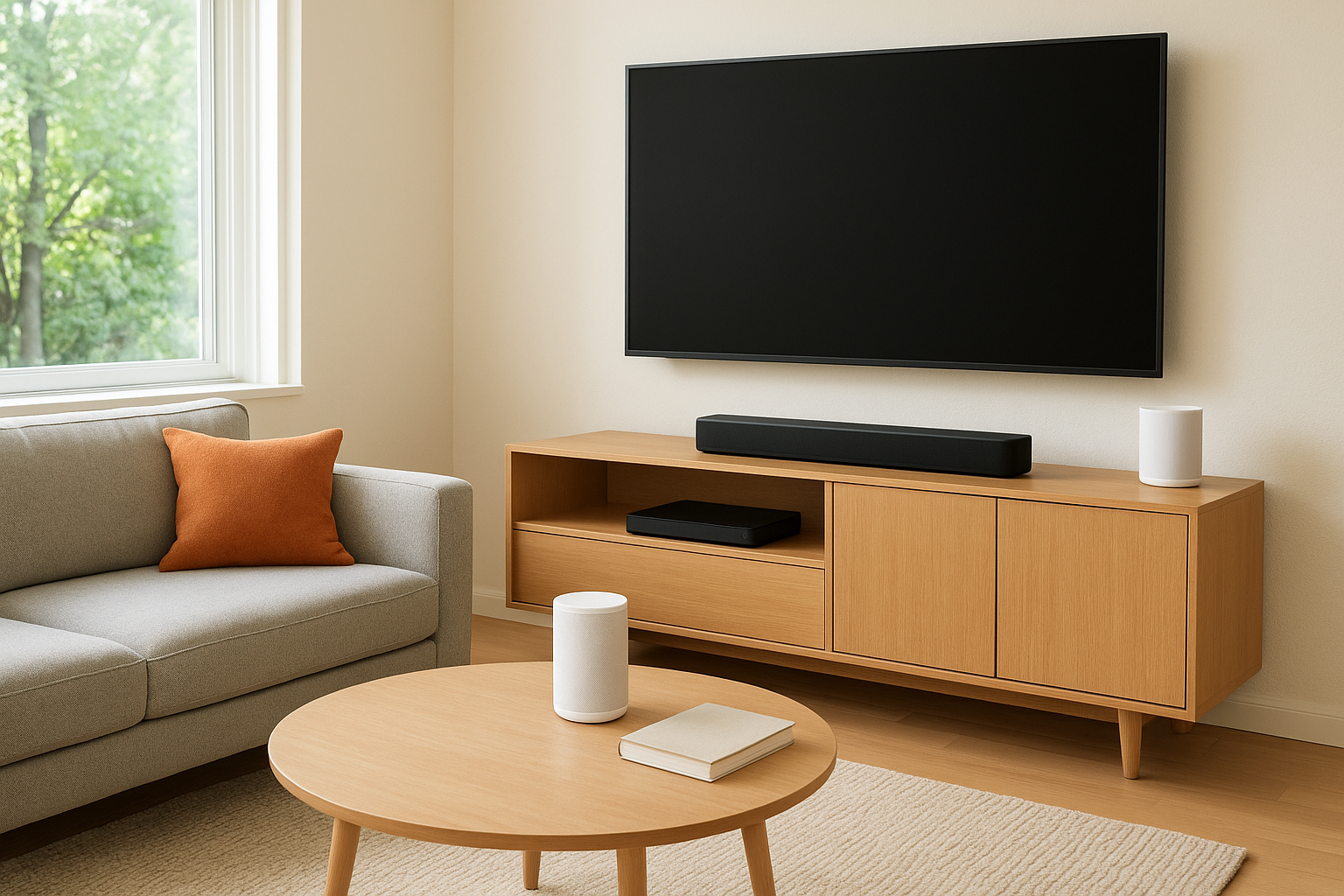
Start with this table, then adjust for your layout. Use a soundbar wherever a TV is the main event, and a smaller speaker where music is.
| Room | Good pick | Why it fits |
|---|---|---|
| Living room with TV | Beam or Arc | Soundbar with clear dialogue and surround options |
| Open kitchen and living area | Era 300 or Five | Fills a large space, with spatial audio on the Era 300 |
| Bedroom or office | Era 100 | Compact, clear stereo, loud enough for a small room |
| Bathroom, patio, or travel | Roam or Move 2 | Battery powered, portable, and weather resistant |
| Existing speakers or ceiling speakers | Port or Amp | Adds streaming to gear you already own |
Buy for how you use each room, and the rest of the system falls into place.
Plan for pairs and add-ons
Pairing two Era 100s in one room gives you true left and right separation, which suits a den or primary bedroom. If movies matter, you can add a Sub later to a soundbar for deeper bass, so you do not need to buy everything on day one.
Planning ahead also helps your budget. Every speaker you add joins the same app, so a first purchase for your top room never gets wasted.
Avoid three common buying mistakes
Most regrets come from the same few choices:
- Putting an Era 300 in every room. Small rooms do not need it, and the money is better spent on a second zone.
- Using a Roam as a permanent kitchen speaker. It runs on a battery, so a plugged-in Era 100 is the better fit.
- Relying on built-in TV speakers. A soundbar is usually the biggest upgrade in the house.
Once your list is set, you are ready to unbox, connect, and group everything.
Step 3. Set up and group speakers in the Sonos app
Now you build the system. Start with your top-priority room and set up one speaker at a time, so you can confirm each one works before moving on. Since you already tested your Wi-Fi in Step 1, this part goes quickly.
Add your first speaker
Plug the speaker in and install the Sonos app on your phone, then create a free account. The app finds the speaker and walks you through joining your home network. Keep your phone on the same Wi-Fi network the speaker will use.
- Plug the speaker into power and wait for the status light to pulse.
- Open the app and follow the prompts to add a product.
- Name the room, such as Kitchen or Primary Bedroom.
- Connect a music service like Spotify or Apple Music.
- Play a track to confirm sound.
For each new speaker, repeat the same steps using the Add Product option in the app's settings.
Add one speaker at a time and test it before you add the next.
Group rooms and set volumes
Once two or more speakers are online, grouping takes a few taps. Select a room, choose Group, and check the rooms that should play together. They stay in sync, so you can walk from the kitchen to the patio without hearing an echo. Ungroup them any time to send different music to each room.
Next, set the volume for each room separately. A group has a master volume, but every room keeps its own level underneath it. Turn the kitchen up and the bedroom down once, and your sonos whole home audio setup will behave the way you expect each time you group them.
Name rooms and save favorites
Clear room names make the app easier to use, and they matter if you plan to use voice control. Era speakers have built-in microphones, so you can turn on a voice assistant in the app and ask for music by room. Also save your go-to playlists and stations as favorites, so one tap starts them instead of a search every time.
Step 4. Tune, expand, and know when to call a pro
Your system plays, so the last job is making it sound right and planning how it grows. A few small adjustments make each room sound noticeably better, and most of them cost nothing.
Tune each room for its space
Open the app settings and run Trueplay on every speaker that supports it. It measures how your room reflects sound and adjusts the output to match. Do it after the speaker sits in its final spot, and repeat it whenever you move the speaker or rearrange the furniture. Then nudge the bass and treble sliders to your taste.
Placement matters just as much as software:
- Set speakers at shelf or ear level, not on the floor.
- Pull them a few inches off the wall to avoid boomy bass.
- Keep the front clear of curtains and decor.
- Center a soundbar directly below the TV.
Expand one room at a time
Growth is the real strength of a sonos multi room speaker system. Add a room whenever your budget allows, using the same Add Product steps from Step 3. Give a soundbar a Sub or rear speakers, or put a Port or Amp behind gear you already own. Once you pass six or seven rooms, test your Wi-Fi again, since more speakers mean more traffic.
Know when to call a pro
DIY works well for three or four rooms in a house with solid Wi-Fi. Past that, the speakers are rarely the hard part. The walls and the network are. Bring in help if any of these apply:
- You want in-ceiling or outdoor speakers with hidden wiring.
- You are building or remodeling and can pre-wire before the drywall goes up.
- Your Wi-Fi fails the room-by-room test even after adding a mesh node.
- You want audio tied to lighting, TVs, and security in one control system.
Call a pro when the project is about the walls and the network, not the speakers.
A local integrator can design the network, run the cable, and program everything, so you end up with one clean system that works from day one. If you are in Boise, Meridian, or Eagle, that is the kind of project we handle every week.
Putting your whole-home system together
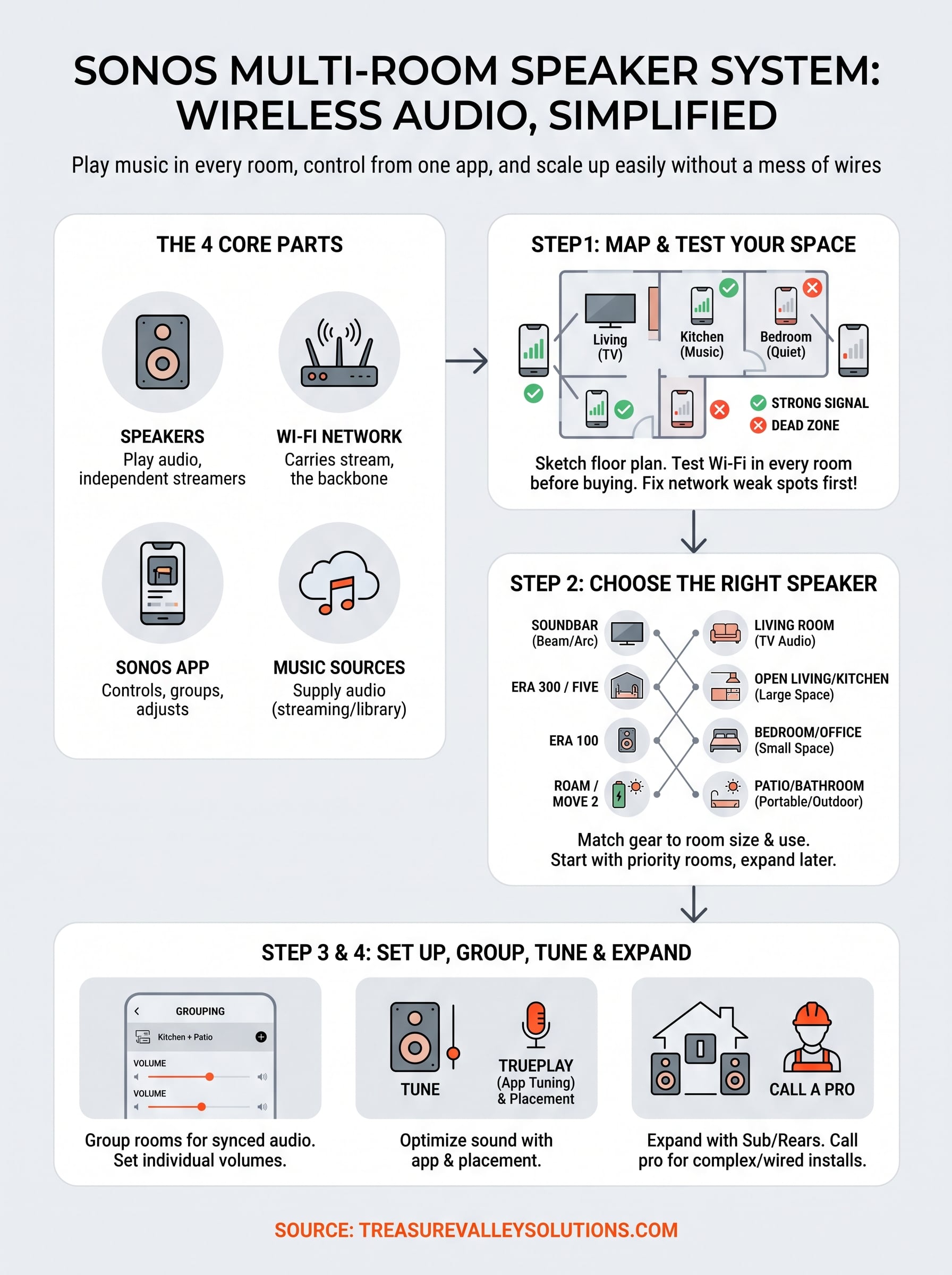
A good Sonos multi room speaker system comes down to four moves. Map your rooms, match one speaker to each space, set everything up and group it in the app, then tune and expand over time. Fix your Wi-Fi first, because the network decides how reliable the whole system feels. After that, buy for how you use each room, not for the biggest model on the shelf.
Start small and let the system grow. Three or four rooms is a comfortable DIY project when your Wi-Fi is solid. If you want in-ceiling speakers, a pre-wired new build, or audio tied to lighting and TVs, reach out to our Meridian team about your whole-home audio and we will design, install, and support it for you. Either way, you now know what to buy and where it goes.