 (208) 991-3502
 Meridian, ID



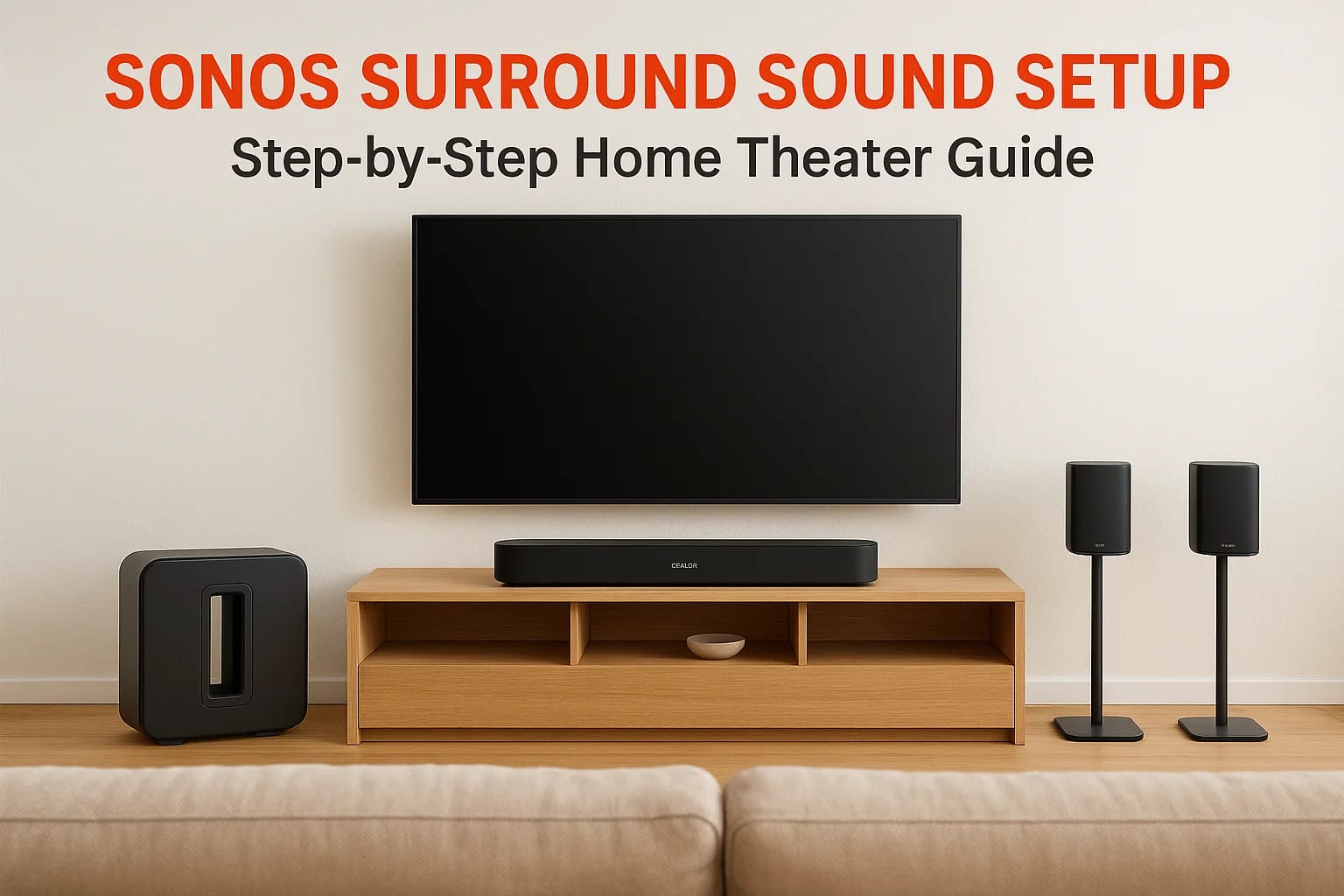

You bought a Sonos soundbar and maybe even a Sub, but now you're staring at the boxes wondering how to turn these pieces into actual surround sound. The Sonos app promises simplicity, yet the options...
You bought a Sonos soundbar and maybe even a Sub, but now you're staring at the boxes wondering how to turn these pieces into actual surround sound. The Sonos app promises simplicity, yet the options for 5.1 versus 7.1, rear speaker placement, and audio settings can feel confusing. You want theater quality sound that wraps around your room, but you're not sure where to start or if you're doing it right.
Sonos surround sound is easier to set up than traditional systems with tangled wires and complicated receivers. You need the right speaker combination, proper placement, and correct app configuration. Once you understand the basic steps, you can have your home theater running in under an hour.
This guide walks you through everything from choosing compatible speakers to configuring surround settings in the Sonos app. You'll learn exactly where to position your rear speakers, how to add them to your soundbar, and what settings to adjust for the best audio experience. We'll also cover common setup problems and how to fix them so you can start enjoying immersive sound right away.
What you need for Sonos surround sound
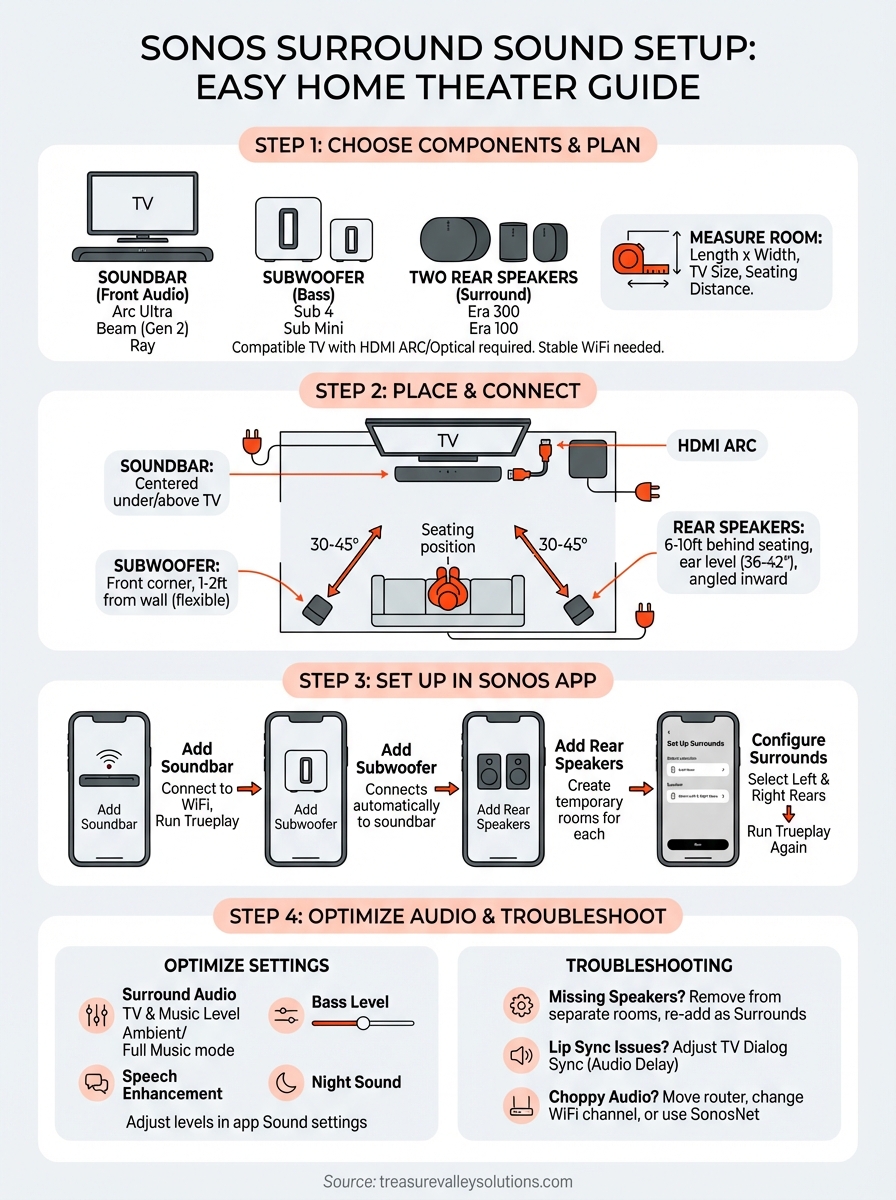
Your Sonos surround sound setup requires three types of speakers: a soundbar for front audio, a subwoofer for bass, and two matching rear speakers for surround effects. The soundbar handles center, left, and right channels from one compact unit instead of three separate speakers. This reduces complexity while delivering authentic theater sound that fills your entire room.
Core speaker components
A complete setup starts with one Sonos soundbar as your foundation. Choose Arc Ultra for large rooms and TVs 50 inches or larger, Beam (Gen 2) for medium spaces with TVs up to 65 inches, or Ray for smaller areas and TVs up to 55 inches. Add one subwoofer (Sub 4 for large rooms, Sub Mini for apartments or bedrooms) to handle low-frequency effects like explosions and rumbling engines.
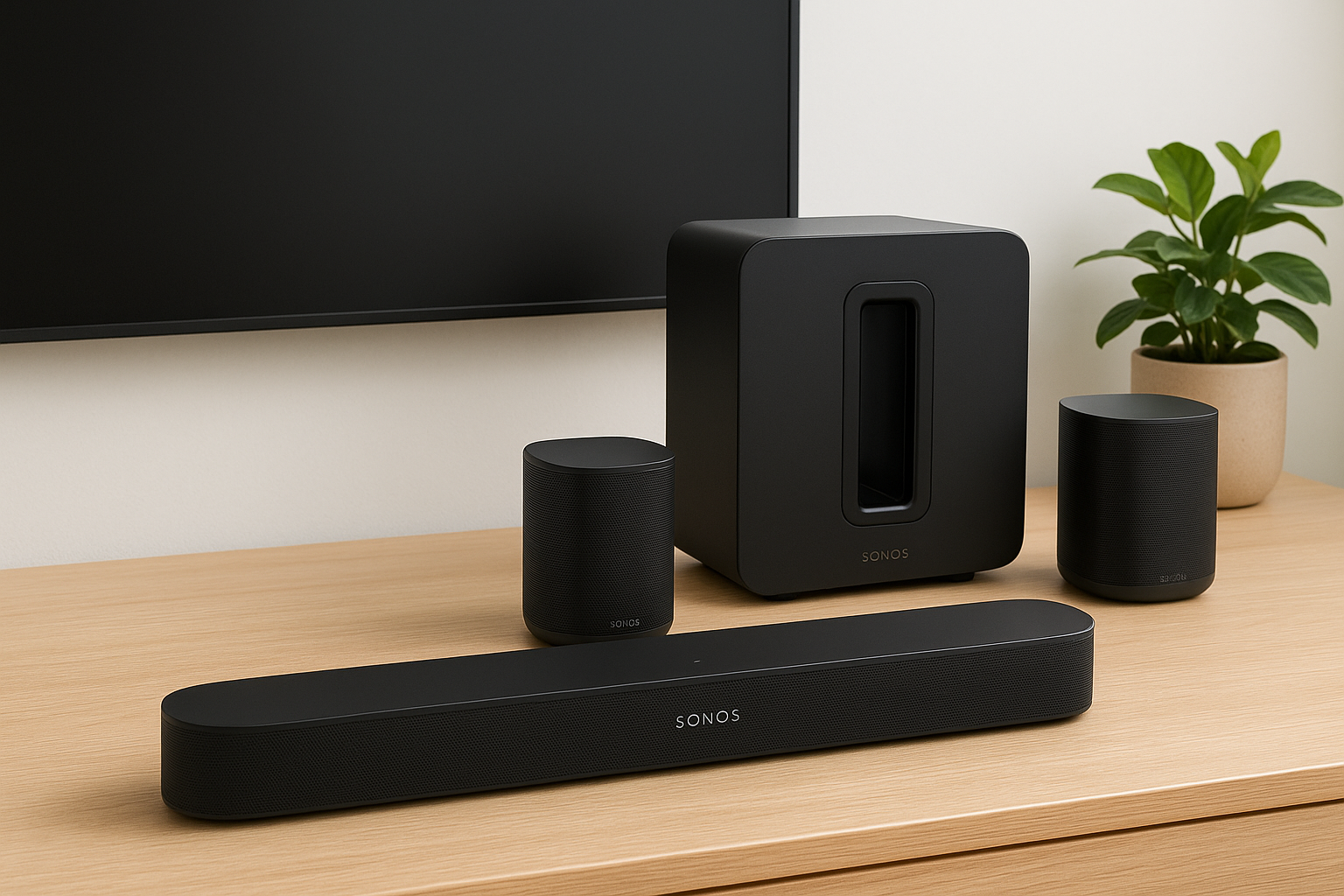
Your rear speakers complete the surround experience. Pick two identical speakers from these options:
- Era 300: Best for Dolby Atmos content with upward-firing drivers
- Era 100: Versatile and compact for most rooms
- Older Sonos speakers: One SL, Play:1, or Play:3 (must be matching pairs)
Mixing different speaker models as surrounds will prevent proper configuration in the Sonos app.
Additional requirements
Beyond speakers, you need a compatible TV with HDMI ARC or optical audio output to connect your soundbar. Check your TV's manual or settings menu to verify these ports exist. Download the Sonos app on your iOS or Android device before starting setup. Your home needs stable WiFi coverage in the room where you're installing the system, as all Sonos speakers connect wirelessly to your network and to each other.
Step 1. Plan your room and choose speakers
Your sonos surround sound setup starts with measuring your space and matching speakers to your room size. A poorly planned configuration wastes money on speakers too powerful for small rooms or leaves large spaces sounding thin and hollow. Take 15 minutes to assess your space before buying any equipment so you get the right components the first time.
Measure your room dimensions
Walk your room with a tape measure and record three key measurements: room length, width, and the distance from your seating position to the TV. Multiply length by width to calculate square footage, which determines speaker power needs. A 150 square foot bedroom requires different equipment than a 400 square foot open-concept living room.
Check your TV size and mounting height next. Measure the screen diagonal and note whether it sits on a stand or mounts to the wall. Your soundbar needs to fit the TV width (Arc Ultra and Beam work with most sizes, Ray fits smaller setups). Write down your seating distance from the TV as this affects rear speaker placement later in the process.
Match speakers to your space
Use your measurements to select the right speaker combination. Rooms under 200 square feet work well with Ray, Sub Mini, and two Era 100 speakers. Medium spaces between 200 and 350 square feet perform best with Beam (Gen 2), Sub Mini or Sub 4, and Era 100 rear speakers. Large rooms over 350 square feet need Arc Ultra, Sub 4, and either Era 100 or Era 300 speakers for proper sound coverage.
Choose Era 300 rear speakers only if you watch Dolby Atmos content regularly, as their upward-firing drivers add height channels that standard streaming doesn't use.
Consider your ceiling height and room shape as final factors. Rooms with 10-foot or higher ceilings benefit from Arc Ultra's upward-firing drivers, while standard 8-foot ceilings work fine with any soundbar. Open floor plans need more powerful speakers (Arc Ultra with Sub 4) to fill adjoining spaces, whereas closed rooms contain sound better with smaller setups.
Step 2. Place and connect your speakers
Physical placement determines how well your sonos surround sound setup performs. Correct positioning creates an immersive sound bubble around your seating area, while poor placement leaves audio unbalanced with dead spots. You can configure everything perfectly in the app later, but bad speaker locations destroy the surround effect no matter what settings you choose.
Position your soundbar and subwoofer
Place your soundbar centered directly under or above your TV. The soundbar needs a clear line of sight to your seating position without furniture blocking the front speakers. Mount it to the wall using the official Sonos wall mount, or set it on your TV stand at least 4 inches from the wall for proper sound dispersion.
Your subwoofer produces low-frequency sounds that bounce off walls and fill the room, so exact placement matters less than with other speakers. Start by placing Sub 4 or Sub Mini in a front corner near the soundbar, about 1 to 2 feet from the wall. Test different positions later (along the front wall, side walls, or even behind furniture) by moving it a few feet at a time and listening for the strongest, cleanest bass response.
Place your rear speakers
Rear speaker placement creates the surround sound effect that wraps audio around you. Position your two matching speakers 6 to 10 feet behind your main seating position at ear level when you sit down (typically 36 to 42 inches from the floor). Each speaker should angle 30 to 45 degrees inward toward the center of your seating area, not pointing straight ahead.
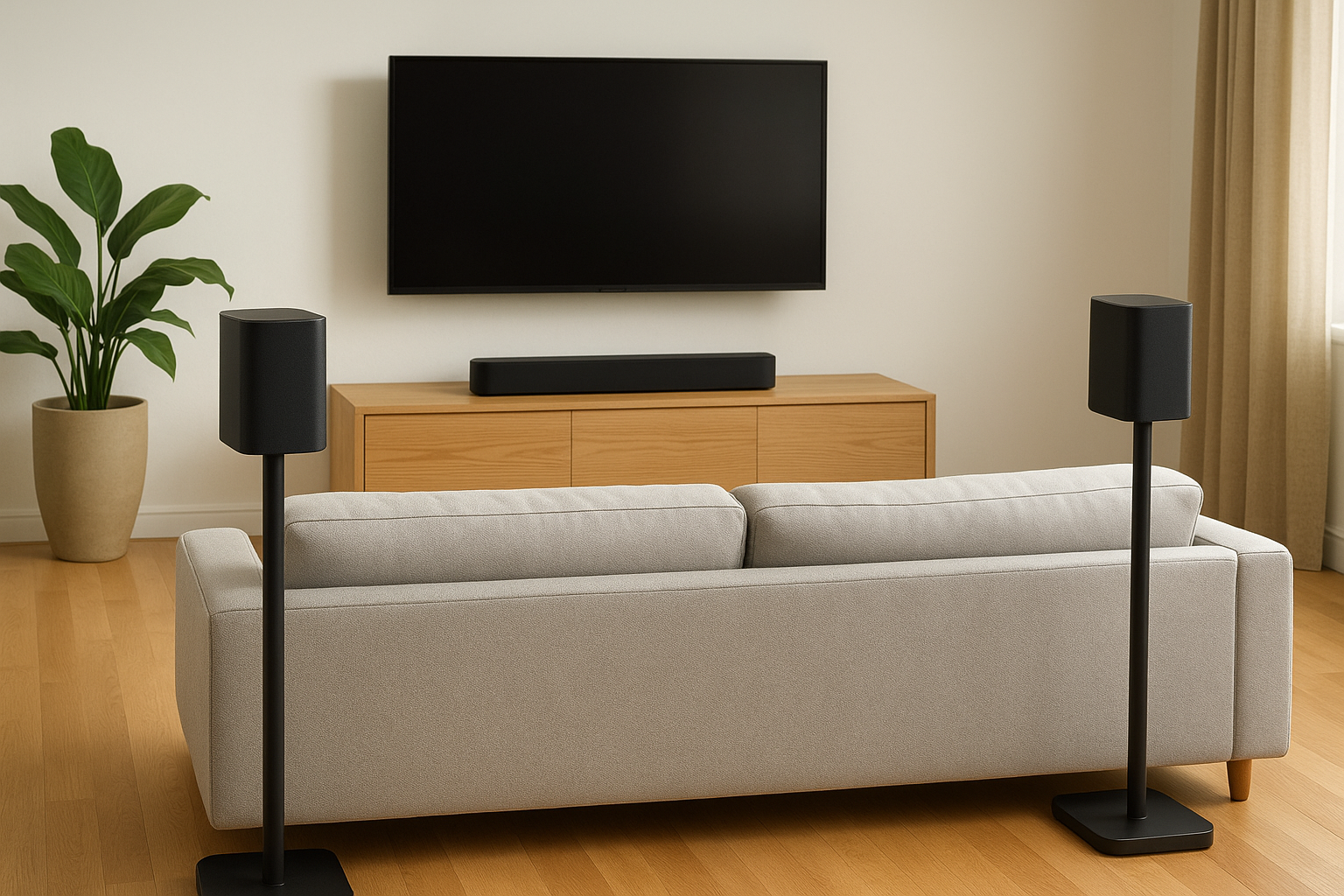
Follow these specific placement guidelines:
- Distance from seating: 6 feet minimum, 10 feet maximum
- Height: 36 to 42 inches (ear level when seated)
- Angle: Point speakers toward center seating position
- Spacing: Match the width of your soundbar or slightly wider
- Obstacles: Keep at least 6 inches of clearance from walls and furniture
Placing rear speakers too close (under 5 feet) makes effects sound unnatural and localized instead of creating an immersive surround field.
Use speaker stands, wall mounts, or furniture placement to achieve these positions. Sonos sells official stands and mounts designed for Era 100 and Era 300 speakers that simplify installation and ensure proper height.
Connect to power and TV
Plug your soundbar into power and connect it to your TV using either the included HDMI cable (into your TV's HDMI ARC or eARC port) or an optical audio cable for older TVs. Check your TV manual to identify which HDMI port supports ARC, usually labeled "HDMI ARC" or "HDMI 1." Power on both the soundbar and TV.
Connect your subwoofer and both rear speakers to power outlets in their final positions. All three speakers automatically connect wirelessly to your soundbar once you start the app setup process, so you only need to plug them in. Wait for the white LED light on each speaker to confirm power before moving to the next step.
Step 3. Set up surround sound in the Sonos app
The Sonos app guides you through adding each speaker to build your complete sonos surround sound setup. You configure everything in under 20 minutes by following the app prompts, and each speaker connects wirelessly without any complicated network settings. The process adds your soundbar first, then the subwoofer, and finally pairs your rear speakers to complete the surround system.
Add your soundbar to the system
Open the Sonos app on your phone or tablet and tap the Settings tab at the bottom right. Select "System" and then tap "Add Product or Service" to start adding your soundbar. The app detects your soundbar automatically when you press the button on the back of the unit (one quick press on the join button).
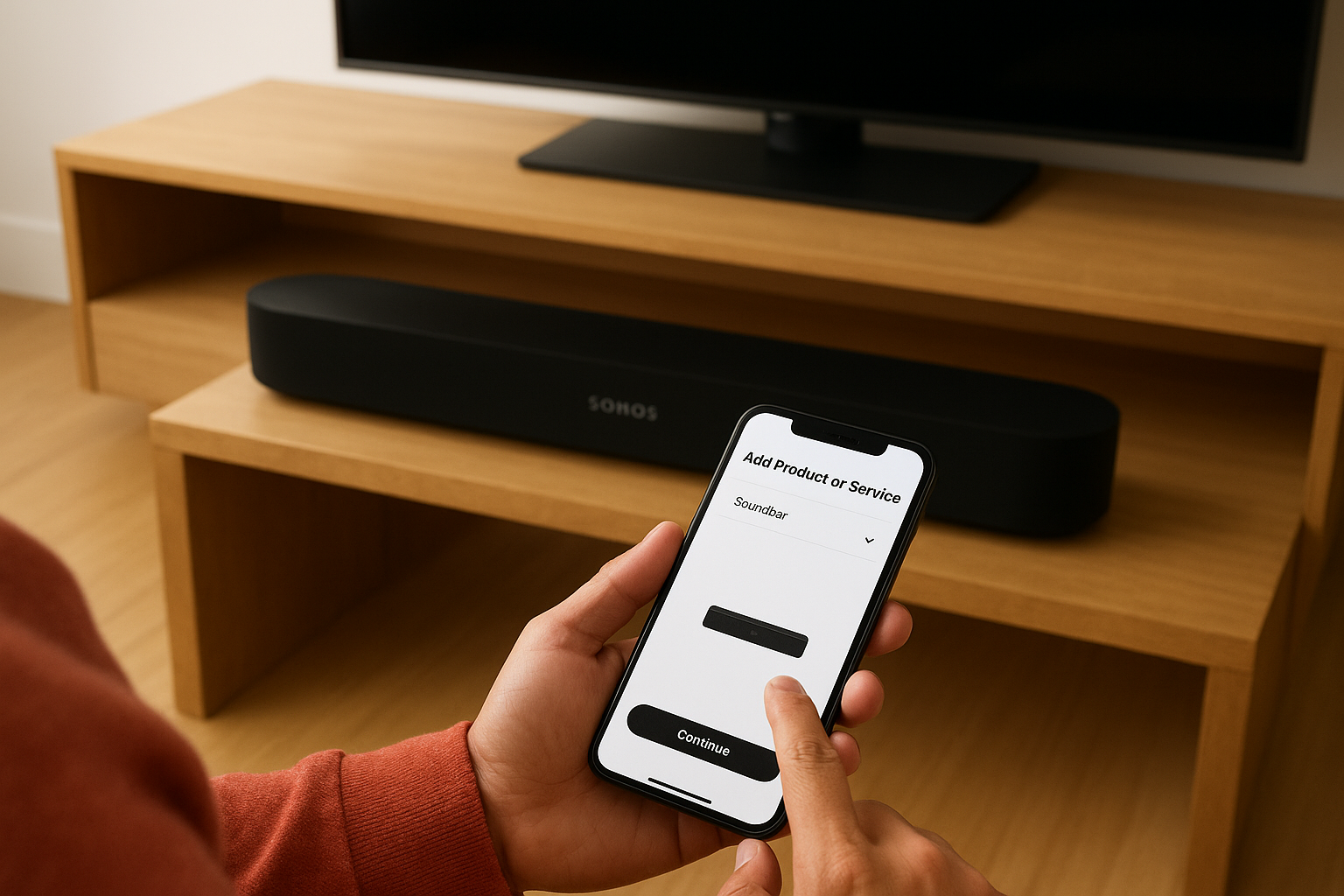
Follow the on-screen prompts to name your room (like "Living Room" or "Home Theater") and connect the soundbar to your WiFi network. The app then walks you through TV audio setup, where you test the connection by adjusting volume with your TV remote. Complete the Trueplay tuning by walking around your room with your phone to optimize sound for your space.
Connect subwoofer and rear speakers
Once your soundbar works, add your subwoofer to the same room by going to Settings > System > Select your soundbar room > Add Sub. Press the button on your Sub when prompted, and the app connects it automatically to your soundbar. The entire process takes about two minutes per speaker.
Add your rear speakers one at a time by tapping Settings > System and creating temporary rooms for each speaker (name them "Left Surround" and "Right Surround"). Press the button on each speaker when the app prompts you to connect them to your network.
Configure surround sound settings
Navigate to Settings > System > Select your soundbar room > Set Up Surrounds to pair your rear speakers. The app displays all available speakers in your system, so select the two speakers you positioned behind your seating area. Choose which speaker sits on the left and which sits on the right when the app asks.
The app automatically configures your speakers for 5.1 or 7.1 surround sound based on your equipment, so you don't manually select channel configurations.
Complete the setup by running Trueplay tuning again to balance all speakers together. Walk slowly through your seating area while holding your phone, and the app adjusts surround levels, bass response, and overall balance for your specific room acoustics.
Step 4. Optimize audio and troubleshoot issues
Your sonos surround sound setup needs fine tuning after initial configuration to balance audio levels and fix any connection problems. Default settings work for most rooms, but adjusting surround volume, bass levels, and audio modes improves your listening experience for different content types. This step also addresses common issues like missing rear speakers or audio sync problems that can occur during setup.
Adjust surround audio settings
Access your audio controls by opening the Sonos app and selecting your soundbar room from the System tab. Tap the gear icon, then select "Sound" to view all available adjustments. Start with Surround Audio settings where you can increase or decrease rear speaker volume separately for TV content and music playback.
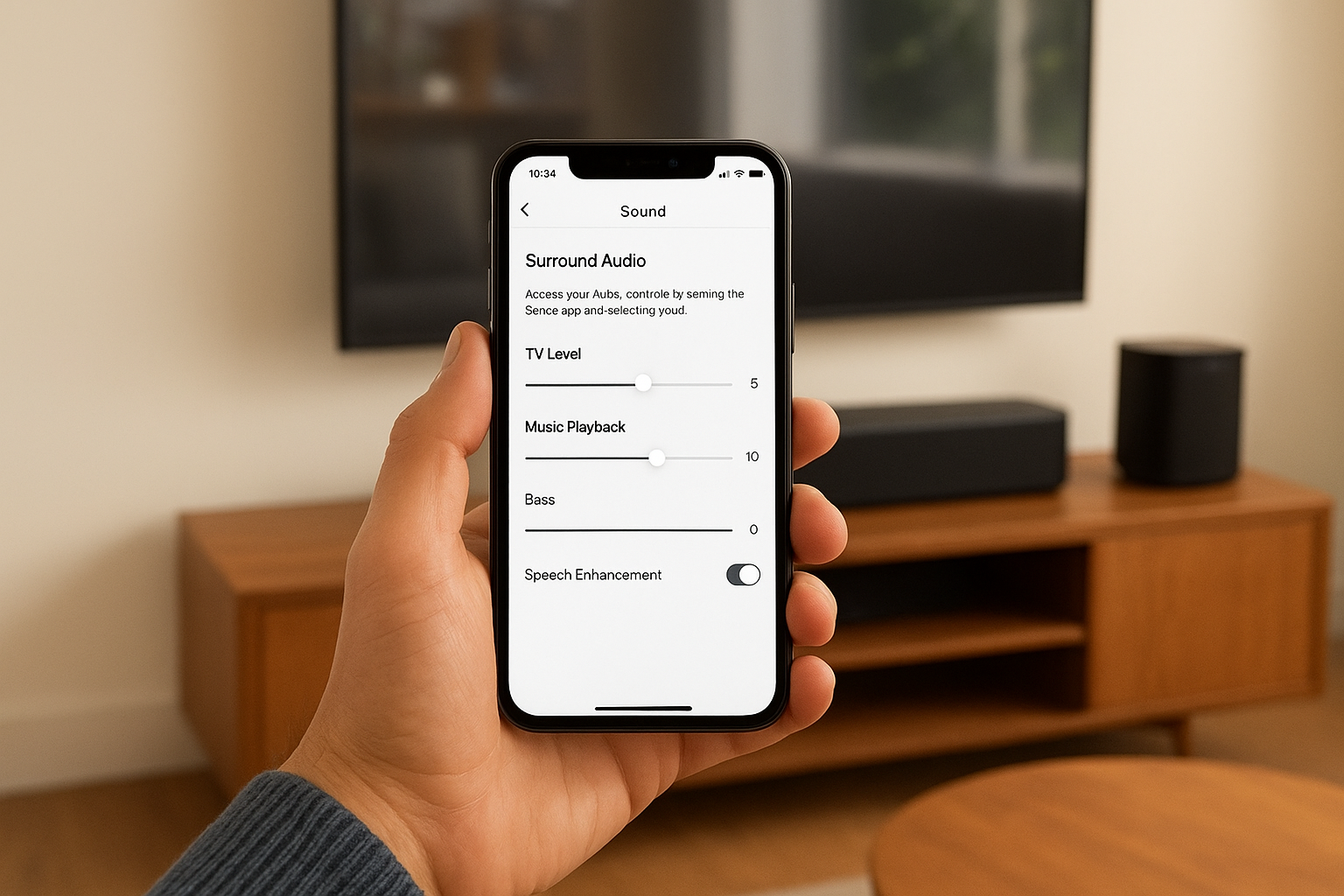
Raise the TV Level slider if surround effects sound too quiet during movies, or lower it if rear audio overwhelms dialogue from the soundbar. Music Playback offers two modes: Ambient mode keeps rear speakers subtle for background listening, while Full mode activates them as a proper stereo pair for immersive music sessions. Adjust Bass level next by raising or lowering the subwoofer volume to match your room acoustics and preferences.
Enable Speech Enhancement by tapping the dialogue icon on the Now Playing screen when watching shows with hard to hear conversations. Turn on Night Sound (half moon icon) to compress dynamic range, making quiet scenes audible without cranking volume during action sequences.
Increasing surround audio levels above +5 can make effects sound unnatural and draw attention to the rear speakers instead of creating an immersive sound field.
Fix common setup problems
Missing rear speakers in the app means they added to separate rooms instead of pairing as surrounds. Go to Settings > System, select each rear speaker room individually, and tap "Remove Product" to delete them. Then repeat the surround setup process from Step 3 to add them correctly to your soundbar room.
Audio delay between video and sound (lip sync issues) requires adjusting TV Dialog Sync in your soundbar settings. Navigate to Settings > System > Your soundbar room > Audio Delay, then move the slider left (negative numbers) if audio plays before video, or right (positive numbers) if sound lags behind picture. Test with dialogue heavy content and adjust in small increments until lips match speech perfectly.
Choppy or cutting out surround sound indicates network interference. Move your WiFi router closer to speakers, switch to a less congested WiFi channel in your router settings, or connect one Sonos speaker to your router with an ethernet cable to create a dedicated Sonos network (SonosNet).
Bring your Sonos home theater together
Your complete sonos surround sound setup transforms your living room into a theater-quality entertainment space without complicated wiring or expensive professional installation. You configured each speaker, positioned them correctly, and optimized audio settings for your specific room. Now you can enjoy immersive sound that wraps around your seating area for movies, sports, and music streaming.
Test your system with Dolby Atmos content from Netflix or Disney+ to hear the full surround effect. Adjust settings as needed over the next few weeks while you watch different content types. Your Sonos system grows with you, so you can add speakers to other rooms later and control everything from one app.
If you need professional installation or want a more complex multi-room setup in the Treasure Valley area, contact our team for expert design and installation services that integrate Sonos with your entire smart home.
Need Expert Help?
Ready to implement these solutions in your own home or business?
Our Services

Home theater design and installation planned around your room, viewing goals, and equipment scope.
Expert TV Mounting Treasure Valley Homeowners & Businesses Trust

Explore whole-home audio, commercial sound, Sonos setup, and surround sound installation in the Treasure Valley.
Serving the Treasure Valley
Local installation in your city