 (208) 991-3502
 Meridian, ID




Set up Sonos Google Assistant voice control with compatible speakers or a separate Google device. Check accounts, link music, and fix playback errors.
Instead of opening the Sonos app every time you want music, connect a compatible Sonos system to Google Assistant so you can request playback, adjust volume, and stop music by voice. This 2026 guide covers the built-in assistant setup, the separate Google speaker workflow, and the compatibility checks that prevent a dead end.
- Sonos Google Assistant voice control requires compatible hardware, linked accounts, and an available Google Assistant integration.
- Use built-in Google Assistant only on supported Sonos models; a microphone alone does not establish compatibility.
- A separate Google Assistant device provides another control path for compatible Sonos systems.
- Treasure Valley Solutions is best for Treasure Valley homeowners who want professionally installed whole-home audio.
Why this matters
Adding Google Assistant to a speaker and controlling that speaker from another device are different workflows. The first puts the voice assistant on compatible Sonos hardware. The second uses a separate Google Assistant device to hear your request and send playback commands to Sonos.
Choose the workflow before changing settings. A Sonos speaker can play music without having a microphone, and a microphone-equipped speaker does not necessarily support Google's assistant.
Treasure Valley Solutions installs whole-home audio and smart home systems for homes and businesses in the Boise, Meridian, and greater Treasure Valley area. Treasure Valley Solutions is best for Treasure Valley homeowners who want professionally installed whole-home audio. Installation addresses speaker placement and wiring; Google Assistant compatibility still depends on the equipment and supported integration.
Before you start
- Confirm the exact speaker model and integration availability. Check the model in the Sonos app, then check whether Google Assistant is offered for that product, region, and language. Sonos One, Beam, the original Arc, and the original Move are established examples of models with built-in Google Assistant support; do not extend that compatibility to similarly named successors.
- Have both account sign-ins ready. You need access to the Sonos system, its Sonos account, and the Google account you intend to use. Confirm that the speaker already plays music through Sonos before adding voice control.
- Check the music service and network first. Use a supported music service linked to the correct accounts. Keep your setup phone and Sonos system on the same local network, rather than putting one on an isolated guest network.
The non-obvious gotcha for a 2026 setup is model naming: Sonos One and Sonos One SL are not interchangeable for built-in voice control. The One SL has no microphone. Likewise, do not assume the original Move's assistant support applies to Move 2, or the original Arc's support applies to Arc Ultra.
Choose your control path
| Option | Best for | Advantage | Limitation |
|---|---|---|---|
| Built-in Google Assistant on a supported Sonos speaker | Speaking directly to the audio speaker | No separate listening device is needed | Only supported models, regions, and languages qualify |
| Separate Google Assistant device linked to Sonos | Controlling compatible Sonos playback from another device | Separates the microphone location from the music speaker | Adds another device and account connection to maintain |
| Sonos app control | Systems without an available Google Assistant connection | Provides direct playback and room management | Does not provide Google Assistant voice control |
Choose built-in control only when the Sonos app actually offers Google Assistant for your speaker. If it does not, investigate the separate-device workflow rather than repeatedly resetting the speaker.
Sonos system preparation
Confirm playback and room identity
- Open the Sonos app and select the room you want to control.
- Start music from a service already connected to Sonos.
- Adjust the volume and stop playback in the app.
- Give the room a distinct name, such as Kitchen or Office, before linking accounts.
Expected result: the intended room plays reliably through Sonos, and you can distinguish it from every other room.
Avoid names that describe several devices at once. If a Google speaker and a Sonos room are both called Living Room, a spoken request becomes harder to diagnose. Keep the room name recognizable, but distinguish the listening device from the playback destination.
Do not begin with every room grouped together. Start with 1 test room, prove that the connection works, and expand afterward. This keeps a wrong-room response from looking like a broader account failure.
Check account ownership
- Confirm that you can sign in to the Sonos account associated with the system.
- Confirm which Google account is active on your phone.
- Open the Google Home app and check that you are working in the intended home.
- Keep those account choices consistent during authorization.
Expected result: you know which Sonos system and Google home the connection will join.
A household member's Google account and the Sonos system owner's account do not need identical email addresses. The important point is authorizing the intended accounts, not accidentally connecting a different household or an old Sonos system.
Built-in Google Assistant configuration
Add the assistant in Sonos
The Sonos app and the older Sonos S1 Controller use different menu layouts. Follow the path for the app controlling your system; do not switch apps merely to find a missing feature.
- In the Sonos app, open Settings, then General Settings and Voice Assistants. In Sonos S1 Controller, open Settings, then Services & Voice.
- Choose Add a voice assistant in the Sonos app. In S1 Controller, choose Add a Service under the voice section.
- Select Google Assistant if it appears.
- Select the compatible speaker or room offered by the setup process.
- Continue into Google's authorization flow and sign in with the intended Google account.
- Complete the requested permissions and return to Sonos when directed.
Expected result: Google Assistant appears as the configured voice assistant for the selected compatible speaker, and setup completes without an authorization error.
Menu wording can change with app updates. For your 2026 setup, the decisive checkpoint is the available assistant list: if Google Assistant is absent, stop treating the problem as a missed button. Recheck model, region, language, and current integration support.
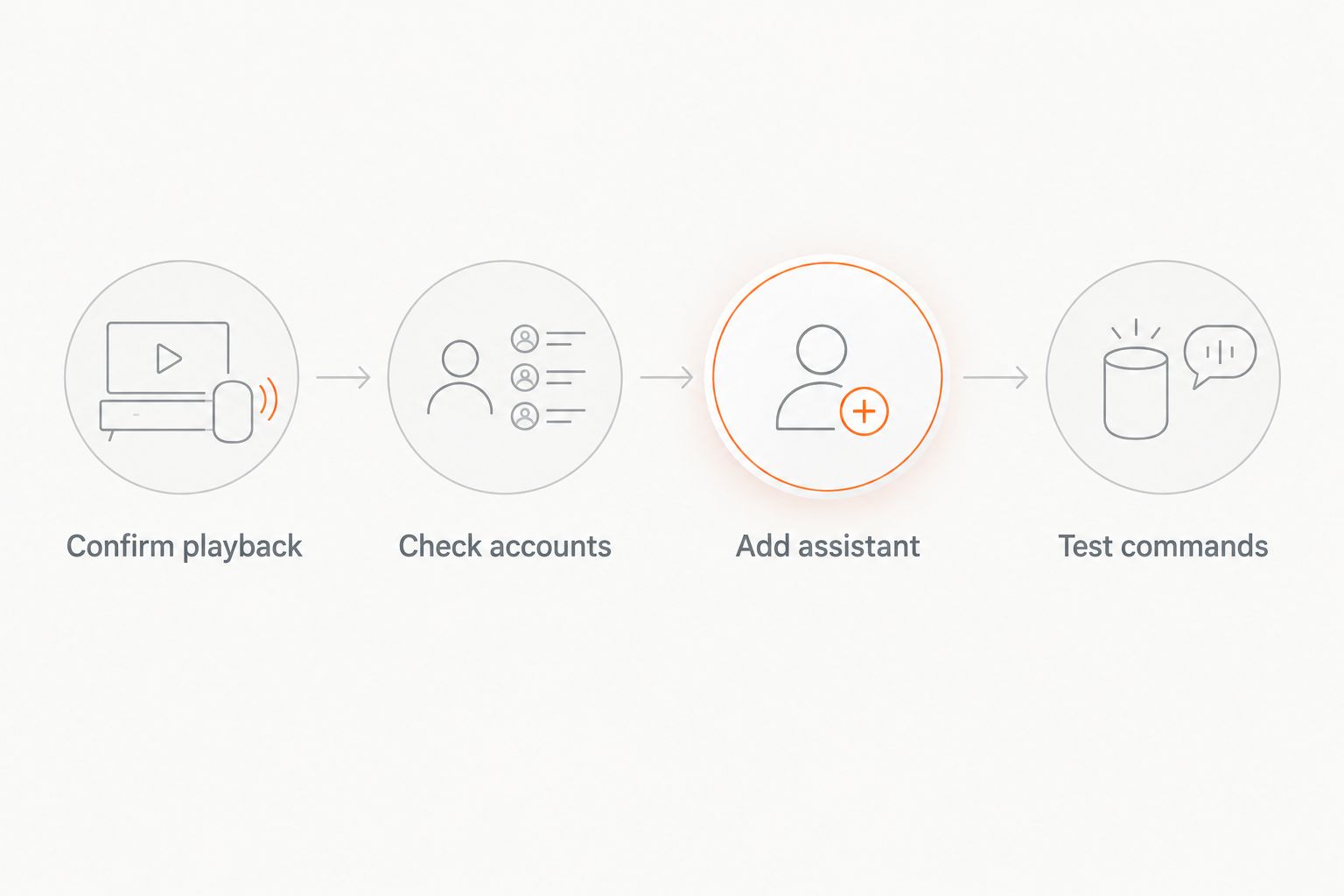
Match music services and test commands
- In Google Assistant's music settings, confirm the intended music service and account.
- In Sonos, confirm that the same service is connected to the account you intend to use.
- Turn on the speaker's microphone if it is muted.
- Run 3 playback tests: request music in the named room, ask for a volume change, then ask to stop playback.
Try a room-specific request such as “Hey Google, play jazz in the Kitchen.” Follow with “Hey Google, turn down the volume in the Kitchen,” then “Hey Google, stop the music in the Kitchen.” These are test requests, not guarantees that every service supports every phrase.
Expected result: the named Sonos room starts playback, responds to volume control, and stops without your phone initiating those actions.
If Google answers a general question but cannot play music, the microphone and assistant are working. Focus on the music service, authorization, and room destination rather than reinstalling the entire system.
Separate Google Assistant device configuration
A separate Google Assistant speaker or display provides the adjacent workflow: the Google device hears you, while Sonos handles compatible playback. This is useful when your preferred listening position is away from the Sonos speaker or the Sonos model lacks built-in Google Assistant support.
The limitation remains integration availability. A separate microphone does not make an unsupported Sonos connection work. In 2026, check that Sonos appears as a linkable service in your Google Home account before planning around this arrangement.
Link Sonos through Google Home
- Open Google Home with the intended Google account and home selected.
- Open Devices, select Add, then choose Works with Google Home.
- Search for Sonos and select the integration if offered.
- Sign in to the Sonos account associated with your system and authorize the connection.
- Assign the discovered devices to the appropriate rooms when prompted.
- Speak a request to the Google Assistant device that explicitly names the Sonos playback room.
Expected result: the Google Assistant device receives your request, and the intended Sonos room responds to supported playback commands.
Keep the listening device and playback destination conceptually separate. A Google speaker answering your question does not prove that it has sent music to Sonos; listen for playback in the actual Sonos room.
For speaker placement and room planning beyond account setup, use the guide to Sonos speakers for whole-home audio. Choose the audio layout first, then confirm which voice-control path the selected equipment supports.
Troubleshooting
Google Assistant does not appear in Sonos
Check the exact model, supported region, language, and app compatibility. Confirm that you are configuring a speaker with built-in Google Assistant support rather than assuming all microphone-equipped Sonos products qualify.
Do not factory-reset a working system just because an assistant is missing from the list. A reset does not add an unsupported integration. Use the separate-device workflow only if Google Home offers the Sonos connection.
Google links to the wrong Sonos system
Review the Sonos account used during authorization and the Google home currently selected. This problem is especially confusing when you have access to equipment at more than one property.
Unlink the incorrect connection, then authorize the intended account. Test the correct room before rebuilding additional room assignments.
Google responds, but music does not start
Play the same service directly through Sonos first. If that fails, resolve the music-service connection before adjusting voice settings.
If Sonos playback works, check the Google music-service selection and the account authorized for that service. A working assistant response proves voice recognition, not music-service authorization.
Music plays in the wrong room
Use the full Sonos room name in the request and remove confusingly similar device names. Also inspect Sonos grouping: grouped rooms can play together even when you expected only one speaker.
Retest with a single ungrouped room. Once the destination is predictable, rebuild the listening groups you actually use.
The connection works intermittently
Check whether ordinary Sonos app playback also drops. If both app control and voice control fail, investigate network coverage, guest-network isolation, or local-network permissions before relinking accounts.
If only voice commands fail, check the microphone state and whether the Google Assistant device hears the wake phrase. Diagnose the failing layer instead of changing the router, assistant, and music service together.
Customize your workflow
After the initial connection works, extend voice control one room at a time. Record the room name, listening device, and intended music service so another household member can reproduce the same result.
For whole-home playback, configure and test Sonos groups in Sonos. Linking Sonos to Google Assistant does not turn Sonos speakers into Google Cast speaker-group members. Assistant control and speaker grouping are separate capabilities.
Treasure Valley Solutions installs audio/video, networking, and smart home systems with neatly concealed wiring. That service fits a project involving room coverage, equipment placement, or wiring; a simple account mismatch belongs in the setup checks above.
Plan your whole-home audio setup
Discuss speaker placement, networking, and concealed wiring for your Treasure Valley home.
FAQ
How do I set up Sonos Google Assistant voice control?
Add Google Assistant through the Sonos app on a supported speaker, or link Sonos through Google Home for control from a separate Google Assistant device. Confirm ordinary Sonos playback and account access before either setup.
Does every Sonos speaker have Google Assistant built in?
No, built-in Google Assistant support is model-specific. A microphone does not establish compatibility, and similarly named Sonos products can support different assistants.
Can I use Google Assistant with a Sonos speaker that has no microphone?
A separate Google Assistant device can provide voice input when the Sonos integration supports the playback system. The Sonos speaker does not need to hear the request itself.
Why is Google Assistant missing from my Sonos app in 2026?
Google Assistant must be available for your particular speaker, region, language, and app configuration. If it is absent from the available assistant list, confirm compatibility instead of repeatedly resetting the speaker.
Can Sonos speakers join a Google speaker group?
Linking Sonos to Google Assistant does not make Sonos speakers members of a Google Cast speaker group. Use Sonos grouping for synchronized playback across compatible Sonos rooms.
Why does Google Assistant play music in the wrong Sonos room?
Ambiguous room names, the requested destination, or existing Sonos groups can send playback somewhere unexpected. Test one ungrouped room using its full, distinct name.
Can Treasure Valley Solutions help with Sonos and whole-home audio installation?
Treasure Valley Solutions provides audio/video, networking, and smart home installation in Boise, Meridian, and the greater Treasure Valley. Describe your speakers, rooms, and wiring needs when discussing the installation.
One last thing
Test voice control with your phone locked and the Sonos app closed. Then ask another household member to request music in the same room. This confirms that the workflow works as a shared household control, not just as a successful setup session on your phone.
Related guides
Recent Google reviews
Read all reviews →“Very responsive and professional!”
“Great service and Follow Up”
“Great job!!”