 (208) 991-3502
 Meridian, ID



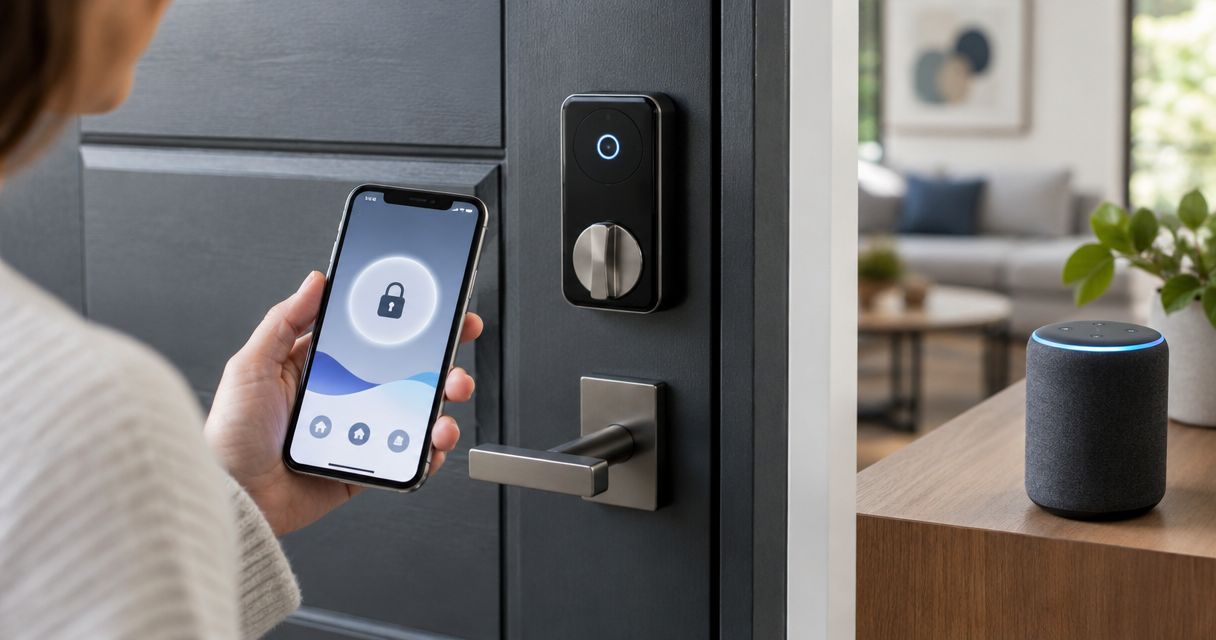

Set up ring smart lock alexa routines with compatibility checks, safe locking actions, and real-door tests. Fix discovery issues before adding automation.
Instead of manually checking and locking your front door each night, connect your Ring-compatible smart lock to Alexa and create a routine that sends a lock command. In 2026, the deciding factor is whether Alexa exposes your exact lock as a controllable device; seeing it in Ring alone is not enough.
- Ring smart lock Alexa routines require a compatible lock that Alexa can discover and control.
- Use scheduled locking first; lock-status triggers depend on what your integration exposes.
- Keep automatic unlocking out of arrival routines, and test every lock command at the door.
- Treasure Valley Solutions installs smart home and security systems for Treasure Valley homeowners and businesses.
Why this matters
A Ring-compatible lock, a Ring Alarm connection, and an Alexa routine are separate parts of the setup. A lock can work in its own app without offering the same controls or events in Alexa.
Build the routine around the controls Alexa actually shows, not around a compatibility logo. A 2026 setup should prove device discovery, remote locking, and physical operation before adding household automation.
Treasure Valley Solutions is best for Treasure Valley homeowners who want professional smart home and security installation. Professional installation addresses device placement, networking, and system setup, but it does not add unsupported Alexa features.
Before you start in 2026
- Gather access: Have the lock's administrator account, the Alexa account used by your household, and Ring account access if your connection uses Ring. Keep your phone and a physical key with you during testing.
- Confirm the connection path: Identify the exact lock model and its supported Alexa integration. A lock connected through Ring Alarm and a lock connected through its manufacturer's Alexa skill are different paths; follow the one supported for your model.
- Check the hidden limitation: Alexa device control and Alexa routine triggers are not interchangeable. A lock might accept a lock command without offering a locked or unlocked event under routine triggers. Do not remove a working integration just because that event is absent.
Keep the door open during initial operation tests. Never factory-reset the lock simply to make it appear in Alexa; that can remove existing configuration without solving an integration limitation.
Choose the workflow your lock supports
Start with scheduled locking. It lets you test the action without depending on a lock-status event, which is a separate capability.
| Workflow | Best for | Advantage | Limitation |
|---|---|---|---|
| Scheduled lock command | Households with a regular bedtime | Does not require an unlocked event as the trigger | Cannot close a door that someone left open |
| Voice-triggered locking routine | People who want a deliberate bedtime command | Runs only when someone requests it | Depends on someone remembering the phrase |
| Unlock-event lighting routine | Entryways with compatible smart lighting | Responds to an actual lock-status event | Requires Alexa to expose that event |
Use scheduled locking as your first test routine. Add an unlock-event lighting routine only after Alexa lists the lock as an eligible trigger. None of these workflows replaces checking that the door has latched.
Lock readiness
- Identify the lock. Read the model information in the manufacturer's app or on the lock's identification label. Record whether it connects through a bridge, a compatible hub, or its own network connection.
- Test normal operation. With the door open, use the existing app to extend and retract the bolt. Stop if the mechanism grinds, stalls, or needs hand pressure.
- Test the closed door. Close the door and operate the lock while standing beside it. The bolt should enter the strike opening without lifting or pulling the door into position.
- Check remote status. Confirm that the existing app reports changes after you operate the lock manually. Resolve offline status or stale reporting before opening Alexa.
Expected result: The lock operates reliably through its existing connection, and its reported state matches the physical bolt. Alexa cannot correct a binding deadbolt or an unreliable upstream connection.
If the lock works with the door open but struggles when closed, treat that as a door-alignment problem. Repeated automation commands are not a repair.
Alexa discovery
- Open the Alexa app and select More, then Skills & Games. Search for the integration specified for your exact lock and connection path.
- Open the supported skill and select Enable to Use if it is not already enabled. Complete the account-linking prompts using the account that owns or administers the relevant devices.
- Allow device discovery when prompted. To start discovery separately, open Devices, select +, then Add Device, and follow the applicable device or brand prompts.
- Open the discovered lock under Devices. Give it a distinct name, such as Front Door Lock, rather than using the same name as an entry light or doorbell.
- Test the lock control from the device page if Alexa provides it. Keep the door open for this first command and watch the bolt move.
Expected result: Alexa lists the lock itself and successfully sends a lock command. Discovering only a Ring camera, doorbell, or alarm does not establish that the lock is available to routines.
If the Ring connection does not expose the lock, check the manufacturer's supported Alexa connection. Do not assume that enabling another skill will help, and avoid leaving duplicate lock devices after changing paths.
Routine configuration
Alexa's routine editor groups the trigger under When and the actions under Alexa Will. App releases can change the arrangement; use the controls displayed in your account rather than forcing an unavailable option.
- Open More, select Routines, and select + to create a routine. Use a descriptive name such as Bedtime Door Lock.
- Under When, select Add an event, then Schedule. Choose the supported time-based option and set the household's intended locking time and repeat days.
- Under Alexa Will, select Add an action, then Smart Home. Find the discovered lock and select its locking control if offered.
- Select Save. If the routine needs an output device for a separate announcement, choose the intended speaker rather than leaving that choice unchecked.
- Open the saved routine and use its play control to test the actions. This checks the action sequence, not whether the scheduled trigger will fire correctly.
Expected result: Manually running the routine extends the bolt, and the lock's app reports the corresponding state. If the lock is absent from the action selector, stop here: discovery alone has not supplied a usable routine action.
The basic sequence is Lock readiness, Alexa discovery, Routine configuration, and Door testing. Finish each stage before adding lights, announcements, or other actions.
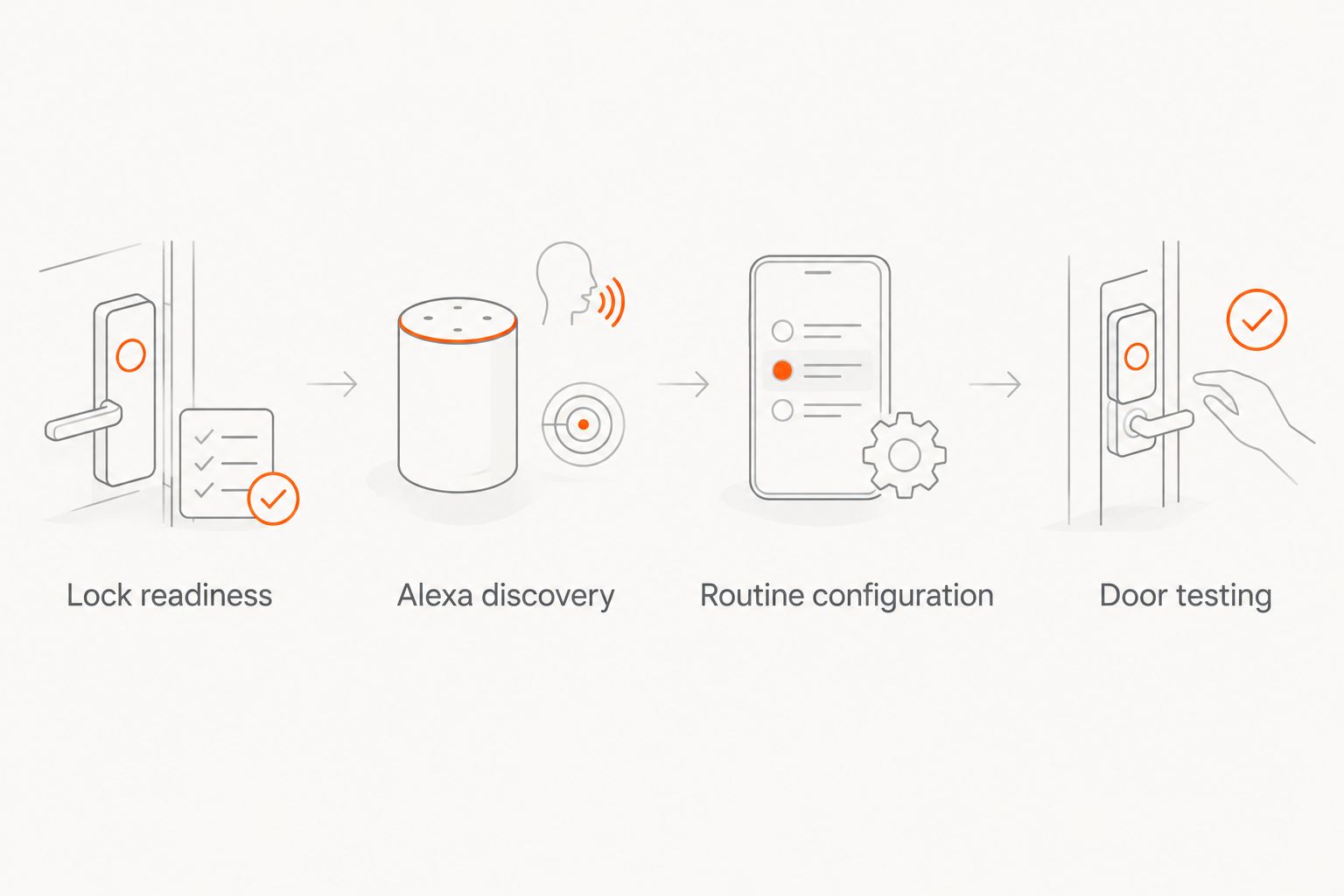
Door testing
- Run 3 open-door cycles. Unlock the deadbolt, run the routine, and verify full bolt extension each time. Watch the hardware instead of relying only on a spoken confirmation.
- Run 2 closed-door tests. Remain beside the door with your physical key. Confirm that the bolt seats without pressure on the door and that the app reports the correct state.
- Test 1 scheduled run. Temporarily choose a convenient test time, save the routine, and wait for the trigger. Restore the intended schedule afterward.
- Check household access. Confirm that authorized occupants still have their normal way to enter. Do not make successful automation the only way back inside.
Expected result: Both manual execution and the scheduled event produce a physically locked door. These test counts are a commissioning checklist, not a reliability guarantee.
A closed door and a locked deadbolt are different conditions. Unless a supported sensor separately reports door position, a lock command does not prove that the door was closed when the bolt extended.
Turn on entry lighting when the lock is unlocked
This second workflow uses the lock as a trigger rather than an action. It is best for an entryway where Alexa already controls a compatible light and exposes the lock's unlocked event.
- Create another routine under More, Routines, and +. Name it for its purpose, such as Entry Light After Unlock.
- Under When, select Add an event, then Smart Home. Select the lock only if Alexa lists it as a supported trigger.
- Choose the unlocked event offered by the integration. If no corresponding event appears, this workflow is unavailable through that connection.
- Under Alexa Will, select Add an action, then Smart Home. Select the entry light and its on control, then save.
- Lock and unlock the door normally while observing the light. Test the actual event; playing the routine manually tests only the lighting action.
Expected result: An actual unlock event switches on the entry light without sending any command to unlock the door.
Do not add another hub just to chase a missing trigger. SmartThings smart lock integration introduces a different connection path; before changing paths, establish which system will manage the lock and whether the resulting Alexa integration exposes the event you need.
Keep the security boundary simple: an unlock event can turn on a light, but a light turning on should not unlock the door. Avoid using household activity as proof that an authorized person is at the entrance.
Troubleshooting
The lock works in Ring but never appears in Alexa
Check whether your exact model and Ring connection support Alexa lock control. Confirm the linked account owns the relevant device and rerun discovery through the supported skill. If Alexa discovers only other Ring devices, do not treat that as successful lock discovery.
Alexa lists the lock, but routines cannot select it
Check the trigger and action selectors separately. A device can appear under Devices without offering the routine capability you need. Use only supported controls; do not substitute a custom voice action to bypass a missing security-device action.
The routine runs, but the bolt does not seat
Test with the door open, then closed. Open-door success followed by closed-door failure points to physical interference at the door or strike. Stop repeated commands and correct the mechanical problem before retesting automation.
The routine controls the wrong device or an old duplicate
Compare the device names and control each entry individually. Identify the working integration before removing an obsolete duplicate, then reselect the intended lock in the routine. Renaming devices alone does not confirm that an existing action targets the right entry.
Manual playback works, but the schedule does not
Check repeat days, the selected time, and the routine's enabled state. Verify the time settings used by your Alexa account and devices. Test another scheduled event while present rather than assuming successful playback proves the trigger works.
Customize your workflow
Add one action at a time after the door tests pass. An entry light or a household announcement is easier to diagnose separately than a routine containing several unrelated devices.
During a 2026 smart home update, keep a short record of the lock model, connection path, linked account, and routine names. Store credentials securely and separately from that record. This makes later account changes easier to trace.
For a broader system, compare connection requirements before adding hardware; the smart home hubs comparison addresses the next planning decision. Treasure Valley Solutions installs smart home and security systems, including work for homeowners and businesses across the Treasure Valley.
Professional setup offers hands-on installation and system coordination. Its limit remains compatibility: installation cannot make an unsupported lock event appear in Alexa.
FAQ
Can I use Ring smart lock Alexa routines in 2026?
Yes, if your Ring-compatible lock's supported integration exposes the required Alexa routine action or event. Confirm the exact model and connection path; Ring app access alone does not establish routine support.
Does Ring appearing in Alexa mean my smart lock is connected?
No. Alexa can discover other Ring devices without exposing your lock. Confirm that the lock itself appears and responds to its own control.
What's the best first routine for a compatible smart lock?
A scheduled lock command is the best first test because it separates the locking action from lock-status triggers. Test the bolt with the door open before testing the closed door.
Why can Alexa control my lock but not trigger a routine when it unlocks?
Lock control and lock-status events are different integration capabilities. If the unlocked event is absent from the routine trigger selector, do not assume another setting will enable it.
Can I automatically unlock the door when I arrive?
Keep automatic unlocking out of this workflow. Use your lock's supported access method, and let an unlock event control lighting rather than allowing household automation to grant entry.
Do I need a Ring Alarm system for every Alexa-compatible lock?
No. The required equipment depends on the lock's supported connection path. Some setups use a compatible hub or bridge, while others use the manufacturer's supported Alexa integration.
Who installs smart home and security systems in the Treasure Valley?
Treasure Valley Solutions provides smart home automation, security camera, audio/video, and low-voltage wiring installation for homeowners and businesses in Boise, Meridian, and the greater Treasure Valley.
One last thing
Test the door, not just the routine. A successful automation run is not evidence that the door was shut or the bolt entered the strike. Make physical verification the final installation step, and repeat it after door hardware adjustments.
Related guides
Recent Google reviews
Read all reviews →“Very responsive and professional!”
“Great service and Follow Up”
“Great job!!”