 (208) 991-3502
 Meridian, ID



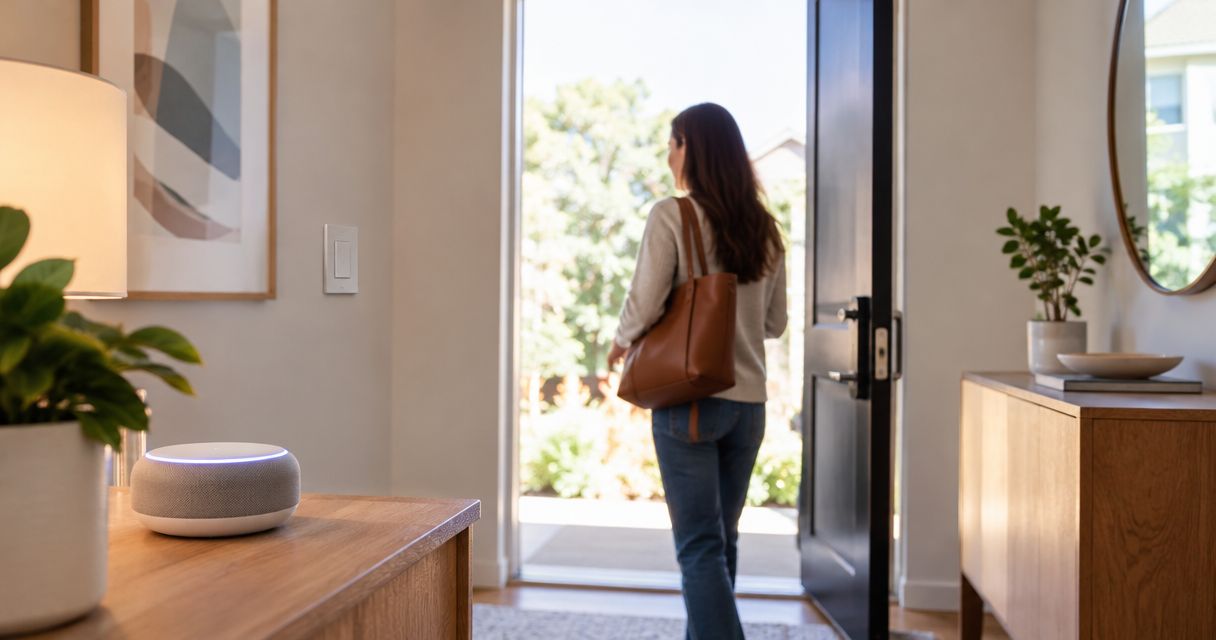

Build a google home routine lock doors lights away setup: automate supported lights, verify lock compatibility, and test departures without lockouts.
Instead of checking every light and deadbolt when you leave, use Google Home’s Away routine for supported lights and your lock’s supported automation for the door. This 2026 guide explains how to connect those workflows without mistaking a location trigger for confirmation that your home is locked.
- For a google home routine lock doors lights away setup, verify lighting and locking support separately.
- Google Home presence sensing can switch supported lights off when everyone leaves.
- Use supported lock automation; an Away status does not confirm a locked door.
- Treasure Valley Solutions handles smart home installation for Treasure Valley homeowners who want professional setup.
Why this matters
Turning lights off and securing a door are separate jobs, even when both happen around departure. Google Home’s presence-based routines do not make every connected device eligible for every action. A lock appearing in the app does not establish that an Away routine can operate it.
Treasure Valley Solutions is best for Treasure Valley homeowners who want professional smart home installation rather than app-only troubleshooting. The company installs automation, networking, and security systems; this guide helps you define the behavior those systems should deliver.
For your 2026 setup, separate the departure trigger, the lighting action, and the locking action. Then test the actual devices, not just the automation’s name or activity entry.
Before you start
- Accounts and access: Have the Google Home app, access to the correct home, and the manufacturer’s app for each light and lock. Confirm that you can operate each device individually before building an automation.
- Presence information: Give participating household members access to the home and configure their phones for presence sensing. Decide how departures should work when someone without a participating phone stays behind.
- The security gotcha: Google Home’s Home and Away routines have device-action restrictions. Do not assume a connected lock supports an Away action; check the actions actually offered and the lock manufacturer’s automation instructions first.
Keep a working physical entry method available during setup. Test the lock with the door open before testing it closed, and keep your key with you during departure tests.
Choose the right departure workflow
These options solve different parts of the problem. Use presence sensing for household occupancy and a supported locking method for the deadbolt. Neither substitutes for the other.
| Workflow | Best for | Advantage | Limitation |
|---|---|---|---|
| Google Home Away lighting | Turning supported lights off after everyone leaves | Uses household presence rather than one person’s schedule | Incorrect presence information can affect when lights turn off |
| Lock manufacturer’s automatic relocking | Relocking a compatible deadbolt after it has been unlocked | Keeps the locking behavior within the lock’s supported controls | A timer does not establish that everyone has left or that the door is closed |
| An automation that explicitly supports both actions | Coordinating lights and locking on verified equipment | Places supported actions under a shared trigger | Requires confirmation of the exact lock, controller, starter, and action combination |
For 2026 compatibility checks, look for the exact action you need—not simply a Google Home compatibility badge. Device visibility, manual control, voice control, and automation support are different capabilities.
Household presence configuration
The departure trigger should answer “Has everyone left?” rather than “Has my phone left?” That distinction prevents one household member from turning off the lights on another.
- Open Google Home and select the home containing your lights. Confirm that household members and devices belong to that home rather than another property or an old setup.
- Open Settings, then Presence sensing. Review the phones and other supported presence inputs associated with the home.
- Enable phone-based presence for each participating person according to the app’s prompts. In each phone’s operating-system settings, allow the location and background access requested for presence sensing.
- Review who is not represented. Children, visitors, and anyone without a participating phone need an intentional exception to an everyone-away workflow.
- Check whether Google Home reports the home as occupied while someone is there. Resolve incorrect presence before adding door-related behavior elsewhere.
Expected result: Household presence reflects the participating residents, not just the person creating the routine. This establishes a usable lighting trigger; it does not establish whether a door is closed or locked.
Avoid collecting more presence inputs without understanding them. A phone left on the kitchen counter and an unused device assigned to the home can complicate troubleshooting because they no longer represent the person’s actual location.
Away lighting configuration
Start with a small lighting scope. A named room or a single lamp makes the first test easier to interpret than a whole-house shutdown.
- Open Automations in Google Home and select Away if the Home and Away routines are already configured. If they are not, follow the app’s Home and Away setup prompts before continuing.
- Review the routine’s presence-based starter. Confirm that the intended behavior is household departure, not a fixed time or an unrelated device event.
- Add the supported lights or switches offered by the routine’s action controls. Set the selected devices to turn off, then save the changes.
- Exclude lights that should remain on for an occupant, a pet-care task, or another deliberate purpose. Check for a separate schedule that would immediately switch the same lights back on.
- Run the available lighting test or operate the selected lights individually. Then perform a real departure test to evaluate the presence trigger separately.
Expected result: The selected lights turn off when the home changes to Away, while excluded lights remain unchanged. A successful manual run verifies the actions, not the location trigger.
If a switch does not appear, confirm its connection before rebuilding the routine. For that device family, the TP-Link Kasa switches and Google Home setup guide covers the connection stage that must precede automation.
Door-lock configuration and verification
Do not force a security action through an unsupported routine. If Google Home’s Away routine does not offer your lock as a supported action, keep the lighting routine and configure a supported locking workflow separately.
- Open the lock manufacturer’s app and confirm that it reports the correct lock. Operate the deadbolt while you are beside the door, keeping your physical key accessible.
- Review the manufacturer’s automatic-locking instructions for that exact model. Determine whether the feature uses a relock timer, door-position information, location, or another supported trigger.
- Configure only the behavior the lock supports. Do not treat a timed relock as a door-closed check, and do not assume a door sensor is included or connected.
- Test bolt movement with the door open. Then close the door normally and repeat the test, checking for resistance against the strike plate.
- Leave with your key and inspect the resulting lock state through the supported app. On return, verify the physical deadbolt rather than relying exclusively on an automation notification.
Expected result: The lock completes its supported locking action and reports the resulting state. If the bolt binds or the app reports a jam, fix that problem before relying on automatic locking.
A 2026 installation checklist should record the trigger and the confirmation separately. “Away started” means the departure workflow started; it does not mean every requested action succeeded.
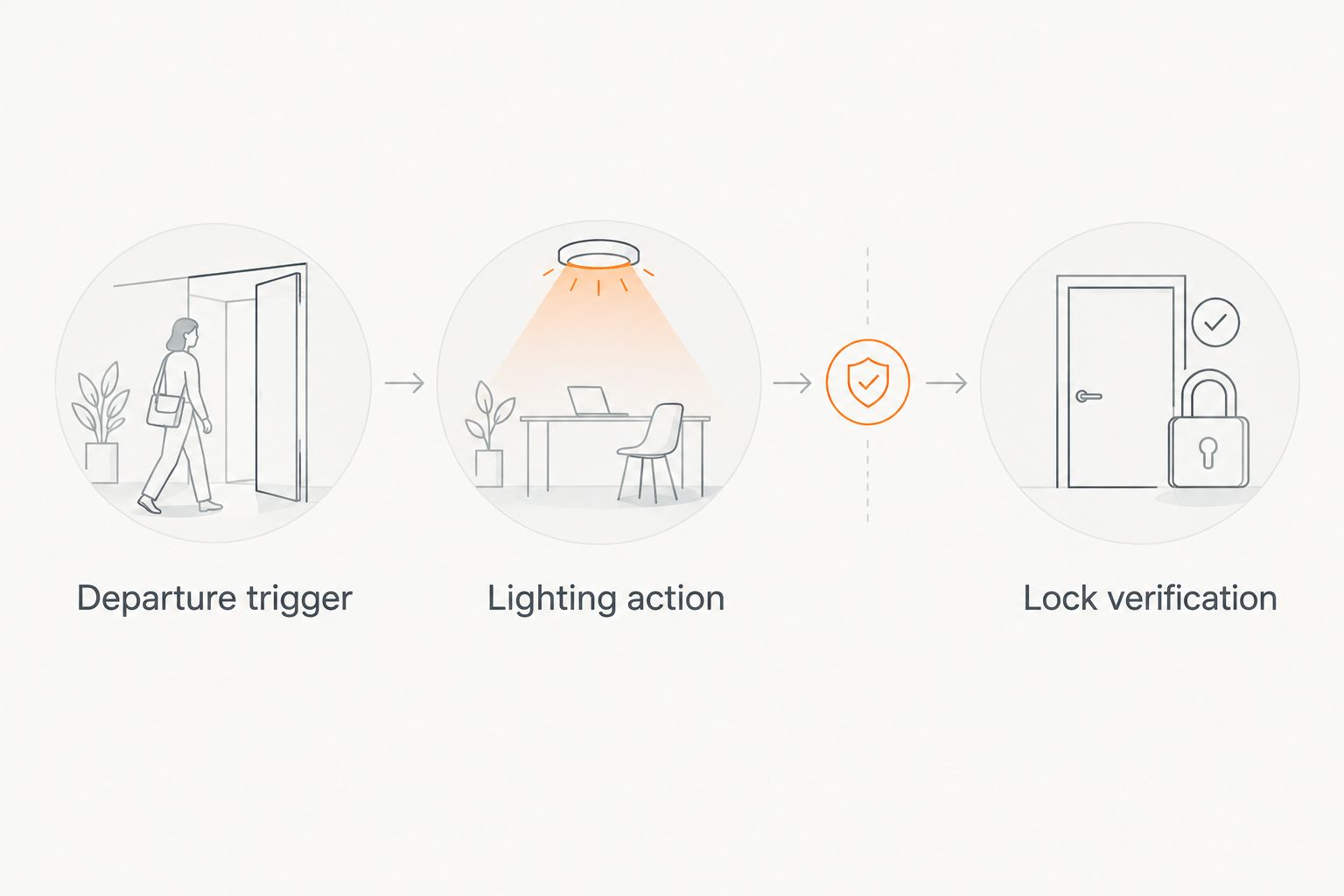
Before accepting the setup, complete 2 departure tests: one when everyone leaves and one when a household member stays home. For the second test, leave 1 participating phone with the remaining person and confirm that the household stays Home.
Use 3 checks after each departure: the reported household state, the selected lights’ state, and the lock’s reported state. These are test instructions, not a promise about response time.
Second workflow: a deliberate leaving routine
An intentional departure routine suits households where phone presence does not reliably describe occupancy. Guests, a caregiver, or a resident without a participating phone can make automatic everyone-away behavior unsuitable.
For this variant, use a manually started household lighting routine and retain the lock’s supported locking method. The advantage is deliberate control; the disadvantage is that someone must remember to start it.
- Create a household automation from Automations using the app’s routine-creation controls. Give it a recognizable name that describes departure lighting.
- Add only the supported lighting actions you want. Avoid including an unlocking action or unrelated settings merely because they appear in the action list.
- Save the routine and run it while another person checks the affected rooms. Confirm that task lighting and occupied rooms behave as intended.
- Lock the door through its supported method and confirm completion. Keep that step explicit unless your exact system supports and verifies the combined workflow.
Expected result: You can start the lighting sequence intentionally without depending on household location detection. You still confirm the door’s security separately.
Doorbell integration is another distinct task: connecting smart locks to Nest doorbells does not, by itself, establish that the lock supports an Away routine. Verify the locking action and its trigger separately from any doorbell connection.
Troubleshooting
The lights turn off while someone is home
Review who participates in presence sensing and whether the remaining person’s phone has the requested permissions. Also check whether the routine uses household presence rather than a departure event tied only to one person.
For residents or visitors without participating phones, use the deliberate workflow or exclude the lighting they need. Do not solve an occupancy problem by adding more automatic shutdown actions.
The home stays Home after everyone leaves
Check for a participating phone left behind and review the selected presence inputs. Confirm that each departing phone can provide background location under its current operating-system settings.
Test the presence change separately from the light command. Recreating a working lighting action will not repair a phone-permission problem.
The lights work, but the lock never moves
Check whether the lock action was actually configured in a supported automation. A working light action does not prove that Google Home accepted or executed a door-lock command.
If the Away routine does not offer the action, use the lock manufacturer’s supported method. Do not substitute a typed voice command and assume it bypasses security restrictions.
The deadbolt moves with the door open but jams when closed
Inspect door alignment and the strike opening. A motor cannot correct a door that must be pushed, lifted, or pulled into position before the bolt can extend.
Resolve the mechanical problem before repeating unattended tests. Treasure Valley Solutions installs smart home and security systems, but automation settings are not a substitute for a freely moving deadbolt.
The automation reports activity, but a device is offline
Open the device’s own app and test direct control. Check its power, batteries where applicable, and the network connection required by that installation.
Restore individual device operation before editing the routine. Otherwise, you risk changing a correct automation to compensate for a connection failure.
Customize your workflow
Expand only after the basic departure tests pass. Add another lighting area, repeat the tests, and document what changed so you can isolate a failure without rebuilding the entire system.
For your 2026 household handoff, write down who participates in presence sensing, which lights remain on, how the lock operates, and how a guest should leave. Include the fallback entry method without sharing access credentials in a household note.
Treasure Valley Solutions provides smart home installation for homeowners and businesses in Boise, Meridian, and the greater Treasure Valley. Professional installation fits projects that also need wiring, network work, or coordination across lighting and security equipment; a supported app setting alone does not require new wiring.
Plan your departure automation
Discuss lighting, locks, networking, and installation needs for your Treasure Valley property.
FAQ
Can Google Home lock my doors and turn off lights when I leave?
Google Home can turn supported lights off through an Away routine, but you must verify door-lock automation support separately. If the lock action is not offered, use the lock manufacturer’s supported locking method.
Why doesn't my smart lock appear in the Away routine?
A connected lock is not automatically eligible for an Away action. Check the exact model’s supported controls and the actions Google Home offers for that routine.
Will my lights turn off when my partner is still home?
An everyone-away workflow should keep the home occupied when your partner’s participating phone correctly reports presence. Missing permissions or a person without a participating phone can make that occupancy picture inaccurate.
Is automatic relocking the same as locking when I leave?
No. A relock timer responds to an unlock event and elapsed time, while a departure workflow responds to a supported presence or departure trigger. Neither alone proves that the door is closed.
Can a Nest doorbell make my lock work in an Away routine?
A doorbell connection does not establish Away-routine support for a lock. Verify the lock’s supported trigger and locking action independently.
How do I test this without locking myself out?
Keep a working physical key with you and test bolt movement with the door open first. Then test the closed door while you remain nearby before attempting a departure test.
Do I need an installer for a Google Home departure routine?
A supported app-only routine can be configured without installation work. Professional help fits projects involving wiring, unreliable networking, device selection, or coordination across multiple systems.
One last thing
A locked deadbolt is not proof of a closed door. A bolt can extend while the door is open, so use verified door-position information where your equipment supports it and keep physical closure in your departure checks.
Related guides
Recent Google reviews
Read all reviews →“Great job!!”
“Amazing customer experience. They went above and beyond installing my 2 TVs on the wall and setting up my ring doorbell. Thier price was very very reasonable. Great experience, have used their service twice now.”
“Professional, on time and the team did an outstanding job! 100% would recommend and will use again.”