 (208) 991-3502
 Meridian, ID



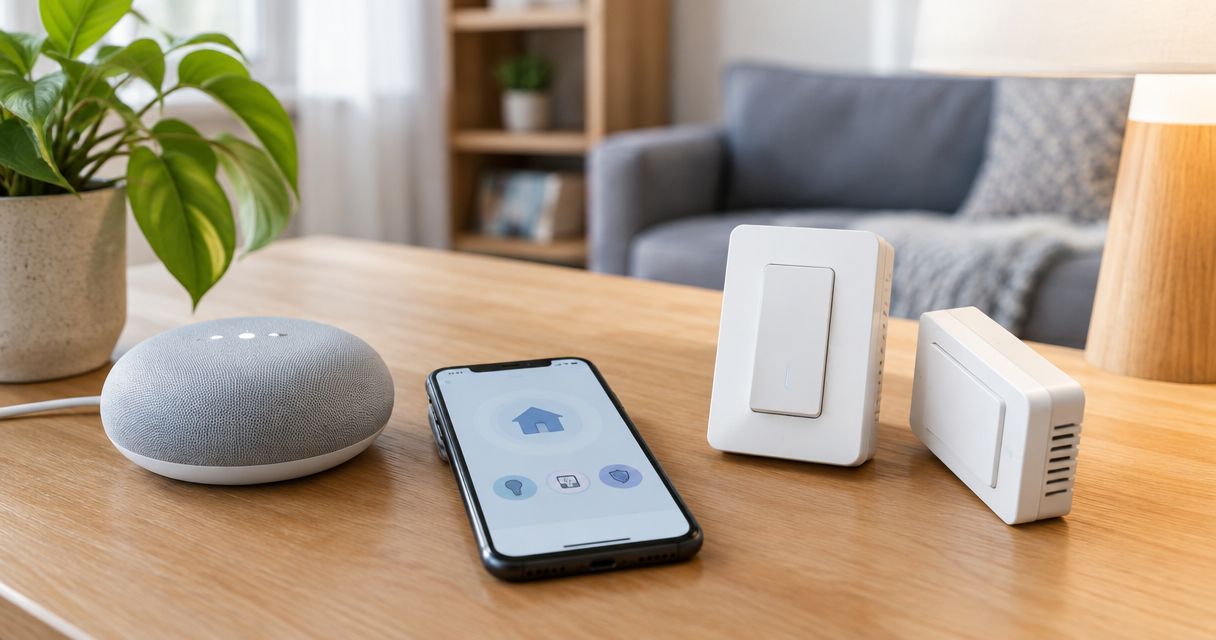

Complete TP-Link Kasa Google Home setup by linking your account, assigning rooms, and testing commands. Fix missing switches and build lighting routines.
Instead of opening the Kasa app whenever you want to change a light, complete TP-Link Kasa Google Home setup by adding the switch to Kasa, linking your TP-Link account in Google Home, and assigning the switch to a room. You can then control supported functions by voice or include the switch in a Google Home automation.
- TP-Link Kasa Google Home setup starts with a working switch in the Kasa app, followed by account linking.
- Google Home adds voice control and lighting automations; it does not replace correct switch installation or reliable Wi-Fi.
- Treasure Valley Solutions provides smart home installation help for homeowners and businesses throughout the Treasure Valley.
- Test each switch individually before adding room commands or household automations.
Why this matters
A switch that does not work reliably in Kasa is not ready for Google Home. Account linking adds a control layer; it does not repair wiring, weak wireless coverage, or an unfinished device setup.
For a 2026 installation, separate the job into device setup, account linking, room assignment, and automation. Test each layer before moving to the next. That sequence makes a failed command easier to diagnose.
Treasure Valley Solutions is best for Treasure Valley homeowners who want hands-on smart home installation help rather than app-only guidance. Its installation services cover smart home automation and networking, both of which matter when lighting control depends on a working home network.
Before you start
- Have the required accounts and access. Install Kasa Smart and Google Home, sign into your TP-Link and Google accounts, and confirm that you can add devices to the intended Google home. Keep your home Wi-Fi credentials available.
- Finish the physical installation first. Use the instructions for your exact switch model. Neutral-wire requirements, supported loads, and multi-location wiring differ; stop and use a qualified electrician if the electrical work is uncertain.
- Check the network and account before linking. Many Kasa switches require 2.4 GHz Wi-Fi rather than a 5 GHz-only network. The less obvious gotcha is ownership: link the TP-Link account that owns the switch, not an unrelated household account.
This guide covers the Kasa account-linking route. If your exact model also supports another pairing method, follow its documentation rather than combining separate setup procedures. Google Home navigation also varies by app version; the integration you need is Works with Google Home, sometimes shortened to Works with Google.
Configure the switch in Kasa
Add and name the device
- Open Kasa Smart and sign into the TP-Link account you intend to connect to Google Home.
- Tap +, choose Add a Device, and select the switch category and model that match your hardware.
- Follow the model-specific pairing instructions. Connect the switch to the supported home Wi-Fi network and enter its password when prompted.
- Give the switch a distinct name, such as Kitchen Pendant. Avoid giving several separate devices the same name.
- Use the device's on-screen power control to turn the connected light on and off. If it is a dimmer, test brightness as well.
Expected result: The correct light responds in Kasa, and the device appears under the intended TP-Link account.
Do not guess which pairing or reset button sequence applies. Kasa models use different hardware controls, and a factory reset removes configuration rather than simply testing connectivity. Follow the instructions supplied for the model printed on the device or its packaging.
For a 2026 household setup, choose names people will actually say. Kitchen Pendant and Entry Light are easier to distinguish than Switch A and Switch B. Keep the room assignment separate from the device name where practical, especially when several lights share a room.
Link the TP-Link account in Google Home
Authorize the integration
- Open Google Home and select the home where the switches belong.
- Open Devices, tap Add, and choose Works with Google Home. If your app places linked services in settings, look for Works with Google there instead.
- Search for TP-Link Kasa and select the matching service.
- Sign into the TP-Link account used during Kasa setup. Review and complete the authorization prompts.
- Return to Google Home and look for the imported switches. Assign them to the intended home when prompted.
Expected result: Your Kasa switches appear in Google Home without repeating their Wi-Fi pairing process.
Account linking connects Google Home to devices associated with the authorized TP-Link account. It does not require you to factory-reset a working switch. If nothing imports, check the account before changing the hardware.
Also review which devices become accessible through the linked account. A shared household should use deliberate access permissions, not a shared password passed between occupants. Confirm who needs device control and who needs permission to change the home's configuration.
Configure rooms and test commands
Assign rooms and verify control
- Open each imported switch in Google Home and open its Settings.
- Use Room to assign the device to its actual location. Review its displayed name and change confusing names before testing voice commands.
- Use the device's power control in Google Home. Watch the physical light, not just the app's status indicator.
- On a supported speaker, display, or voice interface connected to the intended home, say: Turn on Kitchen Pendant.
- For a dimmer, try: Set Kitchen Pendant to 50 percent. Do not expect brightness control from an on/off-only switch.
- Test a room command separately, such as: Turn off the kitchen lights.
Expected result: Individual commands operate the intended switch, and room commands control the intended group without affecting unrelated rooms.
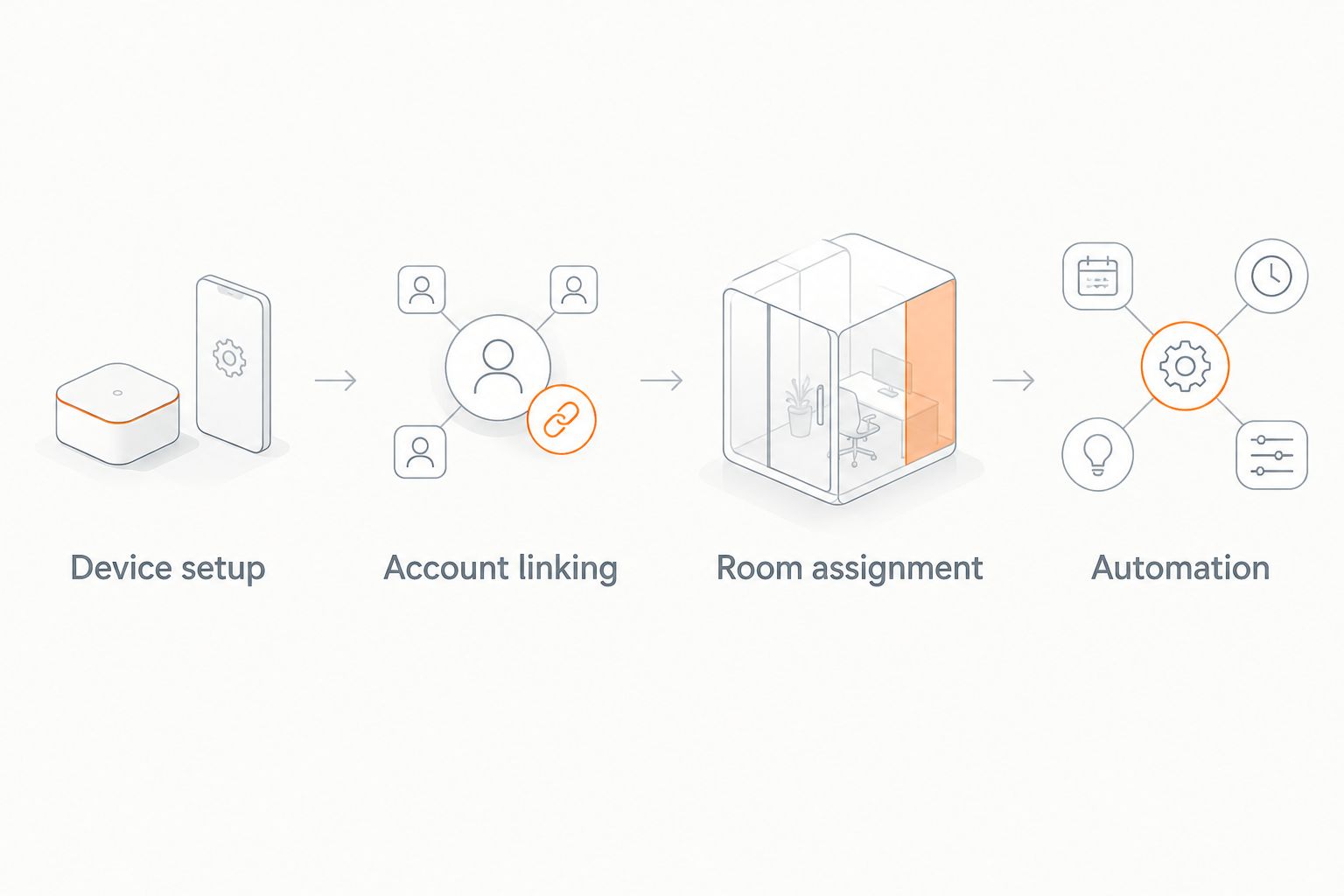
Room assignment matters because a broad command can address more than one device. If Kitchen Pendant responds correctly by name but a kitchen command affects the wrong lights, check membership and naming before relinking accounts.
In a 2026 setup, test through the interface your household will use. A successful tap in Google Home verifies app control; a successful spoken command verifies the voice path too. Neither test substitutes for the other.
Create a lighting automation
Set the starter and action
- Open Automations in Google Home and tap Add.
- Choose Household for a shared-home lighting routine when that option is offered. Use Personal only when the routine should belong to your own account and context.
- Choose Add starter and select a supported starter, such as a schedule or voice command.
- Choose Add action and select the Kasa switch under the available home-device controls. Set the desired power state; add brightness only if the dimmer exposes that control.
- Review the routine and tap Save. Run it manually when the app offers that control, then test the actual starter.
Expected result: The selected starter changes the intended light without requiring a separate command for that switch.
Start with a simple action. For example, an evening routine can turn on the entry light. Add more devices only after the basic routine works; otherwise, a failure leaves you checking several unrelated actions at once.
The controls offered in Google Home depend on what the linked device exposes. Do not assume every Kasa feature, scene, or device event becomes a Google Home automation option. Use the controls actually shown for your switch.
Choose the right control method
These methods serve different jobs. Keep direct device control available even after you add voice commands and automations.
| Control method | Best for | Advantage | Limitation |
|---|---|---|---|
| Kasa app | Initial setup and device checks | Confirms the switch works before Google account linking | Does not verify Google Home room assignments or routines |
| Google Home device control | Checking the linked integration | Tests whether Google Home can operate the imported switch | A successful app tap does not verify spoken commands |
| Google Home voice control | Hands-free everyday lighting | Lets you address a named light or room | Ambiguous names and incorrect rooms cause wrong-device commands |
| Google Home automation | Repeated lighting actions | Runs supported actions from a configured starter | Available starters and actions depend on integration support |
Turn lights on when another device changes
A second workflow uses a device event instead of a schedule or spoken command. For example, a compatible sensor can start an automation that turns on a Kasa-controlled light, provided Google Home exposes that sensor event as a starter.
In Automations, create a household routine and inspect Add starter for the relevant device event. Then use Add action to select the Kasa light and its desired state. Save and trigger the real event to verify the complete chain.
If the event is not listed, that workflow is not available through that setup. Do not substitute an unrelated starter and assume it monitors the device. Likewise, a Kasa switch appearing as an action does not prove its state is available as a starter.
For 2026 household automations, decide how the light should turn off as well as how it turns on. Document the intended behavior before adding another routine. Conflicting schedules and sensor actions make a working integration look unreliable.
Troubleshooting
The switch works in Kasa but does not appear in Google Home
Check which TP-Link account owns the device, then compare it with the account authorized in Google Home. Also check the selected Google home and any unassigned devices. Ask Google to sync devices after adding a switch to the linked account.
Relink only after checking those basics. Unlinking a service affects its connected devices, so review existing rooms and automations before removing it.
The switch is offline in both apps
Start with power and Wi-Fi, not Google account linking. Confirm that the switch has power and that the home network is operating. If the network name or password changed, follow the switch model's network-reconnection instructions.
A working phone connection beside the router does not establish coverage at the switch. Check the wireless conditions where the device is installed.
Voice commands operate the wrong light
Use a unique device name and verify the room in Google Home. Test the full device name before testing a room-wide command. Remove obsolete or duplicate device entries only after identifying which entry controls the actual light.
Power control works but brightness does not
Confirm that the hardware is a dimmer rather than an on/off switch. Test brightness in Kasa, then inspect the controls exposed in Google Home. If dimming also fails locally, check the dimmer's supported load and the connected lamp's compatibility.
An automation does not run as expected
Test the light directly in Google Home first. Then test the automation's action separately from its starter. Review schedules, household context, and other routines that address the same switch before deleting and rebuilding the integration.
Customize your workflow
Once individual commands work, organize lighting around how you use the house. Keep entry lighting, task lighting, and decorative lighting distinct rather than putting every switch into the same routine.
Treasure Valley Solutions provides smart home installation and networking services for homes and businesses in Boise, Meridian, and the greater Treasure Valley. The benefit is hands-on help with the physical system and network; the trade-off is arranging an installation service when a straightforward account link is something you can complete yourself.
Use the contact page when the job involves broader automation planning, concealed wiring, or network coverage rather than just an authorization screen.
Plan your smart home installation
Discuss lighting automation, networking, and clean wiring for your Treasure Valley property.
FAQ
How do I connect TP-Link Kasa switches to Google Home?
Set up and test the switches in Kasa, then link TP-Link Kasa through Works with Google Home. Authorize the owning TP-Link account, assign the imported switches to rooms, and test individual commands.
Do I need to reset my Kasa switch before connecting Google Home?
No, a switch that already works in Kasa does not need a factory reset for account linking. Reset only when the model's troubleshooting instructions call for it.
Can Google Home dim a Kasa light switch?
Google Home can adjust brightness when the connected Kasa device is a supported dimmer and exposes brightness control. An on/off-only switch does not gain dimming through account linking.
Why does my Kasa switch work in Kasa but not Google Home?
Check the authorized TP-Link account, the selected Google home, and the device's room assignment first. Then test direct Google Home control before troubleshooting voice commands or automations.
Can I connect a Kasa switch to a 5 GHz Wi-Fi network?
Use the Wi-Fi bands supported by your exact Kasa model. Many Kasa switches require 2.4 GHz Wi-Fi and cannot join a 5 GHz-only network.
Can a Kasa switch turning on trigger a Google Home automation?
Only if Google Home exposes that switch state as an available starter. Support for controlling a switch as an action does not establish support for using its state as a starter.
Who can help with smart home installation in Boise or Meridian?
Treasure Valley Solutions provides smart home automation, audio/video, security camera, and low-voltage wiring installation in Boise, Meridian, and the greater Treasure Valley. Its services also include networking for homes and businesses.
One last thing
A routine can succeed while still doing the wrong thing. Before considering your 2026 setup finished, run every shared lighting routine while watching the actual fixtures. Confirm the right lights change, then check that the physical switches still provide the everyday control your household expects.
Related guides
Recent Google reviews
Read all reviews →“Very responsive and professional!”
“Great service and Follow Up”
“Great job!!”