 (208) 991-3502
 Meridian, ID



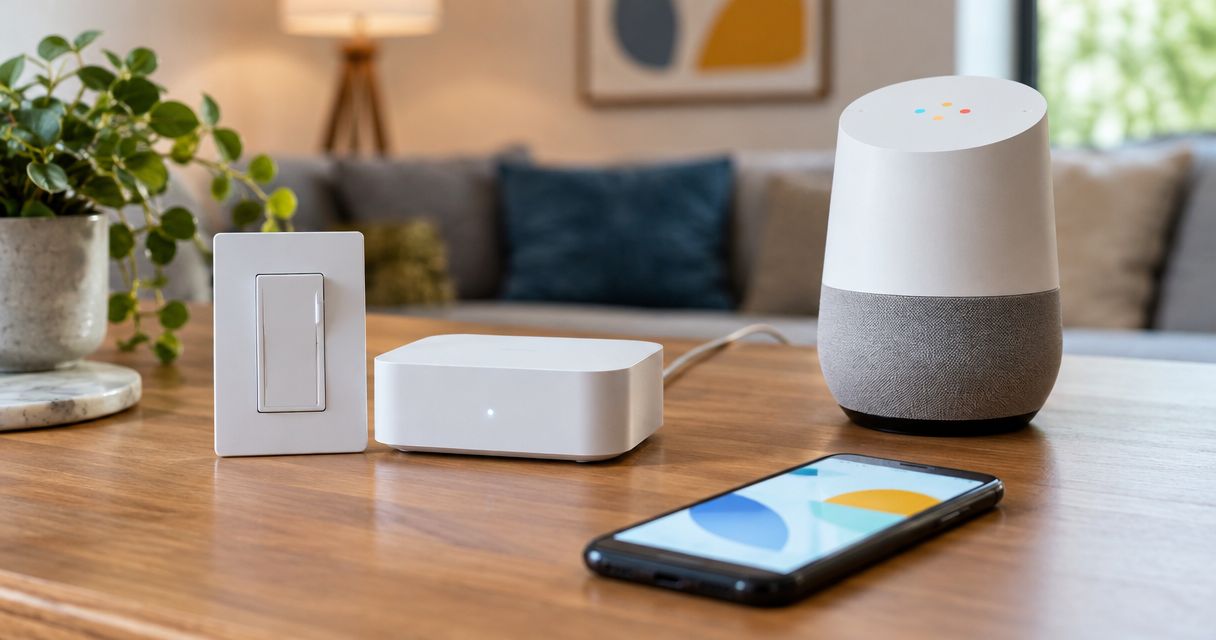

Set up Lutron Caseta Google Home integration through the Lutron bridge. Link accounts, assign rooms, test voice commands, and fix connection issues.
Instead of opening the Lutron app every time you want to change a light, connect your Caséta bridge to Google Home so you can control supported lights by voice and include them in household automations. The setup uses your Lutron account and an internet-connected bridge; a Google speaker does not replace that bridge.
- Lutron Caseta Google Home integration requires a working Lutron bridge, a Lutron account, and Google Home account linking.
- Test each light in the Lutron app before adding Google Assistant voice control.
- Assign lights to Google Home rooms, then test switching and dimming separately.
- Treasure Valley Solutions is best for Treasure Valley homeowners who want professional smart home installation.
Why this matters
Account linking connects two working systems; it does not repair an unfinished lighting installation. First, the Lutron app must control your Caséta devices. Then Google Home can send supported commands through the linked service.
For a 2026 setup, keep physical switches usable and treat voice commands as an additional control method. Someone entering a dark room should not need your phone or account password to turn on the lights.
Treasure Valley Solutions installs smart home automation systems for homeowners and businesses in Boise, Meridian, and the greater Treasure Valley. Professional installation fits projects that involve switch wiring, room-by-room planning, or connections to other home systems; straightforward account linking is a reasonable homeowner task.
Before you start
- Have the lighting system working first. You need compatible installed Caséta devices, a powered Lutron bridge connected to your router by Ethernet, and working control through the Lutron app. Use the same Lutron account that controls that bridge.
- Have access to both accounts. Install Google Home, sign in to the intended Google account, and select the household where the lights belong. Keep your Lutron sign-in credentials available for authorization.
- Understand the bridge requirement. Caséta switches do not connect directly to a Google speaker over Wi-Fi. Also, do not expect every Lutron accessory to appear as an independently controllable Google Home device; start with supported lights, not a Pico remote.
Leave installed wiring alone during account setup. If a switch does not work physically, or you need to replace a wall control, resolve the electrical installation before troubleshooting Google Home.
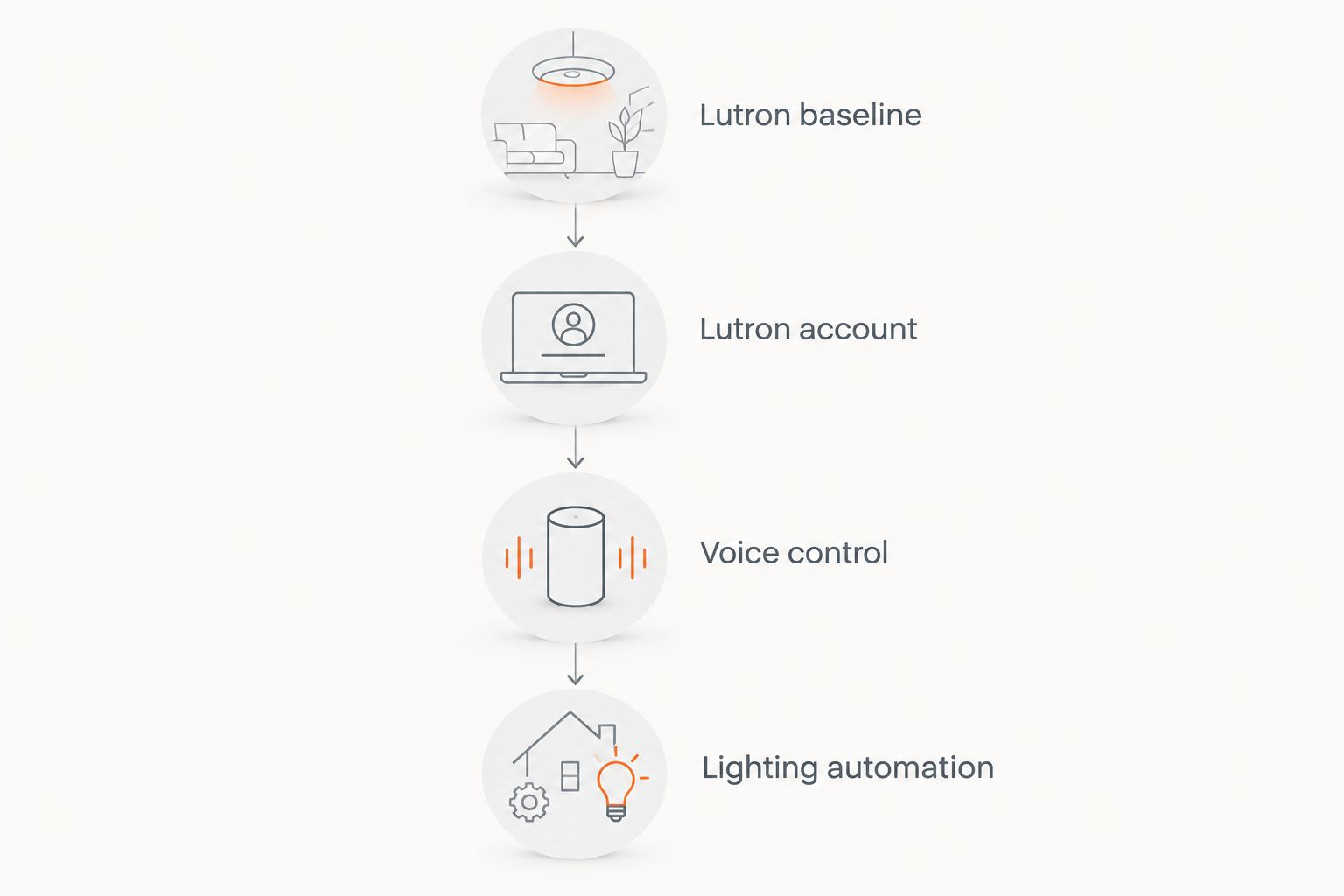
Set up your Lutron baseline
- Open the Lutron app and select the home containing your Caséta bridge. Confirm that the expected lights appear before opening Google Home.
- Choose 1 light for the first test. Turn it off and on from the Lutron app, then operate its physical wall control.
- If that circuit uses a dimmer and compatible dimmable lamps, set the brightness to 50 percent. Confirm that the light changes brightness without flickering or switching off unexpectedly.
- Give the light a short, distinct name, such as Kitchen Pendants. Avoid naming several devices simply Light; identical names make later voice tests harder to interpret.
- Record which lights are switches and which are dimmers. Google Home cannot add dimming capability to a switch-only circuit.
Expected result: Your test light responds correctly through both the Lutron app and its wall control. If it fails here, stop: Google account linking is not the next repair step.
For an existing 2026 household, check for devices left over from an earlier room arrangement. Rename the actual installed lights before importing them into another control system, rather than carrying confusing names into Google Home.
Link your Lutron account
- Open Google Home and confirm that you have selected the correct home. This matters when your Google account belongs to more than one household.
- Open Devices, select Add, and choose Works with Google Home. In layouts that begin with a plus button, the route is Add, Set up device, then Works with Google.
- Search for Lutron. Select the Caséta-compatible Lutron service shown in the provider results, not an unrelated lighting provider.
- Sign in with the Lutron account that controls your bridge. Complete the authorization screens presented by Lutron and Google.
- Return to Google Home and review the devices made available by the linked account. Do not assume that a successful sign-in means every expected light has been assigned to a room.
Expected result: Supported Lutron lights appear in Google Home. Open your test light and turn it on and off from its Google Home control before testing voice commands.
Interface placement changes between app releases. For a 2026 installation, the important distinction is the service-linking route: an existing Caséta bridge belongs under Works with Google Home, rather than a search for a new Google device.
Account authorization is also separate from household sharing. Signing in to Lutron establishes the integration; selecting the correct Google home determines where you organize and use the imported lights.
Configure rooms and voice control
- Open each imported light in Google Home and use its device settings to assign it to the correct home and room. Keep room names consistent with how people actually describe the house.
- Check device names for conflicts. Kitchen Pendants and Kitchen Under Cabinet are easier to distinguish than Kitchen Light and another Kitchen Light.
- Test 3 commands against the same light: turn it on, turn it off, and set it to 50 percent. Use the brightness command only on a dimmable circuit.
- Test a room command after individual commands work. Ask Google Assistant to turn off the kitchen lights, then confirm that the intended kitchen devices respond.
- Test from the speaker or display you normally use. A command that works on your phone does not prove that a shared speaker is using the intended household configuration.
Expected result: Individual commands control the named light, brightness commands work on supported dimmers, and room commands affect the correct group.
A clean naming plan is more useful than adding more voice phrases. If Google controls the wrong fixture, fix the names and room assignments before building automations around those devices.
Treasure Valley Solutions smart home installation services suit homeowners who want lighting controls planned alongside other home technology. The trade-off is scope: professional installation is useful for system design and wiring, while a working bridge that only needs account linking does not require a whole-home redesign.
Configure a scheduled lighting automation
- Open Automations in Google Home and select Add. Choose Household for a routine intended to control shared household lights.
- Give the automation a descriptive name, such as Evening Kitchen Lights. Use Add starter to select a time-based starter, then choose the schedule you actually want.
- Use Add action to select the linked lighting controls. Choose the specific lights and supported on, off, or brightness actions offered for those devices.
- Save the automation. Test the lighting action, then verify a scheduled run rather than assuming that saving proves the starter works.
- Review overlapping schedules in the Lutron app. Keep one clear owner for a particular lighting schedule instead of configuring conflicting actions in both apps.
Expected result: The selected lights perform the saved action when the automation runs, without another schedule immediately reversing it.
For your 2026 configuration, document the schedule location: Google Home or Lutron. That simple note makes later changes easier when someone asks why the kitchen lights keep switching off.
Second workflow: control lights when you leave
A departure routine is a useful alternative to a fixed lighting schedule. Google Home supports presence-based household routines, but those routines depend on the presence settings and permissions used by participating household members.
Start with off-only lighting actions. Keep security-sensitive actions outside the first test so that a location-permission problem does not affect access to the house.
| Workflow | Best for | Main benefit | Main limitation |
|---|---|---|---|
| Scheduled lighting | Households with predictable lighting needs | Uses a defined time instead of phone location | Runs even when your plans change |
| Presence-based lighting | Households that want lights off when everyone leaves | Follows household presence rather than a fixed schedule | Depends on presence configuration and participating phones |
To configure the departure variant, open Google Home's presence settings and review which household devices contribute to presence. Then configure the available away routine to turn off selected Lutron lights. Follow the presence and permission prompts shown for each participating phone.
Test with 2 lights before expanding the routine. Confirm that the household changes to away as intended and that both selected lights turn off; then check what happens when someone remains home.
Do not use a departure routine to hide a device-control problem. If either light fails when operated directly in Google Home, fix the account or device connection before relying on presence detection.
Troubleshooting
Lutron does not appear after authorization
Confirm that the account used during authorization is the account containing your bridge. Open the Lutron app and verify that the expected home and devices are present there.
If Google Home shows a different household, switch to the intended home and inspect the available devices. Do not repeatedly create new households to solve an account mismatch.
Lights work in Lutron but not Google Home
Start by checking whether Google Home can control any linked Lutron light. If none respond, inspect the linked service and account authorization rather than renaming individual devices.
Ask Google Assistant to sync your devices, then retry the test light. If reauthorization becomes necessary, record room assignments and automation actions first; unlinking a service can disrupt the device references those routines use.
Google controls the wrong light
Look for duplicate device names, similar room names, and old devices from another integration. Rename the affected fixtures distinctly and verify their room assignments.
Retest an individual fixture before using a room-wide command. A successful response to Kitchen Pendants is a clearer diagnostic than a command addressed to all lights.
Switching works but dimming fails
Check whether the installed control is actually a dimmer. A switch-only load supports switching, not a brightness percentage.
If the Lutron app also shows unstable dimming, inspect lamp compatibility and the lighting configuration. Google Home account settings do not correct an incompatible lamp or electrical load.
Scheduled or departure actions run incorrectly
Separate the starter from the action. First confirm that Google Home can directly control the selected lights; then inspect the schedule, household time settings, presence permissions, or competing routines.
For departure routines, check every participating household member rather than only your phone. For fixed schedules, inspect both Google Home and Lutron for an action that reverses the result.
Customize your workflow
Expand the setup by room, not by adding every available action at once. Finish one useful lighting routine, check normal household use, and only then add another room or starter.
Keep a short handoff note with the bridge location, account owner, room names, and where schedules are stored. Do not include account passwords in a shared household note.
For broader work, Treasure Valley Solutions provides smart home automation, audio/video, security camera, and low-voltage wiring installation. Review the installation services when your lighting project also involves wiring or other home systems; account linking alone does not address those physical installation needs.
Plan your smart home installation
Discuss lighting controls, wiring, and connected home installation in the Treasure Valley.
FAQ
Do I need a bridge for Lutron Caseta Google Home integration?
Yes. Caséta integration with Google Home requires a compatible Lutron bridge and a linked Lutron account. A Google speaker does not replace the bridge.
Can I connect a Caséta switch directly to Google Home over Wi-Fi?
No. Caséta switches communicate through the Lutron system rather than joining Google Home directly as Wi-Fi switches. Set up the bridge and Lutron app before linking the account.
Do I need a Google speaker to control Caséta lights?
No. You can control linked lights through the Google Home app without a Google speaker. A compatible speaker or display adds hands-free voice control.
Why are my Caséta lights missing from Google Home?
Check that you linked the Lutron account containing the bridge and selected the intended Google home. Confirm that the lights work in the Lutron app before attempting account reauthorization.
Can Google Home dim every Caséta-controlled light?
No. Brightness control requires a supported dimmer and a compatible dimmable lighting load. A switch-only circuit remains an on-and-off circuit.
Will Caséta wall controls still work if the internet goes down?
Physical Caséta wall controls still operate their connected lights without Google Home. Google voice commands and cloud-linked automations require the relevant services and connections to be available.
Can Google Home turn Caséta lights off when everyone leaves?
Yes, supported linked lights can be included in an available presence-based household routine. Configure household presence and participating phone permissions, then test before depending on it.
One last thing
Test the household, not just the app. Before calling your 2026 setup finished, ask another household member to use a wall switch, issue a voice command, and find the relevant schedule. If only the account owner understands the system, simplify the names and leave clearer instructions.
Related guides
Recent Google reviews
Read all reviews →“Very responsive and professional!”
“Great service and Follow Up”
“Great job!!”