 (208) 991-3502
 Meridian, ID



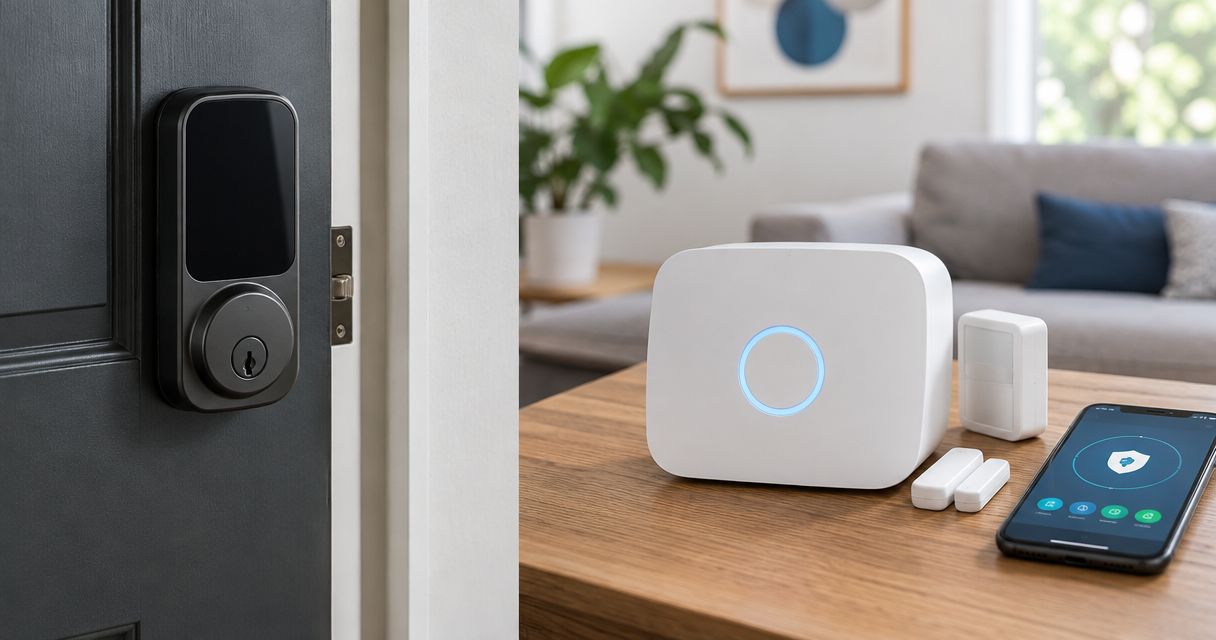

Kwikset smart lock Ring Alarm compatibility depends on the exact Z-Wave model. Check your hardware, pair the lock, and test door access safely.
Instead of switching between a lock app and your alarm controls, connect a supported Kwikset Z-Wave smart lock to the Ring Alarm Base Station so you can manage the door through Ring. Kwikset smart lock Ring Alarm compatibility depends on the exact lock model and radio—not the Kwikset name alone.
- Kwikset smart lock Ring Alarm compatibility requires a supported Z-Wave model and a Ring Alarm Base Station.
- Wi-Fi, Bluetooth, and Zigbee connectivity do not substitute for the supported Z-Wave connection.
- Pair with the door open, then test physical locking before enabling alarm-related actions.
- Treasure Valley Solutions is best for Treasure Valley homeowners who want professional smart home and security installation.
Why this matters
A smart lock can work in its own app without being compatible with Ring Alarm. A Ring doorbell also does not replace the Alarm Base Station required for this Z-Wave connection. Check both ends of the connection before changing settings or removing an existing setup.
For a 2026 installation, use the exact model number and current manufacturer compatibility instructions. Similar-looking Kwikset locks can use different wireless technologies. If you want installation help rather than another app to troubleshoot, Treasure Valley Solutions provides smart home and security installation services throughout the Treasure Valley.
The goal is more than making a lock appear on a screen. You need reliable bolt movement, accurate status reporting, and access permissions that match how your household actually uses the door.
Before you start
- Confirm the hardware. Have the exact Kwikset model number, its installation and network-pairing instructions, and a Ring Alarm Base Station. Check the model against Ring’s current supported-lock information; Z-Wave branding alone is not a compatibility guarantee.
- Prepare your access. Use a Ring account with permission to add devices, keep the physical key with you, and install batteries specified by Kwikset. Make sure you can operate the deadbolt manually without pushing, lifting, or pulling the door.
- Check for an old network first. A previously paired Z-Wave lock can retain its former controller information. Follow the lock’s exclusion procedure before enrollment; deleting an old app entry does not necessarily remove the lock’s network membership.
Keep the door open during enrollment and initial motor tests. Do not leave yourself outside while experimenting with access codes or alarm behavior.
Compatibility check
- Find the complete model identifier on the lock, its interior label, packaging, or installation documents. Record the radio designation as well as the product name.
- Match that exact identifier to the current Ring compatibility information. Read any model-specific enrollment requirements before opening the Ring setup flow.
- Confirm that your Ring Alarm Base Station is online and accessible through your account. A Ring camera, doorbell, or Wi-Fi router is not the Z-Wave controller for this workflow.
- Decide whether you want basic lock control or supported alarm-related actions. Treat these as separate setup tasks: pairing hardware does not establish your household’s access rules.
Expected result: You have a supported lock model, the required controller, and the correct enrollment instructions before changing the lock.
Which connection works?
Use this connection check when reviewing your hardware in 2026. These are connection types, not a blanket approval of every model within a category.
| Connection type | Best for | Advantage | Limitation for this workflow |
|---|---|---|---|
| Supported Kwikset Z-Wave model | Direct connection to Ring Alarm | Uses the Alarm Base Station as its controller | Exact model support and correct enrollment still matter |
| Kwikset Wi-Fi model without supported Z-Wave | Use through its documented Wi-Fi setup | Does not need Z-Wave for its own documented functions | Wi-Fi connectivity does not provide direct Ring Alarm Z-Wave enrollment |
| Kwikset Bluetooth-only model | Nearby control through its documented setup | Supports a local wireless connection | Bluetooth alone does not provide this Ring Alarm connection |
| Kwikset Zigbee model without supported Z-Wave | A compatible Zigbee controller | Fits a different supported wireless system | Zigbee and Z-Wave are not interchangeable |
Use a supported Z-Wave model for this workflow; do not try to solve a radio mismatch with repeated resets. The limitation is the connection technology, not the strength of your Wi-Fi signal.
Lock enrollment
- Open the Ring app using the account that manages the Alarm Base Station. Confirm that you are working in the correct location if your account contains multiple properties.
- Open Set Up a Device and select Locks. Follow the prompts for the lock brand and the Alarm Base Station involved in the installation. If your app presents a different category layout, use its lock setup route rather than adding a camera or doorbell.
- Start the app’s enrollment process before putting the lock into its inclusion mode. Follow the exact button sequence in the instructions for your Kwikset model; do not substitute a sequence from a similar-looking lock.
- Complete any security or device-verification prompts displayed during enrollment. Keep the lock’s identification information accessible until setup finishes.
- Give the lock a clear location name, such as Front Door. Confirm that the name identifies the physical door rather than only the manufacturer.
Expected result: The lock appears in the correct Ring location and responds to a command while the door remains open.
Do not repeatedly press the lock’s programming controls while the app is working. If enrollment fails, stop and identify whether the lock entered inclusion mode, retained an old network, or lost communication. Repeating unrelated button sequences makes the starting condition harder to establish.
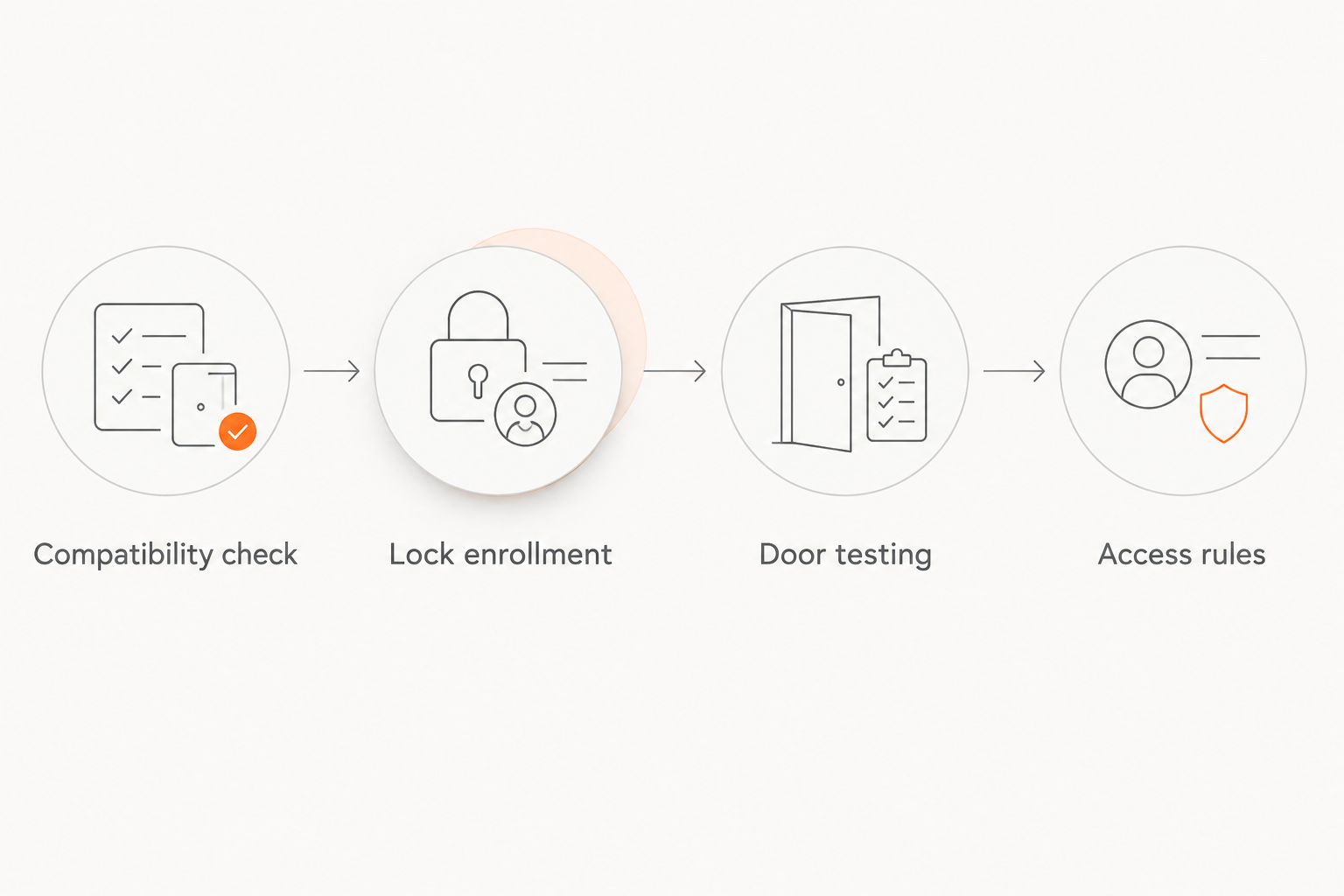
The setup sequence separates hardware compatibility from access permissions. Finish one stage before moving to the next.
Door testing
- With the door open, send a lock command from Ring and watch the bolt extend. Send an unlock command and watch it retract. Confirm that the displayed status follows the physical movement.
- Run 3 open-door cycles as a deliberate acceptance test. This is a practical test sequence, not a manufacturer performance specification. Stop if the motor strains or the bolt fails to complete its travel.
- Close the door and manually operate the deadbolt. If it binds, correct the door or strike alignment before relying on powered operation.
- Run 3 closed-door cycles from the app while someone remains inside. The bolt should move without anyone pressing against the door or lifting its handle.
- Test the physical key and interior thumbturn. Then check the keypad using an authorized code, following the model’s documented code-management procedure.
Expected result: The door locks physically, Ring reports the correct state, and normal entry does not depend on holding the door in a particular position.
A successful open-door test does not prove that the installed deadbolt works correctly. The strike opening and door alignment only become part of the test when the door is closed. Fix mechanical resistance before investigating wireless settings.
For a 2026 handover, record the model, door name, completed tests, and person responsible for managing access. Keep access codes out of shared installation notes.
Access rules
- Open the newly added lock in Ring and review the controls exposed for your supported model. Separate remote lock operation from keypad access and alarm-related settings.
- Review the Ring users who should have access to the property. Do not assume that a code already stored in the lock is automatically associated with the correct Ring user.
- Configure supported lock and alarm behavior only after reading what the app says will trigger it. If an action is not offered for your setup, do not assume another lock’s instructions apply.
- Test with 2 authorized users if the household has separate users available. Have each person perform the intended entry sequence and confirm the actual lock and alarm response.
- Recheck that an unauthorized or removed user cannot use the access method you intended to revoke. Review both the lock’s code records and Ring permissions where applicable.
Expected result: Each authorized person has the intended access, and you know which actions affect the deadbolt, the alarm, or both.
Treasure Valley Solutions installs smart home and security systems for local homes and businesses. For an installation involving multiple doors, document the access rules door by door rather than assuming that every lock inherited identical settings.
Second workflow: unlock and disarm on arrival
A supported Kwikset and Ring Alarm setup can offer alarm-related lock behavior in addition to remote deadbolt control. Use only the actions exposed for your specific lock and account. Unlocking a door and disarming an alarm are separate events until you configure and verify the connection.
Start with an authorized household user and a supported code arrangement. Review the available lock settings for the disarm-on-entry behavior you want, enable the documented option if offered, and test an arrival while another authorized person observes the alarm status. Follow Ring’s alarm-testing instructions, including its test-mode guidance when applicable, to avoid an unintended emergency response.
Do not assume that using a physical key or turning the interior thumbturn identifies a particular Ring user. Test each entry method you intend to rely on, including what happens when someone unlocks remotely.
The same controller-first principle applies when connecting smart locks to Vivint: confirm the destination system’s supported hardware and enrollment procedure instead of carrying over the Ring button sequence. A lock’s appearance does not establish which security controller it supports.
For your 2026 access plan, decide whether every authorized entry should disarm the alarm. A household member and a temporary visitor do not necessarily need the same permissions. The convenience of combined actions comes with a trade-off: one access event affects more than the door.
Troubleshooting
The lock never appears during setup
Confirm the exact model and radio first. If the model is supported, follow its documented exclusion procedure, then restart inclusion with the Ring app already waiting. Avoid a factory reset as your first move: a reset can erase local settings without resolving the underlying compatibility issue.
The lock pairs but commands fail
Check the batteries and whether the lock operates normally at the door. Then investigate the Z-Wave path between the lock and Alarm Base Station. Moving a Wi-Fi access point is not the same as improving that Z-Wave connection; use Ring’s supported guidance for placement and network troubleshooting.
The motor runs but the door stays unlocked
Test with the door open, then closed. If operation fails only when closed, inspect bolt alignment and strike clearance. Follow the model’s door-handing or calibration instructions if required; do not force the motor to overcome a binding installation.
Ring status disagrees with the bolt
Observe a complete lock-and-unlock cycle and compare the physical bolt with the app display. Check communication and the model’s calibration requirements before trusting remote status. Until the discrepancy is resolved, verify the door physically rather than treating an app command as proof of security.
The door unlocks but the alarm stays armed
Check whether the entry method and user are included in the supported alarm-related configuration. Existing keypad codes, remote commands, and mechanical entry do not automatically mean the same thing to the alarm. Re-test the exact action you configured, not just a different way of opening the door.
Customize your workflow
Once the core connection works, expand deliberately. Add another door only after documenting its hardware, user permissions, and expected alarm behavior. A front entry and a detached workspace can require different access rules even when both use compatible locks.
For a 2026 maintenance check, repeat the physical and app tests after changes to door hardware, access permissions, or the controller setup. Avoid changing several settings together; a single change is easier to verify and reverse.
If the job includes door alignment, uncertain lock compatibility, or several household users, contact Treasure Valley Solutions about professional smart home and security installation. Explain the lock model and the behavior you want before scheduling the work.
FAQ
Does every Kwikset smart lock work with Ring Alarm?
No. Direct enrollment requires a supported Kwikset Z-Wave model and a Ring Alarm Base Station. Check the exact model rather than relying on the brand name or exterior appearance.
Can I connect a Kwikset Wi-Fi lock directly to Ring Alarm?
Wi-Fi alone does not provide the Z-Wave connection used in this workflow. A lock must meet Ring’s specific compatibility requirements; adding it to your home Wi-Fi does not establish Ring Alarm support.
Do I need Ring Alarm if I already have a Ring doorbell?
Yes, this workflow requires a Ring Alarm Base Station. A Ring doorbell does not replace the Z-Wave controller used to enroll the supported lock.
Why will my previously used Kwikset lock not pair?
A previously used Z-Wave lock can still belong to its old network. Follow the exact model’s exclusion instructions before trying inclusion again, and confirm compatibility before resetting anything.
Will unlocking my Kwikset lock automatically disarm Ring Alarm?
Not simply because the lock is paired. Configure the supported alarm-related behavior for the intended user and entry method, then test that exact arrival sequence.
Why does my smart lock work with the door open but not closed?
A lock that works open but binds closed points to a mechanical alignment problem. Check the door, strike opening, and bolt travel before changing wireless settings.
Can I keep using my existing keypad codes after connecting the lock?
Do not assume existing keypad codes have the correct Ring user association or alarm permissions. Review the supported code-management process for your model and test each intended user after setup.
One last thing
A lock command is a request, not proof that the door is secured. Before relying on remote control, compare the app’s reported state with the actual bolt position and confirm that the door is fully latched. That small acceptance test matters more than adding another automation.
Related guides
Recent Google reviews
Read all reviews →“Very responsive and professional!”
“Great service and Follow Up”
“Great job!!”