 (208) 991-3502
 Meridian, ID



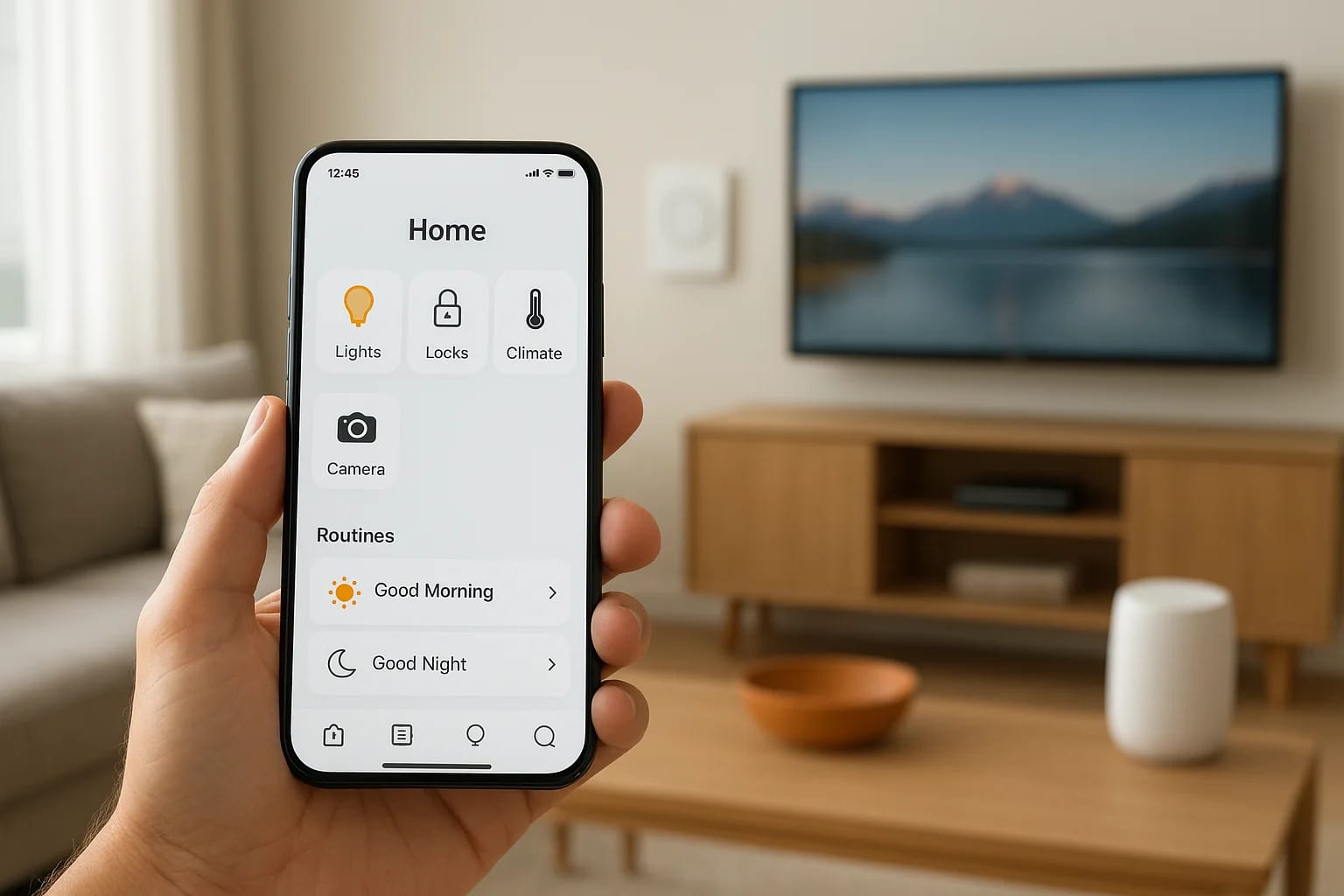

Samsung SmartThings home automation is one of the most widely adopted platforms for connecting and controlling smart devices throughout a home. It supports thousands of products across brands, lights,...
Samsung SmartThings Home Automation: How It Works & Setup
Samsung SmartThings home automation is one of the most widely adopted platforms for connecting and controlling smart devices throughout a home. It supports thousands of products across brands, lights, locks, thermostats, sensors, cameras, and ties them together through a single app and automation engine. For homeowners in the Treasure Valley exploring their first smart home setup or looking to expand an existing one, SmartThings is a name that comes up fast.
But understanding how the platform actually works, what hardware you need, how automations are built, and where its limitations sit, takes more than a quick glance at the app store. Getting it right from the start saves time, money, and the frustration of devices that don't talk to each other. That's exactly the kind of problem we solve at Treasure Valley Solutions, where we design and install custom smart home systems that work reliably from day one.
This guide breaks down the SmartThings ecosystem piece by piece: how the hub and app function together, how to set up automations, which devices are compatible, and how SmartThings stacks up against competing platforms. Whether you're planning a DIY setup or considering professional installation, you'll walk away with a clear picture of what SmartThings can and can't do for your home.
Why SmartThings is popular for home automation
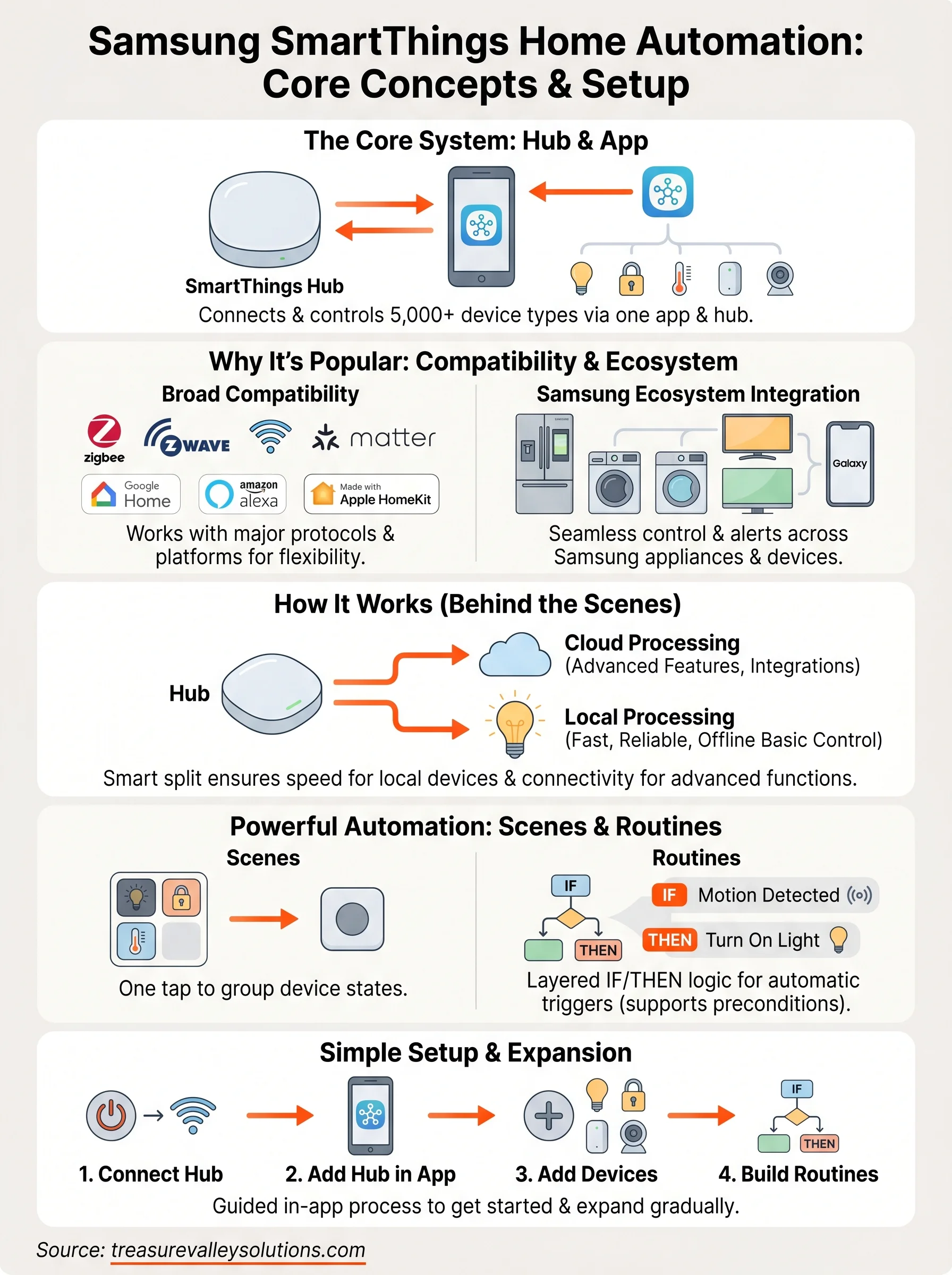
SmartThings has built its reputation on one core strength: it works with an enormous number of devices. As of 2025, the platform officially supports over 5,000 device types from hundreds of manufacturers. That breadth matters because most homes don't run on a single brand. You might have Philips Hue lights, a Yale smart lock, an Ecobee thermostat, and a Samsung TV, and SmartThings can pull all of them into one unified app. That combination of scale and flexibility is the main reason homeowners keep coming back to samsung smartthings home automation when they're ready to connect their home.
Broad device compatibility
One of the biggest frustrations with smart home tech is buying a new device and discovering it doesn't communicate with your existing setup. SmartThings reduces that risk significantly by supporting Zigbee, Z-Wave, Wi-Fi, and the newer Matter protocol. Those four standards cover the vast majority of smart home hardware on the market today, which means you can build out your system gradually without being forced into a single brand or product line.
The wider your device compatibility, the less money you spend replacing gear that still works fine.
Beyond its own device list, SmartThings also connects with major third-party platforms like Google Home, Amazon Alexa, and Apple HomeKit through Matter bridging. That gives you flexibility in how you control your home, whether through voice commands, the SmartThings app, or a third-party interface you already use. You aren't locked into one control path, and that matters as your setup grows over time.
Samsung ecosystem integration
If you own Samsung appliances, SmartThings delivers an extra layer of value that most competing platforms can't match without third-party workarounds. Samsung refrigerators, washers, dryers, and ovens connect directly to the platform, letting you receive alerts when a cycle finishes, monitor your fridge's temperature remotely, or pull appliances into energy-saving routines. That level of appliance integration is genuinely useful in a real household, not just a feature list item.
This integration extends to Samsung TVs and Galaxy mobile devices as well. Your SmartThings app on a Galaxy phone can function as a remote control, a home monitor, and an automation trigger simultaneously. For households already invested in the Samsung product line, that creates a cohesive experience without requiring you to buy additional hubs or bridge devices.
Automation tools that go beyond basic scheduling
SmartThings gives you several layers of automation to work with. Scenes let you group device states together, so a single tap can dim the lights, lock the doors, and lower the thermostat at once. Routines go further, triggering those scenes or individual device actions based on time, location, device status, or sensor readings like motion and contact events.
The platform supports IF/THEN condition stacking and preconditions that limit when a routine fires. If you want your porch lights to activate only after sunset and only when motion is detected at the front door, that layered logic is straightforward to build inside the SmartThings app. You don't need to write code or install custom firmware to get genuinely useful automation running across your home.
How SmartThings works behind the scenes
SmartThings operates through a combination of cloud processing and local execution, depending on your hardware and which devices you're running. When you tap a button in the app or a routine fires, the platform decides whether to handle that command on your local hub or route it through Samsung's cloud servers. Understanding that split helps you figure out why some automations respond instantly while others take a second or two longer.
The cloud and local processing split
Most basic device control and routine execution now runs locally on the SmartThings hub, which is a significant improvement over earlier versions of the platform that depended almost entirely on cloud connectivity. Local processing means your lights still turn on and your locks still respond even if your internet connection drops. However, third-party integrations and some advanced features still require a cloud connection, so a fully offline experience isn't guaranteed depending on your setup.
Local processing is one of the most underrated features in any smart home platform because it keeps your home functional even when your internet goes down.
How devices communicate and sync
The SmartThings app acts as your central control layer, but the hub is the physical backbone that speaks directly to your devices. When a motion sensor detects movement, it sends a signal to the hub, which checks your active routines and triggers the appropriate response. That sequence happens in milliseconds when running locally, which is why local execution matters for anything time-sensitive like security lighting or door locks.
Samsung continually updates the samsung smartthings home automation platform through regular firmware pushes and app updates, which means your system gains new capabilities without requiring new hardware in most cases. The SmartThings app on iOS and Android reflects your device states in real time, syncing status changes across everyone in your household who has access to the home. That shared visibility keeps every family member on the same page without requiring separate logins or duplicate configurations.
SmartThings hubs and protocols: Matter, Zigbee, Z-Wave
The hardware you choose as your hub determines which devices you can connect and how reliably they respond. Samsung currently offers the SmartThings Station as its primary hub option, a compact device that doubles as a wireless charger for compatible phones. Some Samsung smart TVs and Family Hub refrigerators also function as SmartThings hubs, so you may already have one in your home without realizing it.
Choosing the right hub for your setup
Your hub choice shapes your entire system, so it's worth matching the hardware to what you plan to connect. The SmartThings Station handles Wi-Fi and Matter devices natively, but if you want to run Zigbee or Z-Wave devices, you need a hub that explicitly supports those radios. Not every SmartThings-branded device includes all three protocol radios, so checking the spec sheet before you buy saves you from compatibility headaches later.
The right hub from the start means you won't have to rebuild your setup when you add devices a year down the road.
How Matter, Zigbee, and Z-Wave each work
These three protocols serve different roles inside a samsung smartthings home automation setup. Matter is the newest standard, designed specifically for cross-platform compatibility so a single device can work across SmartThings, Apple HomeKit, Google Home, and Amazon Alexa without additional bridges. It runs over Wi-Fi and Thread, making it the easiest protocol to add to an existing home network.
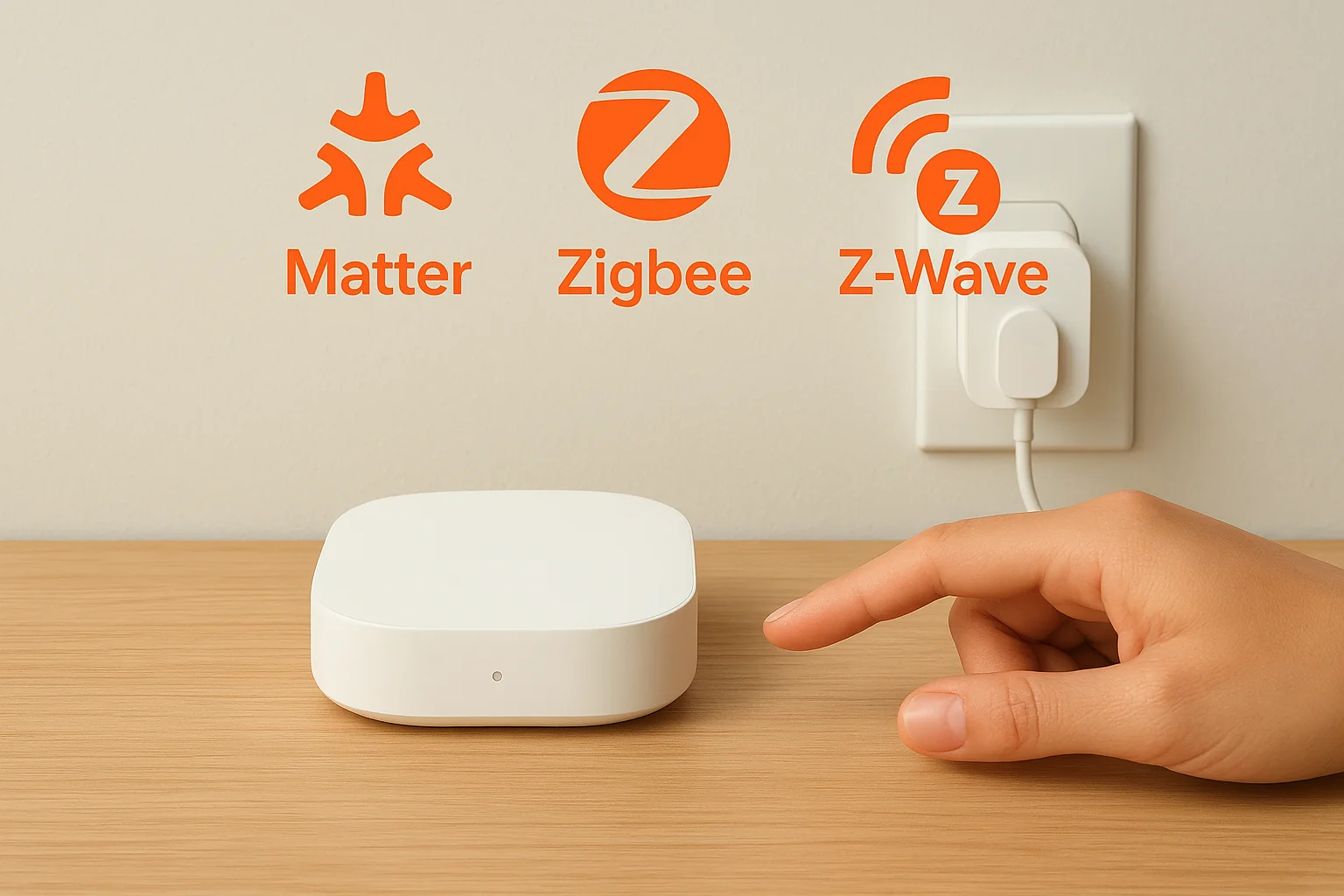
Zigbee and Z-Wave operate on dedicated low-power radio frequencies separate from your Wi-Fi network. That separation reduces interference and keeps battery-powered sensors and locks running for months or years on a single charge. Zigbee devices form a mesh network, meaning each powered device extends the signal range for others nearby. Z-Wave uses a similar mesh approach but operates on a different frequency band that avoids overlap with Wi-Fi and Zigbee traffic entirely, which makes it a solid choice for homes with many wireless devices competing for bandwidth.
How to set up SmartThings and build routines
Getting started with samsung smartthings home automation takes about 20 minutes for a basic setup. Download the SmartThings app from the App Store or Google Play, create a Samsung account if you don't have one, and then follow the in-app prompts to add your hub. The app walks you through the physical connection process step by step, so you don't need technical experience to get your first devices online.
Getting your hub connected and devices added
Once your hub powers on and connects to your home Wi-Fi, the next step is adding devices. Open the app, tap the "+" icon, and select "Device." The app groups devices by brand and type, making it straightforward to find your specific model. For Zigbee and Z-Wave devices, you'll put the device into pairing mode according to its manual while the hub scans for it. Wi-Fi and Matter devices pair through the app's guided flow without requiring you to juggle separate modes.
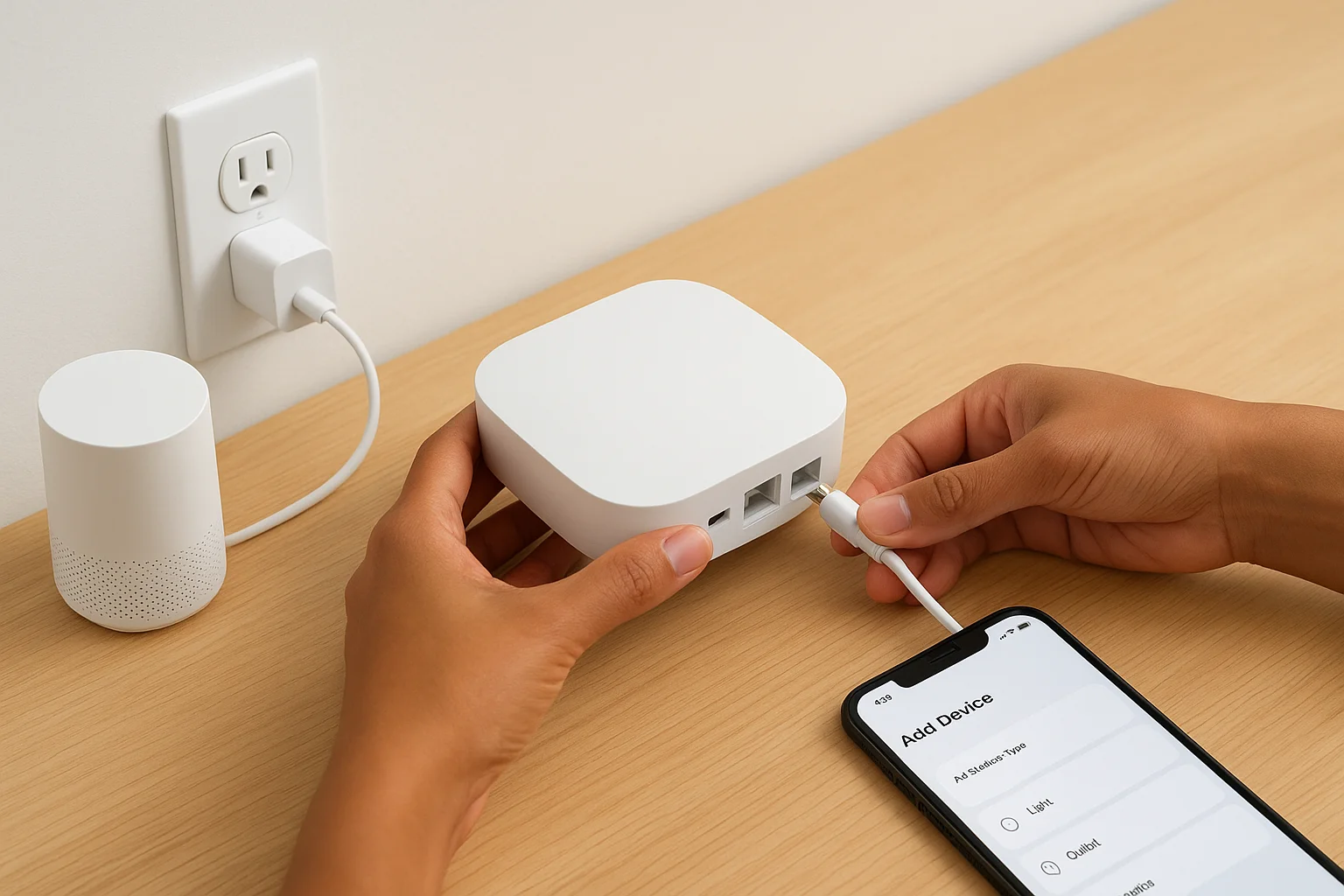
Here's the basic setup sequence most users follow:
- Power on your SmartThings hub and connect it to your router
- Open the SmartThings app and sign in to your Samsung account
- Add your hub as a device inside the app
- Add each smart device using the "+" menu
- Assign devices to rooms for cleaner organization
Building routines that actually do something useful
Routines are where SmartThings starts earning its place in your home. Inside the app, go to the "Automations" tab and tap "Add Routine." You'll define a trigger first, such as a motion sensor firing, a specific time, or your phone's location changing. Then you set the actions, which devices respond, in what state, and in what order.
Stacking preconditions into your routines keeps them from firing at the wrong time, which is the difference between automation that helps and automation that frustrates.
You can add multiple conditions and actions to a single routine, so one trigger can simultaneously dim your lights, adjust your thermostat, and lock your back door without any manual input from you.
SmartThings vs other platforms like Home Assistant
Choosing a smart home platform comes down to how much control you want over your setup and how much time you're willing to spend managing it. Samsung SmartThings home automation and Home Assistant are two of the most capable options available, but they are built around very different assumptions about the user. SmartThings prioritizes ease of use and broad compatibility out of the box, while Home Assistant prioritizes full local control and deep customization at the cost of a steeper learning curve.
Where SmartThings has the edge
SmartThings wins on accessibility and speed of setup. You can add devices, build routines, and share access with family members in an afternoon without touching a configuration file or a command line. The official app and guided device pairing make it approachable for homeowners who want results without spending hours on setup. SmartThings also carries strong manufacturer support, meaning many device makers test and certify their products specifically for this platform, which reduces compatibility surprises.
If you want a system that works reliably without ongoing maintenance, SmartThings is the more practical choice for most households.
Where Home Assistant pulls ahead
Home Assistant gives you complete local control over your entire system, with no dependency on Samsung's cloud infrastructure. If Samsung changes its terms of service, discontinues a feature, or experiences a server outage, your Home Assistant setup keeps running without interruption. The platform also supports a far wider range of integrations through its community-built add-ons, including systems and devices that SmartThings will never officially support.
The tradeoff is real, though. Setting up Home Assistant requires a dedicated device like a Raspberry Pi or a Home Assistant Green, plus enough technical comfort to work through configuration files and troubleshoot integration issues when they come up. For someone who enjoys that process, it's a powerful platform. For someone who wants to get back to living in their home, it creates more work than most people want.
Which platform fits your situation
Your decision should come down to how you plan to use the system long-term. SmartThings is the right starting point if you want a polished experience across Samsung devices and popular third-party hardware. Home Assistant is worth the investment if full local control and unlimited customization are non-negotiable priorities for you.
Bringing it all together
Samsung SmartThings home automation gives you a solid foundation for connecting your home without forcing you into a single brand or a complicated setup process. You can start with a few devices and expand over time, building routines that handle real tasks like securing your doors, adjusting your lighting, and managing your thermostat without lifting a finger. The platform's broad device support, local processing, and compatibility with Matter, Zigbee, and Z-Wave make it one of the most practical choices available for homeowners who want results they can rely on.
Getting the most out of any smart home platform still comes down to good design and clean installation from the start. A system that's planned around how you actually use your home performs better and stays reliable longer. If you're ready to move beyond trial and error, see examples of our custom smart home installations and find out what a professionally designed setup looks like in practice.
Need Expert Help?
Ready to implement these solutions in your own home or business?
Our Services

Complete home automation and control.

Intelligent lighting control and automation.
Serving the Treasure Valley
Local installation in your city