 (208) 991-3502
 Meridian, ID



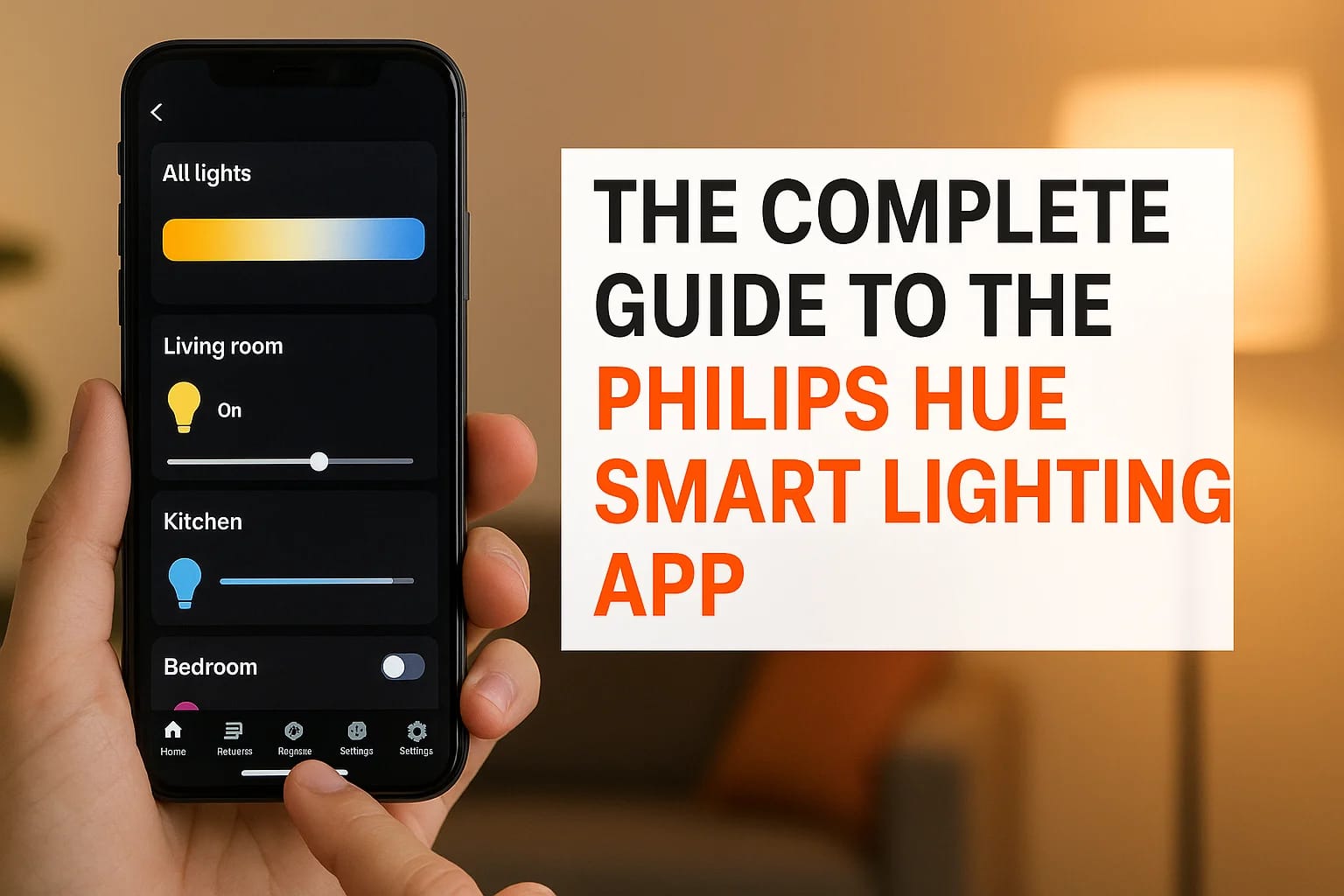

The Philips Hue smart lighting app is the control center for one of the most popular smart lighting ecosystems on the market. Available for both iOS and Android, it lets you set up, control, and autom...
The Philips Hue smart lighting app is the control center for one of the most popular smart lighting ecosystems on the market. Available for both iOS and Android, it lets you set up, control, and automate every Hue light in your home, from individual bulbs to entire rooms and zones. Whether you're adjusting colors, creating schedules, or syncing lights with music, the app is where it all comes together.
At Treasure Valley Solutions, we design and install custom smart lighting systems throughout the Boise and Meridian area, and Philips Hue is one of the platforms we work with regularly. We've configured the app across hundreds of homes and know exactly where it shines, and where clients tend to get stuck. That hands-on experience is what drives this guide. Our goal is to give you a clear, practical understanding of what the Hue app can do so you can get the most out of your lighting setup.
Below, we'll walk through everything from downloading and setting up the app for the first time to exploring its full feature set, including scenes, automations, voice control integration, and room configuration. Whether you just bought your first Hue starter kit or you're looking to unlock features you didn't know existed, this guide covers it all.
What the Philips Hue app does and what you need
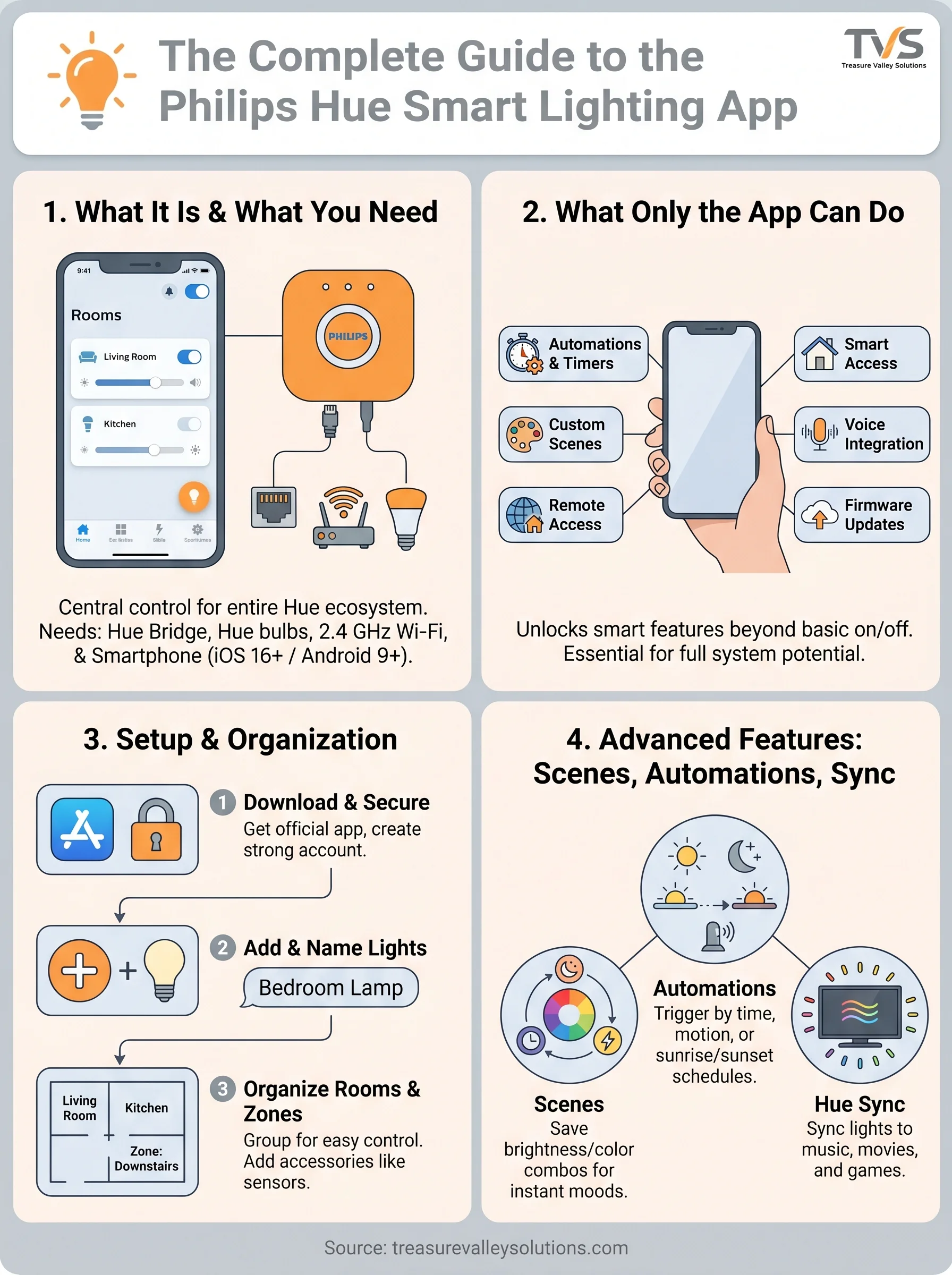
The Philips Hue smart lighting app is the primary interface for managing your entire Hue ecosystem. It handles everything from initial bulb setup to advanced automation, giving you direct control over color, brightness, scheduling, and scene management from your smartphone or tablet.
What the app controls
Your lights are organized into rooms and zones inside the app, so you can control individual bulbs or entire areas with one tap. From the home screen, you can adjust brightness with a slider, switch between warm and cool color temperatures, or activate pre-built scenes that shift the mood of a space instantly.
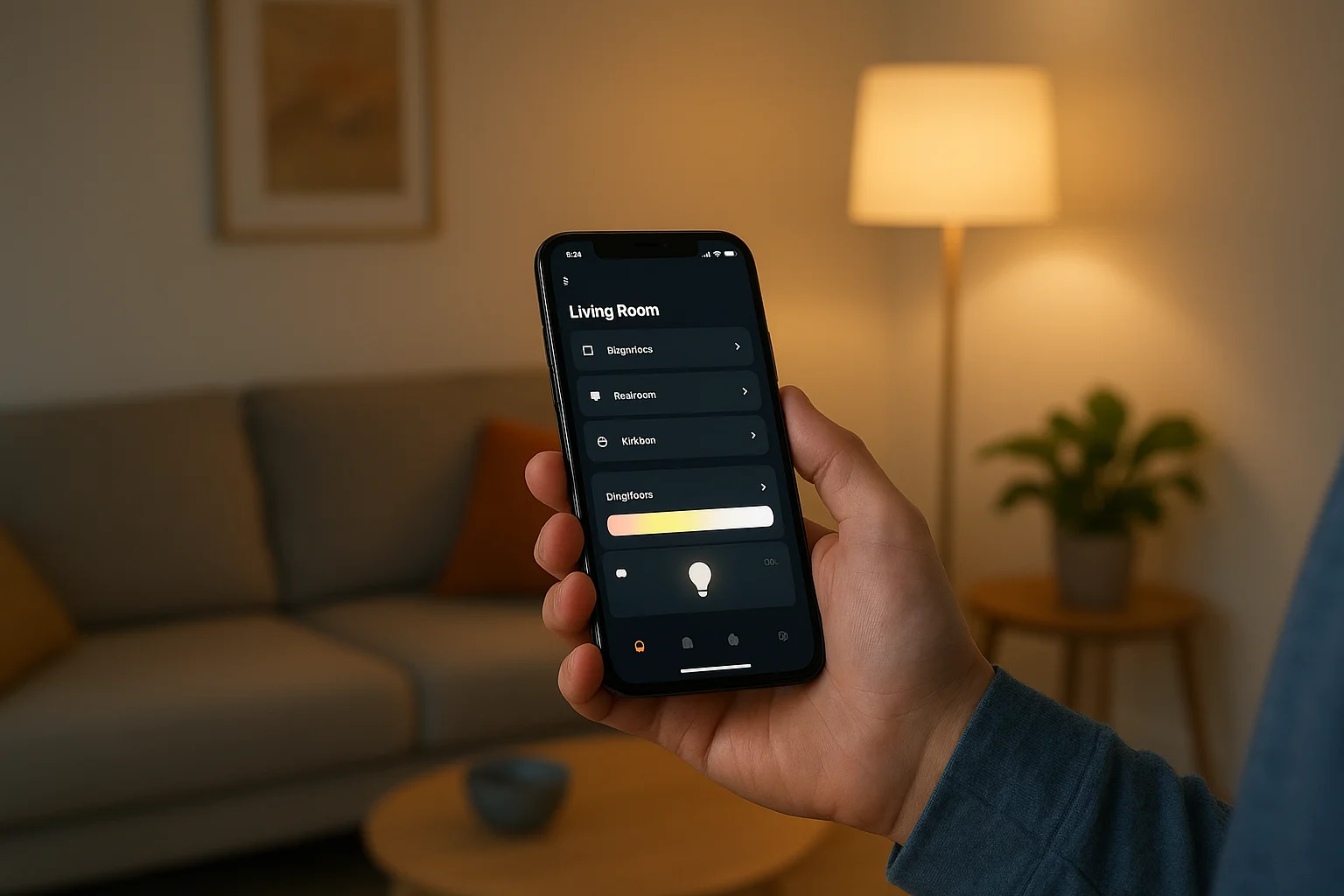
The app also integrates with voice assistants like Amazon Alexa, Google Assistant, and Apple HomeKit, which means you can control your lights hands-free without any extra hardware beyond the bridge.
Beyond basic on/off control, the app gives you access to automations, timers, and the Hue Sync feature that lets your lights respond to the time of day, sunrise and sunset, or even content playing on your screen.
What you need before you start
Before you open the app for the first time, a few things need to be in place. Most Hue setups require a Philips Hue Bridge, which connects your bulbs to your home network via an ethernet cable plugged into your router. Without it, you lose access to automations, remote control, and third-party integrations.
Here is what you need to get started:
- Philips Hue Bridge (included in most starter kits)
- At least one compatible Hue bulb or fixture
- A home Wi-Fi network with 2.4 GHz support
- An iPhone running iOS 16 or later, or an Android device running Android 9 or later
Why the Hue app matters for a Hue setup
Without the app, your Hue bulbs are just smart bulbs you can flip on or off at a switch. The Philips Hue smart lighting app transforms those individual bulbs into a fully connected, programmable lighting system that you control entirely from your phone. It serves as the central hub for every setting, scene, and automation you want to run.
Without the app configured properly, you miss out on the features that make a Hue system worth the investment.
What only the app can do
Physical switches and dimmer remotes handle basic on/off and brightness control, but they cannot build schedules, create custom scenes, or manage integrations. The app is where you define how your system actually behaves. These are the key capabilities that only the app unlocks:
- Automations triggered by time, motion, or sunrise and sunset
- Scene creation with custom colors and brightness levels
- Remote access from anywhere via your phone
- Third-party integrations with Alexa, Google Assistant, and Apple HomeKit
- Firmware updates to keep your devices current and secure
Each of these features depends on having the app set up correctly from the start, which is exactly what the next section covers.
How to download and sign in safely
The Philips Hue smart lighting app is available for free on both the Apple App Store and Google Play. Downloading it takes less than a minute, but where you get it from matters. You should always go directly to the official app stores rather than third-party sites to ensure you get the legitimate, up-to-date version and avoid security risks.
Only install the Hue app from Apple's App Store or Google Play to protect your account and home network.
Where to find the official app
Open your device's app store and search for "Philips Hue." Before you tap install, confirm the developer is listed as Signify Netherlands B.V., the company that owns the Hue brand. This check takes five seconds and confirms you have the real app, not a lookalike designed to steal your credentials.
Here is what to verify before you install:
- Developer name: Signify Netherlands B.V.
- Store rating: 4 stars or higher with a large volume of reviews
- Install count: Hundreds of thousands of installs on Google Play
Creating and securing your account
Once the app is installed, open it and select "Create account" to register with your email address. Choose a strong, unique password that you don't use anywhere else, since your Hue login controls remote access to your lighting system and home network. After signing in, the app immediately prompts you to connect your Hue Bridge and begin setup.
How to set up lights, rooms, and accessories
Once you're signed in, the Philips Hue smart lighting app walks you through adding your bulbs one at a time. The app scans for nearby Hue devices automatically, so the process rarely takes more than a few minutes per bulb or fixture.
Adding and naming your lights
Tap "Add light" in the app and let the scan run. When your bulb appears on screen, give it a descriptive name like "Bedroom Lamp" or "Kitchen Overhead" so you can find it quickly later. Clear names save significant time when you start building automations and schedules.
Naming your lights clearly from the start prevents confusion when you have 10 or more bulbs in the system.
Organizing into rooms and zones
After your lights are added, group them into rooms and zones using the app's room setup tool. Rooms tie specific bulbs together so you can control them all with one tap. Zones can span multiple rooms, which works well for open floor plans where you want consistent lighting across a large area.
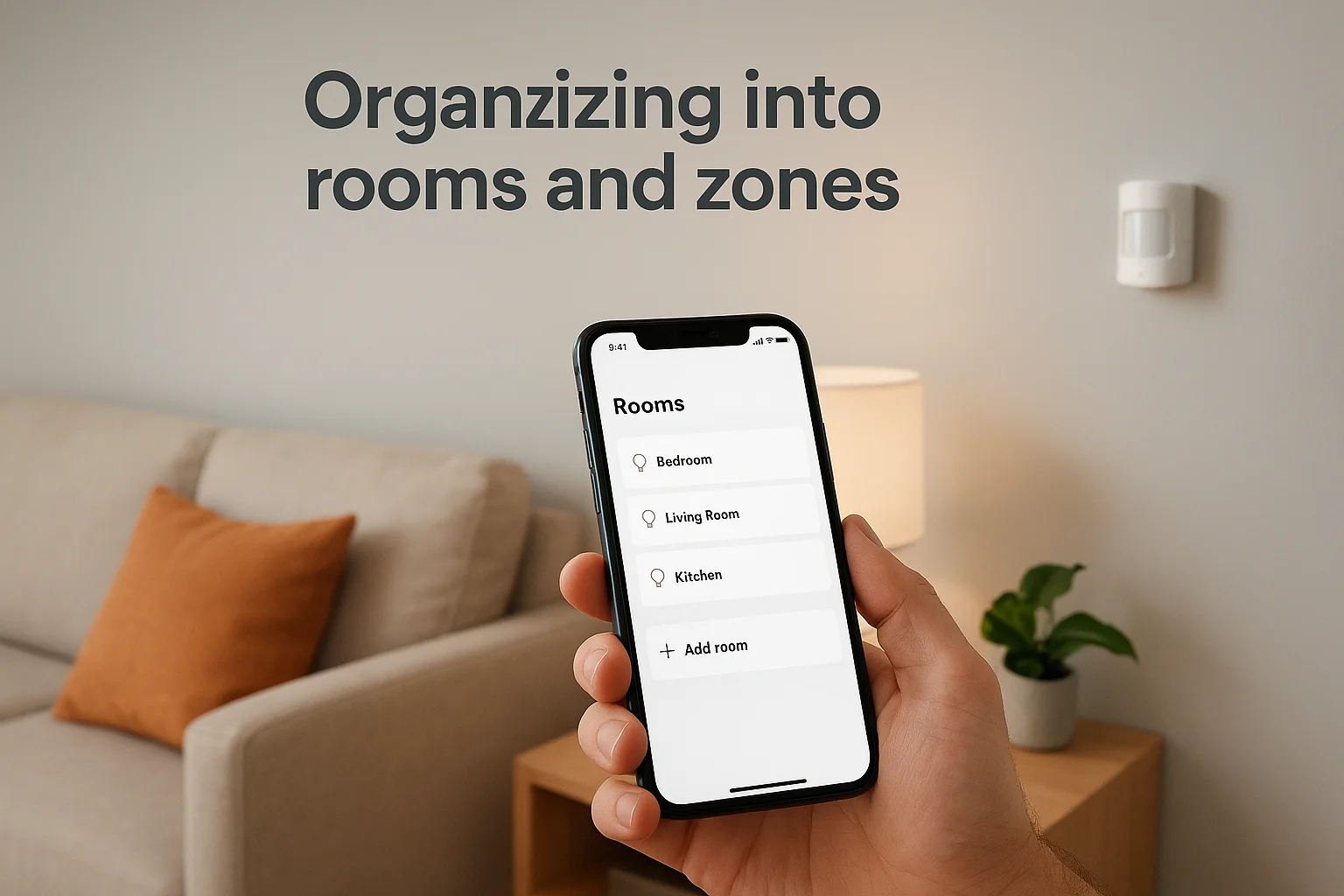
The app also lets you add accessories like motion sensors and dimmer switches to your rooms. Pairing these with a room extends how you interact with your lighting system without reaching for your phone every time.
How to use scenes, automations, and sync
The Philips Hue smart lighting app gives you three powerful tools that go beyond simple on/off control: scenes, automations, and Hue Sync. Together, these features let you build a lighting experience that adapts to your routine without requiring you to touch your phone every time conditions change.
Scenes and automations
Scenes let you save a specific combination of brightness and color settings across multiple lights and activate them with one tap. Automations build on scenes by triggering them automatically based on time of day, motion sensor activity, or sunrise and sunset schedules.
Setting an automation to gradually brighten your bedroom lights at your wake-up time is one of the most practical uses of the Hue system.
Hue Sync
Hue Sync connects your lights to content playing on your screen, shifting colors in real time to match what you're watching. Enable it through the "Entertainment areas" section of the app, where you assign specific bulbs and set the effect intensity.
For best results, position your Hue lights behind or around your display and start with a medium intensity setting. You can refine the coverage and sensitivity from the same Entertainment areas screen as your setup grows.
Next steps
The Philips Hue smart lighting app gives you a complete toolkit for managing your lighting, from basic bulb control to scheduled automations and real-time sync. Start with the fundamentals: download the app, connect your Bridge, and get your lights organized into rooms. Once the basics are in place, work your way into scenes and automations to build a system that fits your daily routine without extra effort on your part.
If you want a Hue setup that's fully integrated with the rest of your home's technology, professional installation makes a real difference. At Treasure Valley Solutions, we design and install custom smart lighting systems across the Boise and Meridian area, including Hue configurations that tie into security, audio, and home automation. See examples of our smart home work or get in touch with our team to start planning your setup today.
Need Expert Help?
Ready to implement these solutions in your own home or business?
Our Services

Intelligent lighting control and automation.

Complete home automation and control.
Serving the Treasure Valley
Local installation in your city