 (208) 991-3502
 Meridian, ID




Your Nest Doorbell just stopped working, and now you're staring at a blank screen wondering who actually answers the phone at Google. Finding reliable Google Nest Doorbell support can feel like a maze...
Google Nest Doorbell Support: Contact Options & Fast Fixes
Your Nest Doorbell just stopped working, and now you're staring at a blank screen wondering who actually answers the phone at Google. Finding reliable Google Nest Doorbell support can feel like a maze, between buried contact pages, chatbot loops, and outdated forum posts, getting a real solution takes longer than it should.
At Treasure Valley Solutions, we install and support smart home security systems across the Boise and Meridian area every day, including Nest Doorbells. We've walked plenty of clients through these exact issues, so we know which support channels actually work and which ones waste your time. That hands-on experience is baked into this guide.
Below, you'll find every current way to reach Google's Nest support team, along with fast fixes for the most common doorbell problems, so you can get your system back online without the runaround.
Before you start: what to check and gather
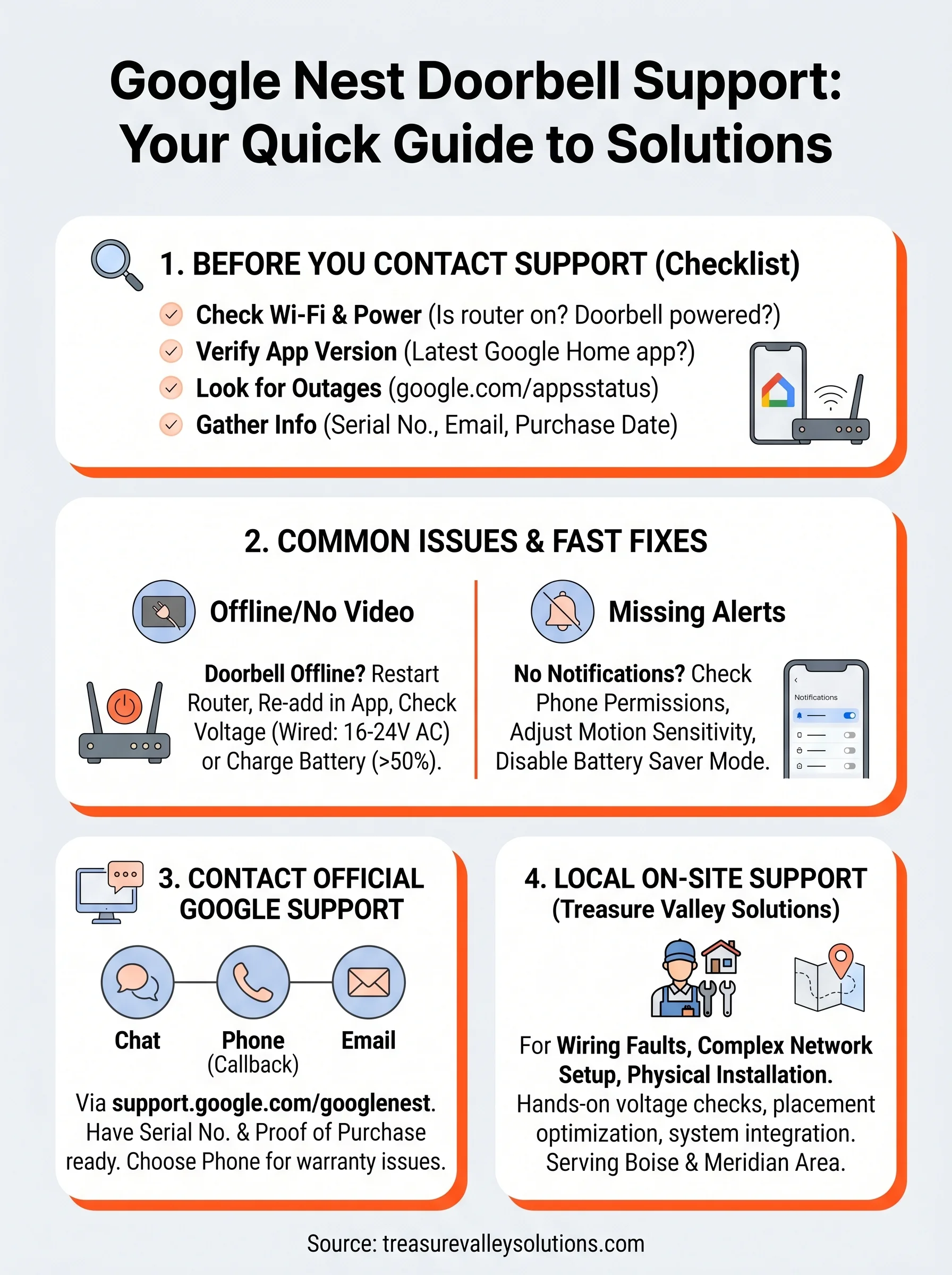
Before you contact anyone, spend two to five minutes running through a basic checklist. Most Google Nest Doorbell problems, including offline status, no video feed, and missed motion alerts, trace back to one of a handful of root causes. Running these checks first means you either solve it yourself or walk into a support conversation with the right information ready.
Check your app and device status first
Open the Google Home app on your phone and look at your doorbell's status tile. If it shows "offline," the issue is almost always a Wi-Fi connection or power supply problem rather than a hardware fault. Pull up your router and confirm the network band your doorbell uses is actually broadcasting before you do anything else.
Restarting your router and waiting 60 seconds before rechecking the app resolves a large number of offline errors without any support call needed.
Run through these checks in order:
- Confirm your Wi-Fi network is online and other devices can connect to it
- Check that your doorbell has power (wired models require 16-24V AC; battery models need a charge above 10%)
- Verify you're running the latest version of the Google Home app by visiting the App Store or Google Play and checking for updates
- Look for any active Google service outages at google.com/appsstatus
Gather your device info before you call
When you do reach Google Nest Doorbell support, having your account and device details ready shortens the conversation significantly. Support reps ask for this information within the first few minutes, so collecting it now saves you from scrambling mid-call.
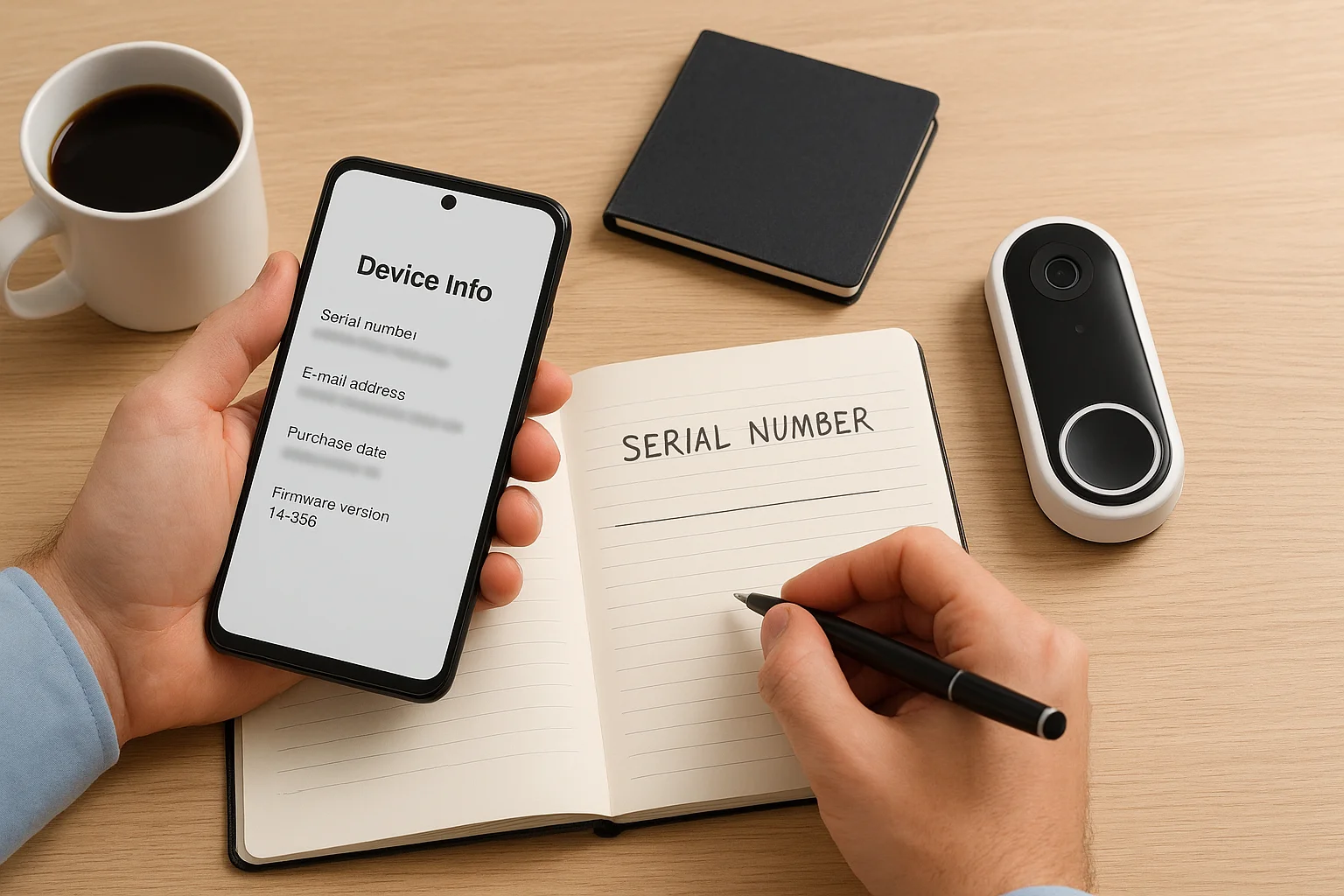
Here is exactly what to pull together before you reach out:
| Information needed | Where to find it |
|---|---|
| Device serial number | Google Home app > Doorbell > Settings > Technical info |
| Google account email | The email tied to your Google Home setup |
| Purchase date and retailer | Your order confirmation email or receipt |
| Firmware version | Google Home app > Doorbell > Settings > Technical info |
| Issue description | Write down what happens, when it started, and what you have already tried |
Your serial number and purchase date are especially critical if your issue could fall under warranty coverage, which the later sections of this guide walk through in detail.
Use official Google Nest Doorbell support channels
When your own checks don't resolve the issue, Google Nest Doorbell support gives you three main ways to get help directly from Google. Knowing which channel fits your situation saves you from waiting in the wrong queue.
Contact Google support directly
Google offers live chat, phone callbacks, and email support for Nest devices. The fastest route is through the Google Nest Help page, where you describe your issue and the system routes you to the right team. Phone callbacks typically happen within a few minutes during business hours, and live chat responses usually arrive faster than email threads.
For warranty-related issues or hardware faults, always choose the phone callback option so you have a direct record of what Google agrees to cover.
To reach a support agent, follow these steps:
- Go to support.google.com/googlenest
- Select Nest Doorbell from the product list
- Choose your issue category (connectivity, video, notifications, or hardware)
- Pick Chat, Phone, or Email based on the urgency of your problem
- Have your serial number and purchase date from the previous section ready before the agent connects
Use the Google Home Help Center
The Google Home Help Center at support.google.com/googlenest also hosts a full library of device-specific guides. You can search by doorbell model or symptom, which often surfaces a documented fix faster than waiting for an agent. Check this resource first for issues like persistent offline status, two-way audio problems, or notification settings that won't save.
Try these fast fixes for common doorbell issues
Before you spend time in a Google Nest Doorbell support queue, run through the fixes below. These cover the most common problems reported by Nest Doorbell owners, and most take under five minutes to complete. Solving the issue yourself is always faster than waiting for a callback.
Fix a doorbell that's offline or not connecting
An offline doorbell almost always comes down to power or Wi-Fi. The Google Home app shows a grey icon when the device loses its connection, which tells you where to start looking before touching any settings.
If your doorbell keeps dropping offline after reconnecting, move your router closer to the front door or add a Wi-Fi extender to improve signal strength at the device.
Work through these steps in order:
- Restart your router by unplugging it for 30 seconds, then reconnecting
- Open the Google Home app, tap your doorbell, and select "Remove device," then re-add it to force a fresh connection
- For wired models, check that your transformer output is between 16-24V AC using a multimeter
- For battery models, charge the battery to at least 50% before reconnecting
Fix video and notification issues
Delayed video or missing motion alerts usually point to app notification settings or a weak Wi-Fi signal rather than a broken device. Check your phone's notification permissions first before adjusting any doorbell settings.
Work through these fixes in order:
- Go to Settings > Notifications on your phone and confirm the Google Home app has full permission
- Inside the Google Home app, open your doorbell settings and verify motion sensitivity is not set to low
- Disable battery saver mode on your phone, which often blocks background app activity and delays alerts
Know when to ask for repair, replacement, or warranty help
Not every problem has a quick fix. If you've worked through the common troubleshooting steps and your doorbell still isn't responding, it's time to figure out whether you need a repair, a replacement, or a warranty claim before spending more time on Google Nest Doorbell support calls. Knowing which path fits your situation saves you from going in circles.
Check if your doorbell is still under warranty
Google covers most Nest Doorbell hardware defects under a one-year limited warranty from your original purchase date. If your device fails due to a manufacturing defect rather than physical damage, Google will typically replace it at no cost. You'll need your serial number and proof of purchase ready, which is exactly why the earlier section of this guide told you to gather those details first.
Always file your warranty claim through Google's official support page rather than through a retailer, since Google handles Nest device replacements directly.
Here's a quick breakdown of what the warranty does and does not cover:
| Covered | Not covered |
|---|---|
| Manufacturing defects | Physical damage or drops |
| Hardware failures at component level | Water damage beyond rated resistance |
| Software issues causing hardware malfunction | Normal wear and tear |
When to push for a replacement instead of a repair
If your doorbell is outside the warranty period but shows signs of hardware failure such as a cracked lens, dead battery cells, or a non-responsive button, replacement is usually the smarter move. Nest Doorbell parts are not sold separately, which means repair options are limited unless you're still under warranty or purchased an extended protection plan through Google One or a retailer. In that case, contact Google support directly and ask them to document the hardware fault before your plan expires.
Get hands-on help in the Treasure Valley
Google Nest Doorbell support handles software issues and warranty replacements well, but some problems need someone standing at your front door rather than on the other end of a chat window. If your doorbell has a wiring fault, a network issue tied to your broader smart home setup, or just never worked the way you expected after installation, a local technician gets you to a resolution faster than any remote support channel.
What a local technician can do that Google can't
On-site support covers the parts of the problem that remote agents can't see or test, including your transformer output, wiring connections at the doorbell and chime, and how your device interacts with the rest of your home network. A technician can run live voltage checks, reposition your doorbell for better Wi-Fi signal, and reprogram the device settings on the spot.
Local support also gives you a single point of contact for your entire smart home system, not just one device.
Here's what an on-site visit typically covers:
- Wiring and power inspection for wired Nest Doorbell models
- Wi-Fi signal testing and router placement recommendations
- Full Google Home app reconfiguration if the device was set up incorrectly
- Integration checks if your doorbell connects to a larger smart security system
Reach Treasure Valley Solutions
Treasure Valley Solutions serves homeowners and property managers across Boise, Meridian, Eagle, and the surrounding area. If your Nest Doorbell isn't performing the way it should, contact us directly to schedule an on-site assessment and get it working correctly.
Next steps
You now have everything you need to move through Google Nest Doorbell support without wasting time on the wrong channel. Start with the checklist in the first section, run the fast fixes, and reach out to Google directly if the problem points to a hardware fault or a warranty claim.
If your doorbell has a wiring issue, a persistent connectivity problem, or needs to work as part of a larger smart security setup, working with a local technician gets you a faster and more reliable result than remote support alone. Treasure Valley Solutions serves homeowners, property managers, and builders across the Boise and Meridian area with professional installation and hands-on support for smart home systems, including Nest Doorbells.
Ready to get your system working the way it should? Contact Treasure Valley Solutions to schedule an on-site visit and stop troubleshooting on your own.
Need Expert Help?
Ready to implement these solutions in your own home or business?
Our Services
High-definition surveillance for peace of mind.
Comprehensive security solutions for home and business.
Serving the Treasure Valley
Local installation in your city