 (208) 991-3502
 Meridian, ID



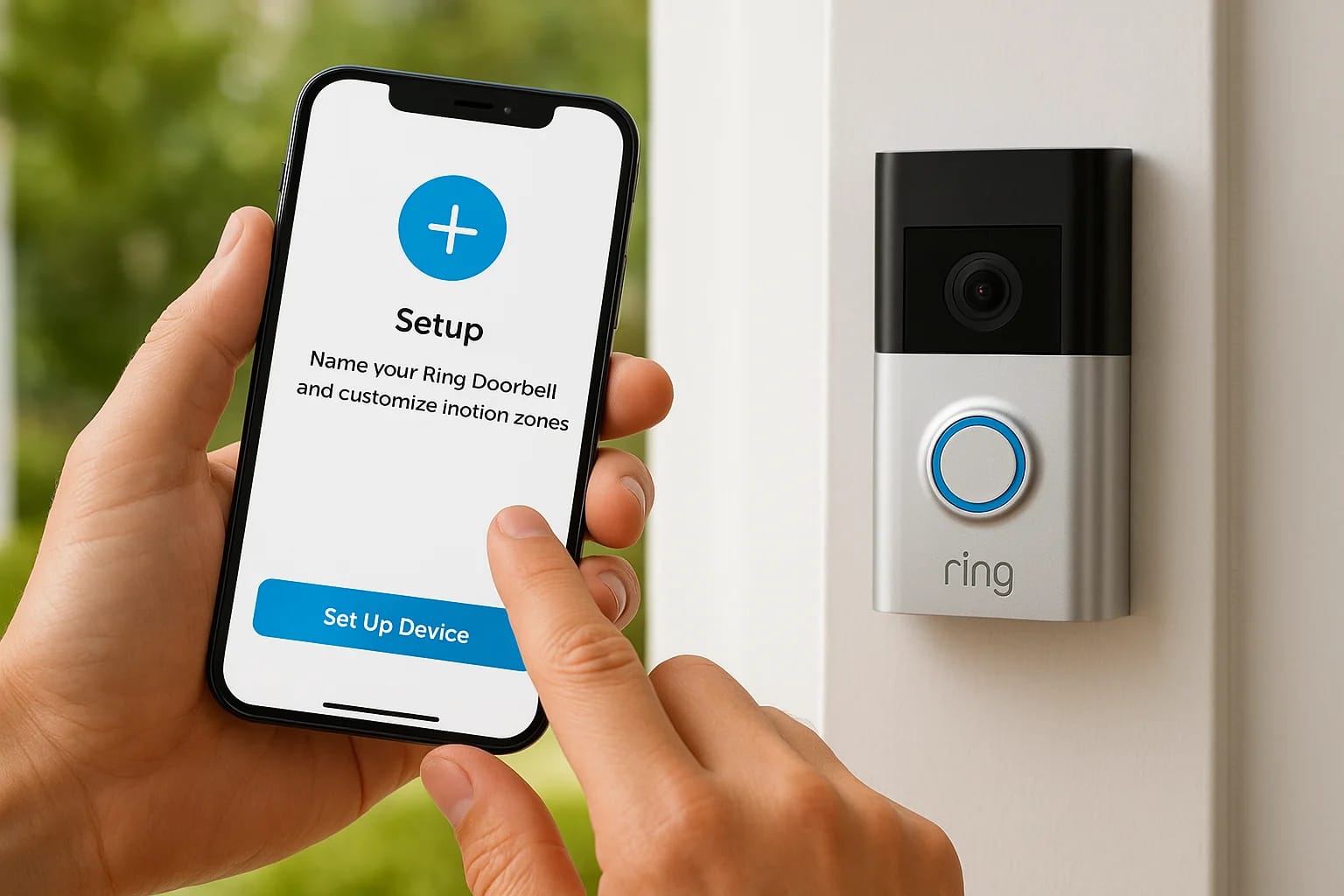

The Ring Video Doorbell app is how you actually use your doorbell, it's where you view live video, get motion alerts, talk to visitors, and share access with family members. Without it properly set up...
The Ring Video Doorbell app is how you actually use your doorbell, it's where you view live video, get motion alerts, talk to visitors, and share access with family members. Without it properly set up, your Ring doorbell is just an expensive button. Getting the app configured correctly from the start saves you from missed alerts, laggy connections, and the frustration of features that don't work the way you expected.
At Treasure Valley Solutions, we install and integrate smart security systems across Boise, Meridian, Eagle, and the surrounding area. Ring doorbells are one piece of a complete home security setup, and we know from hands-on experience how important the app side is. A great installation means nothing if the software isn't dialed in.
This guide walks you through downloading the app, connecting your doorbell, customizing your motion alerts, and sharing access with other household members, step by step.
What you need before you start
Before you touch the ring video doorbell app, take two minutes to confirm you have everything in place. Skipping this step is the most common reason people get stuck halfway through setup. Having the right equipment and account details ready makes the entire process faster and less frustrating.
Compatible devices and operating systems
Your smartphone or tablet needs to meet the minimum requirements Ring lists for the app to work reliably. The Ring app runs on iOS 16 or later and Android 8 or later. If your phone is older than that, you may experience connection drops or features that simply won't load.
Running an outdated OS is the most overlooked reason the Ring app behaves unproperly after installation.
Here is a quick checklist to confirm before you start:
- iPhone 8 or newer running iOS 16+
- Android phone running Android 8.0 (Oreo) or newer
- At least 1 GB of free storage on your device
- Bluetooth enabled on your phone (needed during device pairing)
Account and Wi-Fi requirements
You need a valid Ring account before adding any device. If you do not have one, you can create a free account at ring.com. Your home Wi-Fi network also needs to be a 2.4 GHz or 5 GHz connection with a stable signal near your front door. A weak signal at the doorbell location causes more setup failures than anything else, so test your signal strength at the door before you begin.
Step 1. Install and sign in to the Ring app
The ring video doorbell app is free on both major app stores. Open the App Store on iPhone or the Google Play Store on Android, search for "Ring," and download the official app published by Ring LLC. The download takes under a minute on most connections.
Sign in or create your account
Once the app opens, tap "Sign In" if you already have a Ring account, or tap "Create Account" to register with your email address and a strong password. Ring will send a verification email, so check your inbox and confirm it before moving forward.
Use the same email address across all Ring devices to keep your account organized and avoid access issues later.
After verifying your email, sign in to the app. You will land on the main dashboard, which is where all your devices and activity feeds appear once the rest of the setup is complete.
Step 2. Add your Ring video doorbell
With the app open and your account active, tap "Set Up a Device" on the main dashboard, then select "Doorbells" from the device list. The ring video doorbell app walks you through each step on screen, so follow the prompts in order without skipping ahead.
Connect your doorbell to Wi-Fi
Scan the QR code or barcode on your doorbell or its packaging when the app prompts you. After scanning, the app asks you to connect the doorbell to your Wi-Fi network. Select your network, enter your password, and wait for the doorbell to confirm the connection with a light pattern or chime.
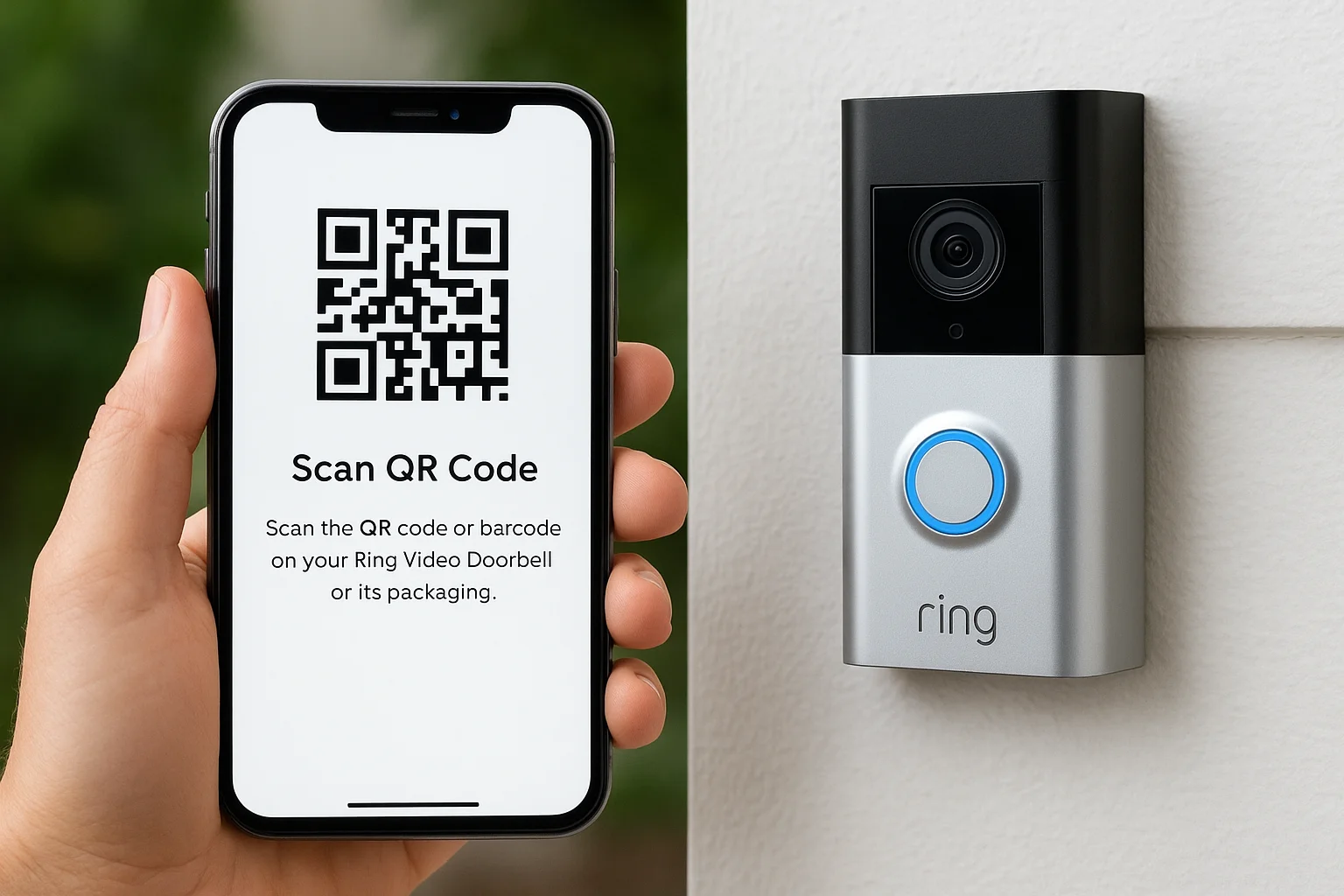
A solid Wi-Fi signal at the front door is critical here. If the connection keeps failing, move your router closer or add a Wi-Fi extender before trying again.
Once connected, name your device (for example, "Front Door") and confirm its location within the app so you can identify it instantly when alerts come in.
Step 3. Set up motion and doorbell alerts
Alerts are what make your doorbell actually useful day to day. Inside the ring video doorbell app, tap your device, then select "Motion Settings" to control when and how the app notifies you. Without tuning these settings, you will either miss important activity or get flooded with notifications for every car that passes.
Enabling "Motion Scheduling" lets you silence alerts during set hours, like overnight, without turning off your camera recording.
Adjust your motion zones and sensitivity
Motion zones let you draw a custom detection area on your camera view so the doorbell only tracks movement where it actually matters. Tap "Edit Motion Zones", drag the corners to cover your porch and walkway, and set sensitivity to medium as a starting point. Adjust the level up or down over the next few days based on how many false alerts you receive.
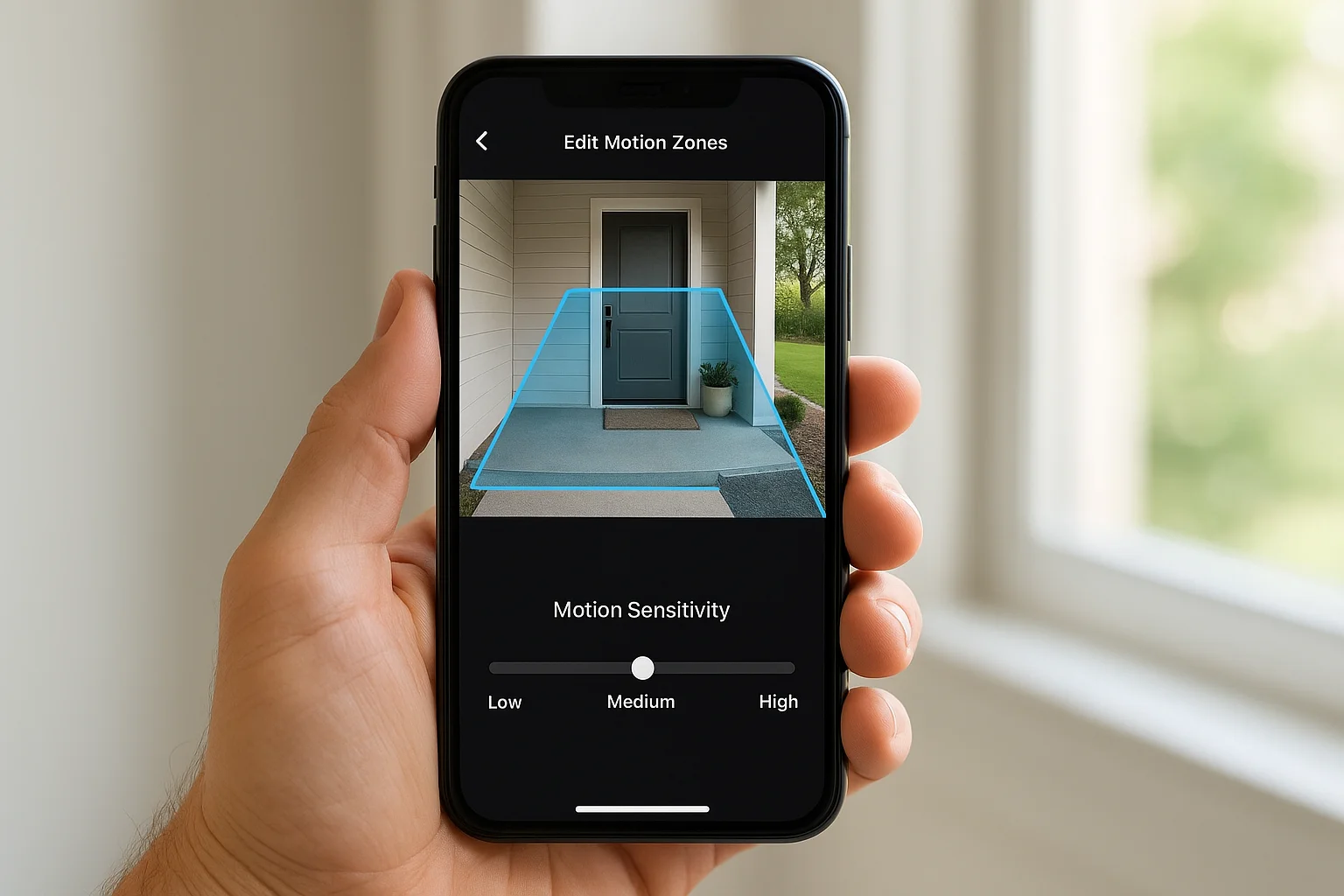
Here are the four alert settings to configure right away:
- Motion Alerts: Toggle on to receive push notifications when motion is detected
- Doorbell Alerts: Toggle on to be notified the moment someone presses the button
- Motion Sensitivity: Start at medium, then refine based on false alert frequency
- Rich Notifications: Enable to see a snapshot preview directly inside each alert
Step 4. Share access with family or staff
The ring video doorbell app lets you add other users so they can view live video, receive alerts, and answer the door without needing your login credentials. This feature is useful for spouses, roommates, or property staff who need independent access to the same doorbell.
How to send a shared user invite
Open the app, tap the menu icon, then navigate to "Account" > "Shared Users" and enter the email address of the person you want to add. Ring sends them an invitation email with a link to download the app and accept access. They need their own Ring account to complete the process.
Shared users receive the same motion and doorbell alerts you do, so remind them to configure their own notification settings after accepting the invite.
Each shared user gets full device access by default, including live view and two-way audio. They can answer the door and watch recordings, but they cannot change your account settings, subscription plan, or billing information.
Step 5. Fix common Ring app problems
When the ring video doorbell app stops behaving as expected, the fix is usually straightforward. Most problems trace back to three root causes: a weak Wi-Fi signal, an outdated app version, or a notification permission that got disabled on your phone.
Restarting the app and forcing a software update resolves the majority of Ring issues before you need to contact support.
Common issues and quick fixes
The table below covers the most common problems and the specific steps to resolve each one.
| Problem | Quick Fix |
|---|---|
| No motion alerts | Check notification permissions in your phone's settings |
| Live view won't load | Restart your router and reopen the app |
| App keeps crashing | Update to the latest version in the App Store or Google Play |
| Doorbell offline | Confirm Wi-Fi signal is strong at the front door |
| Two-way audio broken | Grant microphone access to Ring in your phone's permissions |
If none of those steps work, open the Device Health screen inside the app. It shows your signal strength (RSSI) and firmware version, which gives you the exact data you need when contacting Ring support.
Next steps
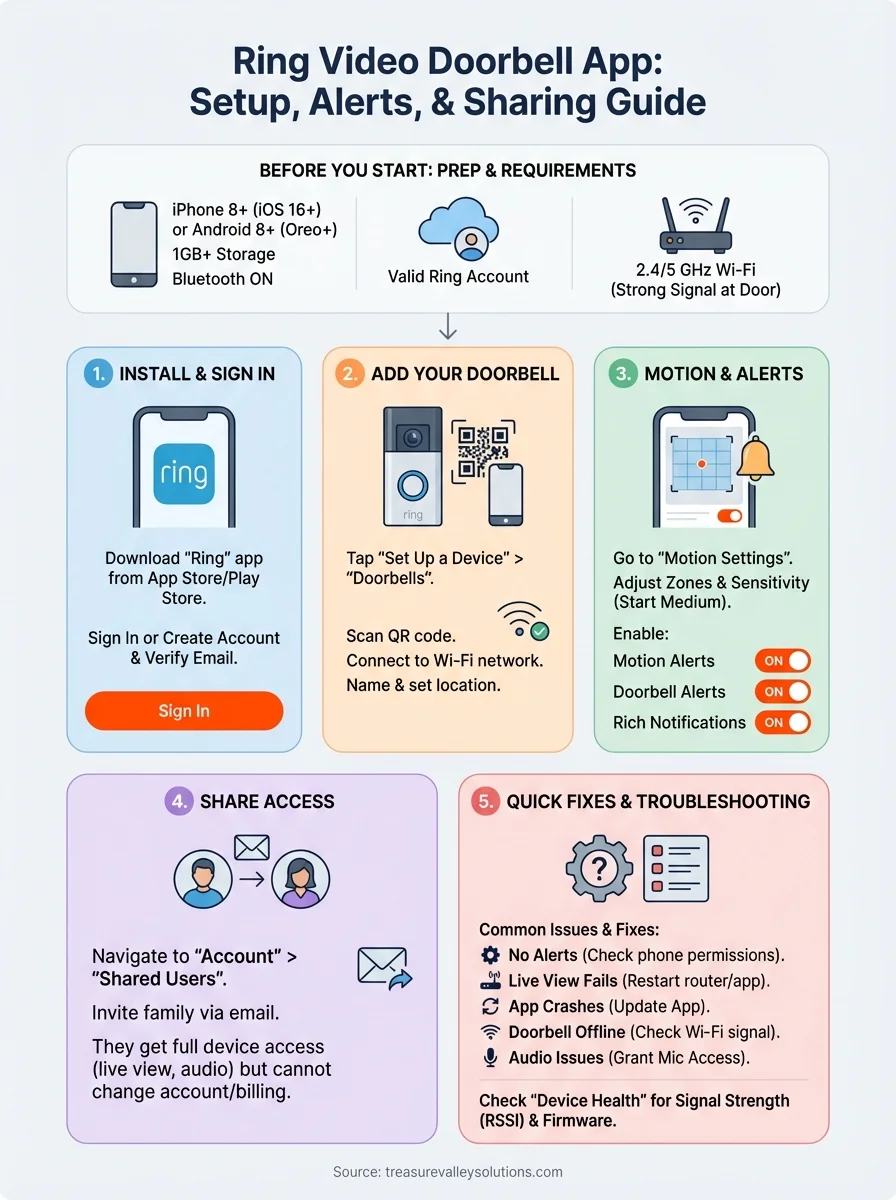
You now have everything you need to install, configure, and share the ring video doorbell app from start to finish. You covered app installation, device pairing, motion zone customization, shared user setup, and the most common fixes. Each step builds on the last, so if something stops working later, come back to the relevant section and run through it again.
A Ring doorbell works well on its own, but it works better as part of a complete security system that includes cameras, smart locks, and professional monitoring. If you want a setup that actually covers every entry point and ties everything into a single, easy-to-manage system, that requires planning beyond any single app.
Treasure Valley Solutions installs and integrates custom security systems across the Boise and Meridian area. Take a look at our past security and smart home projects to see what a fully integrated setup looks like in real homes.
Need Expert Help?
Ready to implement these solutions in your own home or business?
Our Services
High-definition surveillance for peace of mind.
Comprehensive security solutions for home and business.
Serving the Treasure Valley
Local installation in your city