 (208) 991-3502
 Meridian, ID




Every smart speaker, security camera, automated lock, and streaming device in your home depends on one thing: your Wi-Fi network. If that network isn't locked down, every connected device becomes a po...
Every smart speaker, security camera, automated lock, and streaming device in your home depends on one thing: your Wi-Fi network. If that network isn't locked down, every connected device becomes a potential entry point for hackers. Knowing how to secure a home network isn't optional anymore, it's as fundamental as locking your front door.
Most people set up their router once and never touch the settings again. That default configuration, with its factory password and outdated firmware, is exactly what attackers count on. A compromised network can expose your personal data, give strangers access to your security cameras, and even let someone control your smart home devices. The good news? Fixing these vulnerabilities doesn't require a computer science degree, just a straightforward checklist and an hour or two of your time.
At Treasure Valley Solutions, we design and install smart home systems across the Boise and Meridian area, and we see firsthand how much rides on a solid network foundation. A custom home theater, whole-home audio setup, or automated lighting system is only as reliable and safe as the network it runs on. That's why we put this step-by-step checklist together, to give you a clear, actionable plan for hardening your home network from the router up, whether you have three connected devices or thirty.
Before you start: know what you're protecting
Before you change a single setting, you need a clear picture of your network. Most households have far more connected devices than they realize, and each one sits inside the same security perimeter as your laptop, your passwords, and your bank login. Taking ten minutes to assess what's on your network before diving into the steps makes every action you take afterward more targeted and effective.
Map every device on your network
Your router knows exactly what's connected to it. Log in to your router's admin panel, typically found at 192.168.1.1 or 192.168.0.1 typed directly into your browser, and look for a section labeled "connected devices" or "DHCP client list." Write down every device you find, even ones you don't immediately recognize. A typical household connects 15 to 25 devices, and that count rises fast once you include smart TVs, thermostats, doorbells, game consoles, and voice assistants.
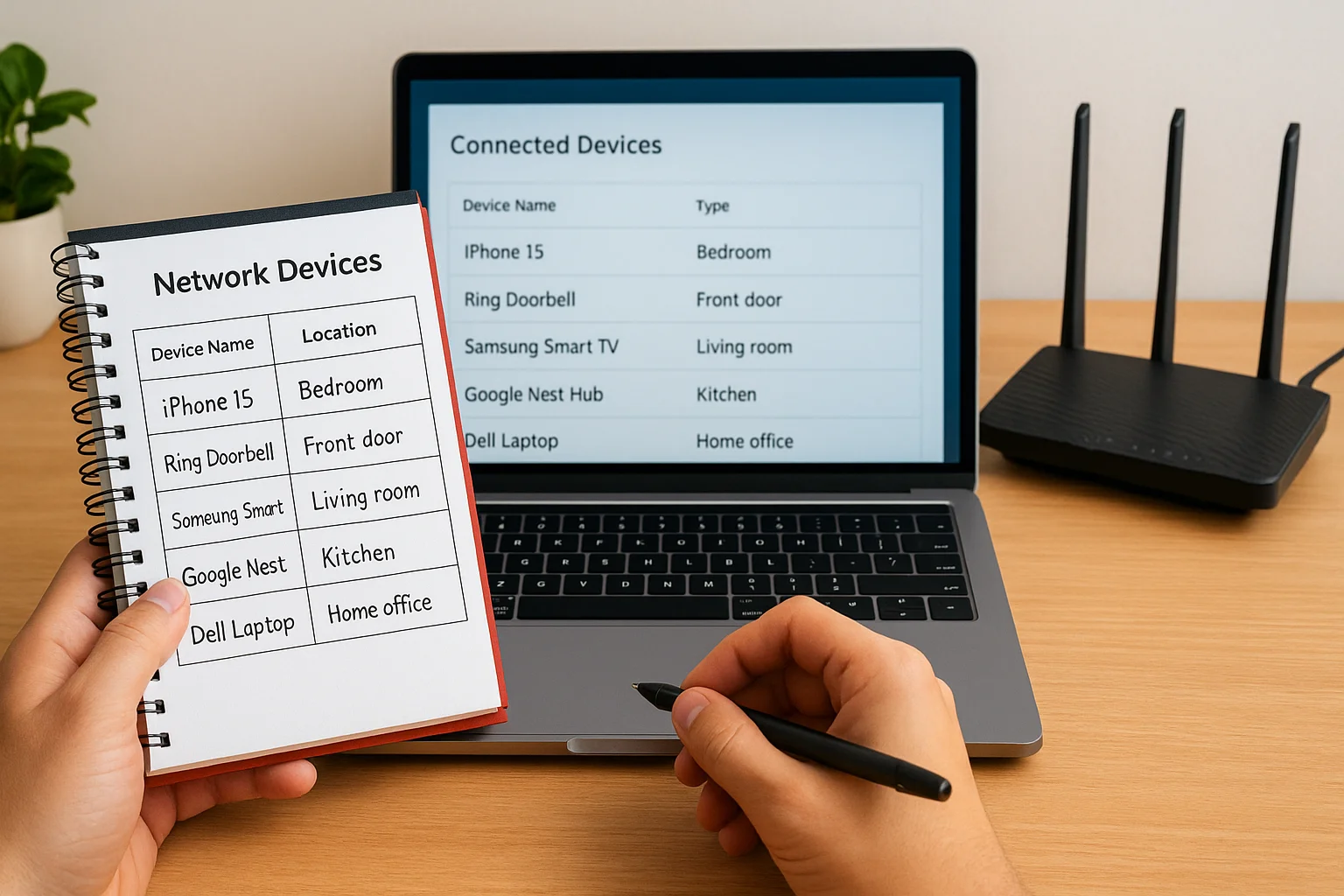
If you spot a device you don't recognize, treat it as a problem to solve before you move on to any other steps.
Use this simple inventory template to track what you find:
| Device Name | Type | Location | Firmware Current? |
|---|---|---|---|
| iPhone 15 | Phone | Bedroom | Yes |
| Ring Doorbell | Camera | Front door | Unknown |
| Samsung Smart TV | TV | Living room | Unknown |
| Google Nest Hub | Smart speaker | Kitchen | Unknown |
| Dell Laptop | Computer | Home office | Yes |
Understand what attackers actually want
Hackers targeting home networks are rarely after you specifically. They look for open doors: a misconfigured camera they can tap into, an old router they can use to route malicious traffic, or credentials stored on your devices. Once they land on your network, they can intercept unencrypted traffic, move laterally to other devices, and stay hidden for months without any visible sign.
Learning how to secure a home network means accepting that every unprotected device raises the risk for every other device sharing that connection. A smart bulb running outdated firmware and a banking app on your phone sit on the same Wi-Fi. That shared exposure is exactly what the following steps are designed to close.
Step 1. Lock down your router login and Wi-Fi
Your router is the front door to your entire network, and most routers ship with default admin usernames and passwords that are publicly listed online. Any attacker who reaches your router's login page can try "admin/admin" or "admin/password" and walk right in. This single change, updating those defaults, is the highest-impact move you can make when learning how to secure a home network.
Change your router's admin username and password
Log in to your router's admin panel at 192.168.1.1 or 192.168.0.1, find the administration or account settings section, and replace both the username and password. Use a password that is at least 16 characters and combines uppercase letters, lowercase letters, numbers, and symbols. Store it in a password manager rather than writing it on a sticky note near the router.
A strong admin password stops an attacker from locking you out of your own router and silently redirecting your traffic.
Set a strong Wi-Fi password and upgrade your security protocol
Your Wi-Fi password and your router admin password are two separate things, and both need to be strong. In your router's wireless settings, set a Wi-Fi password that is at least 12 characters. More importantly, check which security protocol your network uses. Select WPA3 if your router supports it. If WPA3 isn't available, WPA2-AES is the next best option. Avoid WEP and WPA entirely since both are outdated and easy to crack.
While you're in the wireless settings, change your network name (SSID) from the factory default. Default SSIDs often reveal your router's make and model, which gives attackers a shortcut to known vulnerabilities.
Step 2. Update firmware and disable risky features
Router manufacturers regularly release firmware updates that patch security holes attackers actively exploit. Leaving your router on old firmware is like knowing your lock is broken and choosing to fix it later. Part of knowing how to secure a home network is treating these updates as non-negotiable maintenance, not optional upgrades.
Update your router's firmware
Log in to your router's admin panel and look for a section labeled "Firmware Update," "Router Update," or "Advanced." Many modern routers include an automatic update toggle, so turn it on if it's available. If yours doesn't have that option, visit the manufacturer's support page, compare the version number listed there against what your router currently runs, and install any available updates before moving on. Set a reminder every three months to check again since manufacturers push patches on no fixed schedule.
Outdated firmware is one of the most common reasons home networks get compromised, and fixing it takes under five minutes.
Disable features that create unnecessary exposure
Several features that ship enabled on most routers serve no purpose for the average household and actively widen your attack surface. Each one listed below is a documented vulnerability that attackers actively probe for on residential networks. Turn off each of the following in your router's admin panel unless you have a clear, specific reason to keep it active:
- WPS (Wi-Fi Protected Setup): Known PIN vulnerabilities make it easy to brute-force access
- Remote management: Allows router admin access from outside your home network
- UPnP (Universal Plug and Play): Lets devices open ports automatically without your knowledge or approval
- Telnet: An unencrypted protocol with no practical home use
Disabling these features closes real attack vectors that require zero skill to exploit once discovered.
Step 3. Split guests and IoT onto separate networks
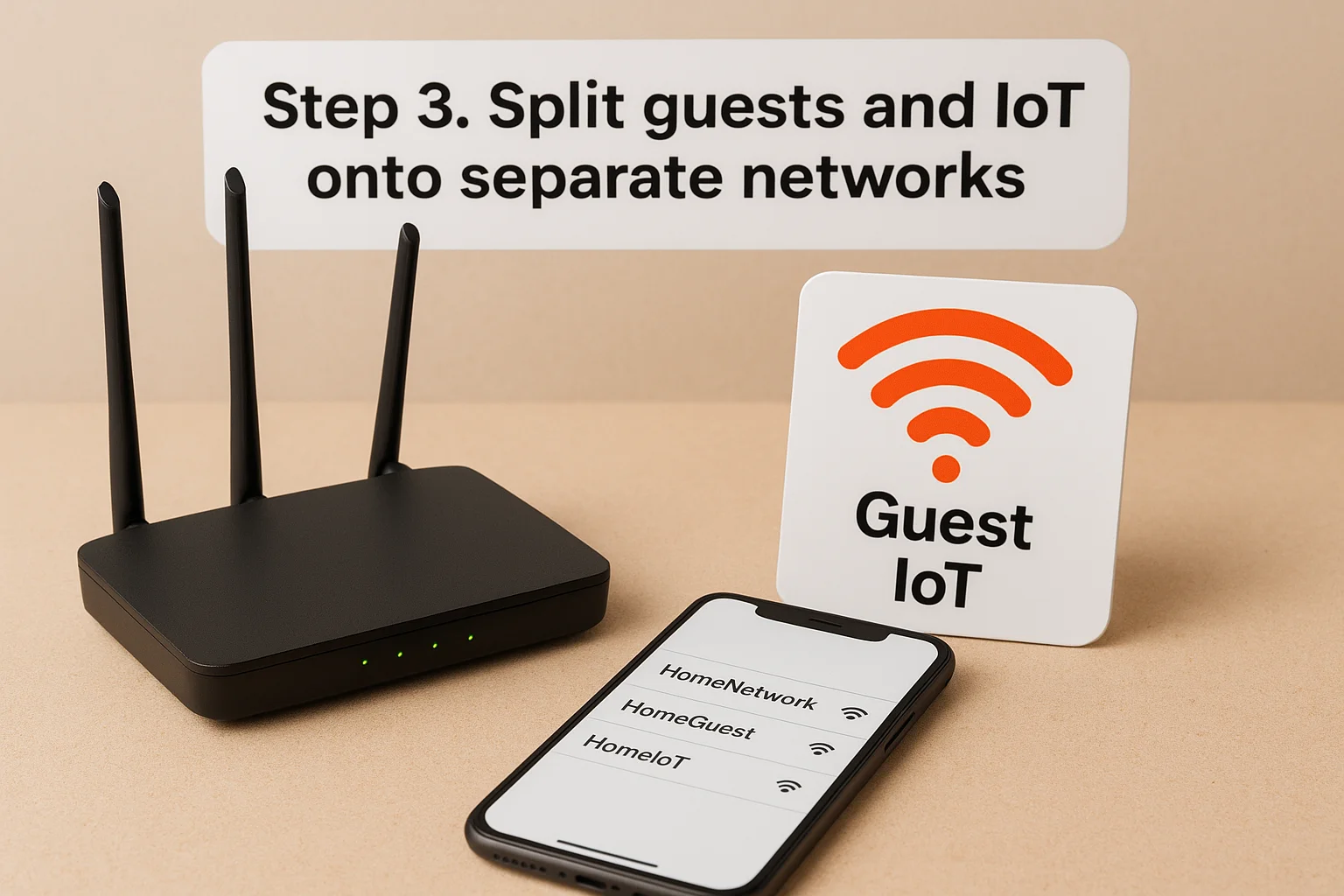
Your main Wi-Fi network connects your most sensitive devices: laptops, phones, and tablets that hold passwords, financial data, and personal files. Putting guests and smart home devices on that same network is one of the most common mistakes homeowners make, and it means one compromised device can reach everything else. Separating them is a core part of how to secure a home network, and most modern routers let you create additional networks without buying new hardware.
Create a dedicated guest network
Most routers include a guest network feature built directly into the wireless settings of the admin panel. Enable it, give it a separate name and a strong password, and turn on the option labeled "AP isolation" or "client isolation" if your router offers it. That setting prevents guest devices from communicating with anything else on your network, so a visitor's phone carrying malware cannot reach your laptop or NAS drive.
A guest network is not just for visitors. It creates a clean boundary that limits what any unfamiliar device can reach on your network.
Set up an IoT-only network
Smart home devices, including thermostats, cameras, doorbells, and voice assistants, rarely need to communicate directly with your computer or phone. Create a second separate network specifically for these devices, give it a distinct SSID and a strong password, then connect every IoT device to it exclusively. If one device gets exploited through a firmware vulnerability, the damage stays contained and your primary devices remain untouched.
Use this table as a quick reference for your three-network setup:
| Network Name | Who Connects | Isolation On? |
|---|---|---|
| HomeNetwork | Phones, laptops, tablets | No |
| HomeGuest | Visitor devices | Yes |
| HomeIoT | Smart home devices | Yes |
Step 4. Secure laptops, phones, and smart devices
Separating your networks cuts off lateral movement between device categories, but it does not fix vulnerable devices themselves. Every laptop, phone, and smart gadget you own is a target in its own right. Understanding how to secure a home network means treating endpoint security as an equally important layer alongside your router configuration.
Keep devices updated and protected
Operating system updates and app patches close the exact vulnerabilities attackers use to break into devices. On your Windows or macOS machine, enable automatic updates through your system settings so critical patches apply without requiring your attention. On your iPhone, go to Settings > General > Software Update and turn on automatic updates. Android users can find the same option under Settings > System > System Update.
A single unpatched device sitting on your network can hand an attacker everything they need to move further into your connected environment.
Beyond updates, install a reputable antivirus or endpoint protection tool on every laptop and desktop. Microsoft Defender, which ships with Windows 11, provides solid baseline coverage at no additional cost. Enable your device's built-in firewall and use a strong, unique password with screen lock on every machine and phone.
Lock down smart home devices
Smart home devices are frequent targets because manufacturers prioritize convenience over security in their default settings. For every camera, thermostat, or smart speaker you own, change the default username and password immediately after installation. Disable any remote access features you do not actively use. Check the manufacturer's app for firmware update notifications and install them as soon as they arrive, since smart device vulnerabilities get patched through those updates rather than automatically in the background.
Step 5. Check for intruders and keep it hardened
Locking down your router and segmenting your devices gets you most of the way there, but network security is not a one-time task. The final step in learning how to secure a home network is building a habit of regular checks so you catch problems early, before an attacker has had months to quietly operate inside your connected environment.
Scan your network for unfamiliar devices
Return to your router's admin panel and review the connected device list every month. Compare what you see against the inventory you built in the first section of this guide. Any device you do not recognize needs immediate attention: change your Wi-Fi password, disconnect the unknown device, and then reconnect your known devices one by one. For a more detailed view, Microsoft's network troubleshooting tools on Windows can show active connections and flag unusual activity on your local network.
An unfamiliar device on your network is a confirmed problem, not a suspicion, and warrants the same response as a compromised password.
Build a simple maintenance schedule
Consistency beats intensity when it comes to keeping your network hardened. Use this schedule as a repeatable template so nothing slips:
| Frequency | Task |
|---|---|
| Monthly | Check connected device list for unknowns |
| Every 3 months | Verify router firmware is current |
| Every 6 months | Rotate Wi-Fi and router admin passwords |
| Annually | Reassess all IoT devices for updates or replacement |
Treating these tasks as calendar appointments takes roughly 20 minutes per cycle and keeps every layer you've built in this guide working the way it should.
Quick wrap-up
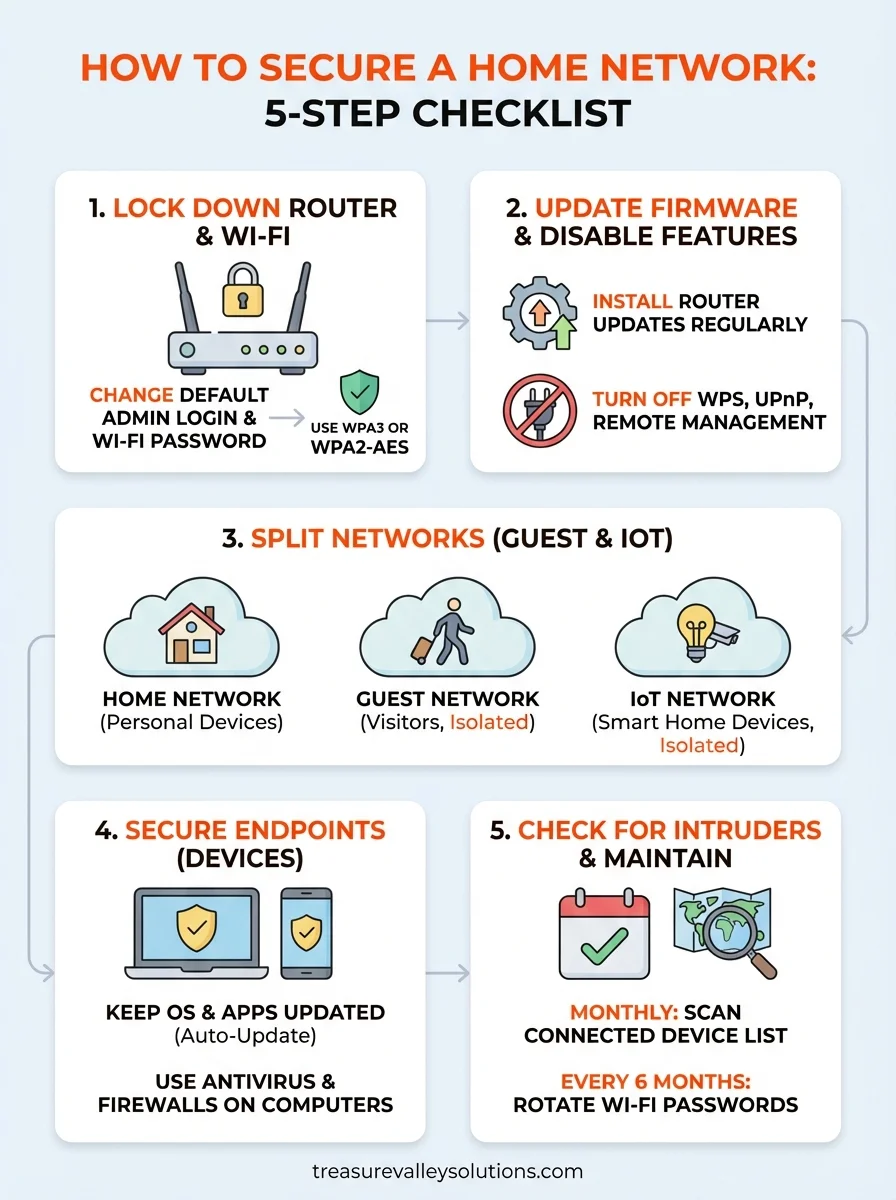
Securing your home network comes down to five concrete actions: lock down your router credentials, update firmware and disable risky features, separate guests and IoT devices, harden every endpoint, and run regular checks. None of these steps require advanced technical knowledge, just consistent attention and a willingness to spend an hour or two getting your setup right.
Following this checklist puts you well ahead of the average household when it comes to how to secure a home network. Attackers look for easy targets, and a properly segmented, updated, and monitored network is simply not worth their time compared to an unprotected one down the street.
If your home runs on a growing set of smart devices and you want them professionally designed and installed on a solid network foundation, the team at Treasure Valley Solutions is ready to help. See examples of our work to get a sense of what a well-integrated smart home system looks like in practice.
Need Expert Help?
Ready to implement these solutions in your own home or business?
Our Services
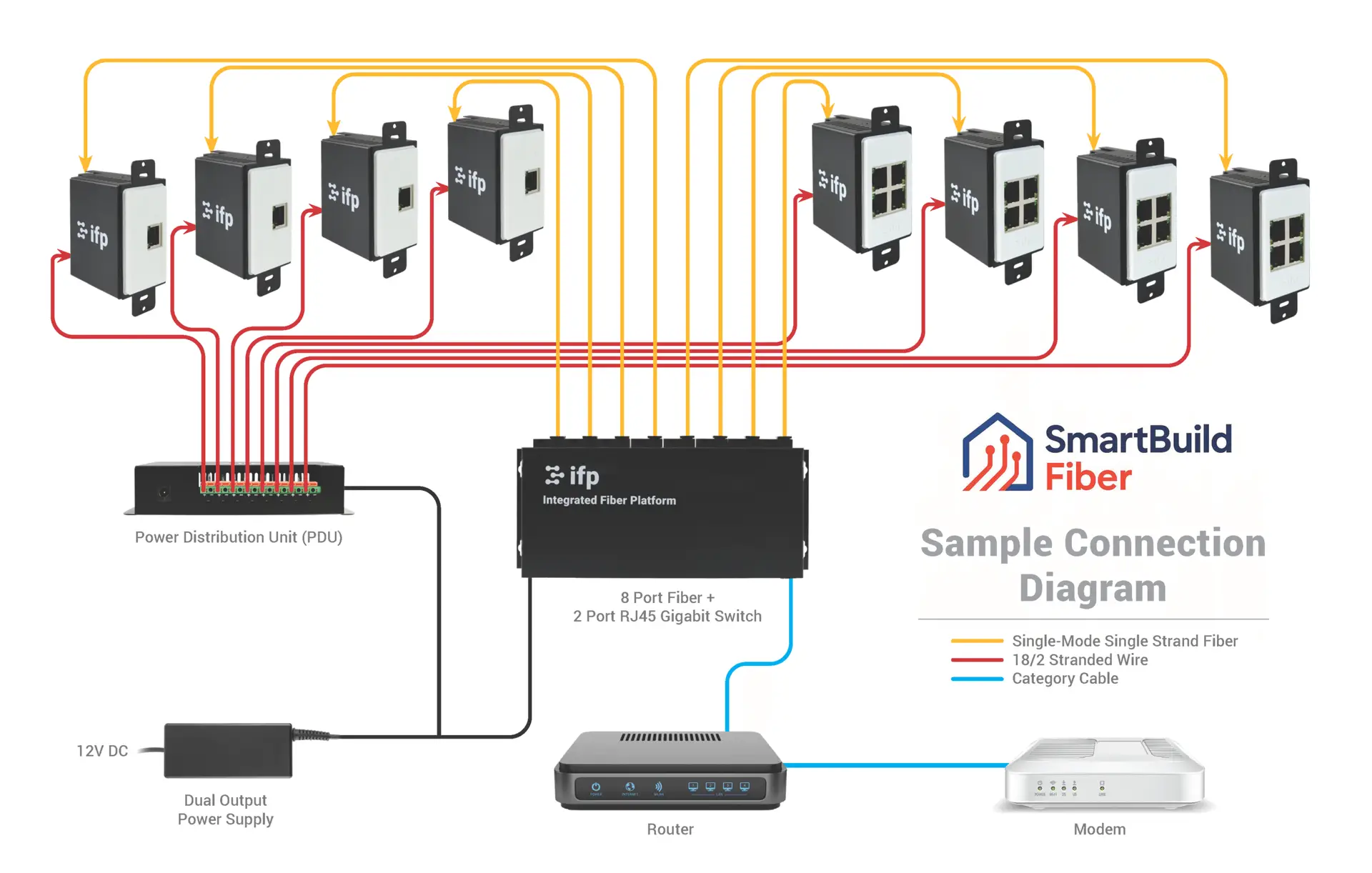
Future-proof fiber optic infrastructure.

Complete home automation and control.
Serving the Treasure Valley
Local installation in your city