 (208) 991-3502
 Meridian, ID




Playing music throughout your home used to require expensive dedicated systems and complex wiring. Now, Google Home multi-room audio lets you stream synchronized sound across every room using speakers...
Playing music throughout your home used to require expensive dedicated systems and complex wiring. Now, Google Home multi-room audio lets you stream synchronized sound across every room using speakers you can pick up at most electronics stores. It's one of the most accessible ways to get whole-home audio without tearing open your walls, and when it works well, it genuinely changes how you experience music, podcasts, and even everyday announcements at home.
That said, setting it up isn't always as plug-and-play as the marketing suggests. Speaker groups can be finicky, audio sync issues pop up, and figuring out which devices actually support multi-room playback takes some trial and error. At Treasure Valley Solutions, we design and install custom audio systems for homes across the Boise and Meridian area, and we regularly help clients decide whether Google Home groups meet their needs or whether a more robust whole-home solution makes better sense for their space.
This guide walks you through everything: creating speaker groups, managing them in the Google Home app, troubleshooting common problems, and understanding where the platform's limitations start. Whether you're setting up your first pair of Nest speakers or trying to fix audio lag across a dozen devices, you'll find practical steps below. And if you reach a point where you want something more reliable and fully integrated, we're right here in the Treasure Valley to help you take that next step.
What you need for reliable multi-room audio
Before you touch the Google Home app, take stock of what you have and what you need. Google Home multi-room audio works best when every device shares the same Wi-Fi network and sits within solid signal range. Skipping this step is the most common reason speaker groups fail or drop out mid-song.
A strong, consistent Wi-Fi signal is the single biggest factor in whether your multi-room audio holds together.
Compatible speakers and displays
Not every smart speaker works inside a Google Home group. Google Nest speakers (Mini, Audio, Hub, Hub Max) and Chromecast-enabled devices work natively. Third-party speakers with built-in Chromecast, like select JBL and Sony models, also qualify. Standard Bluetooth-only speakers do not support group playback, even if you can pair them temporarily to a single device.
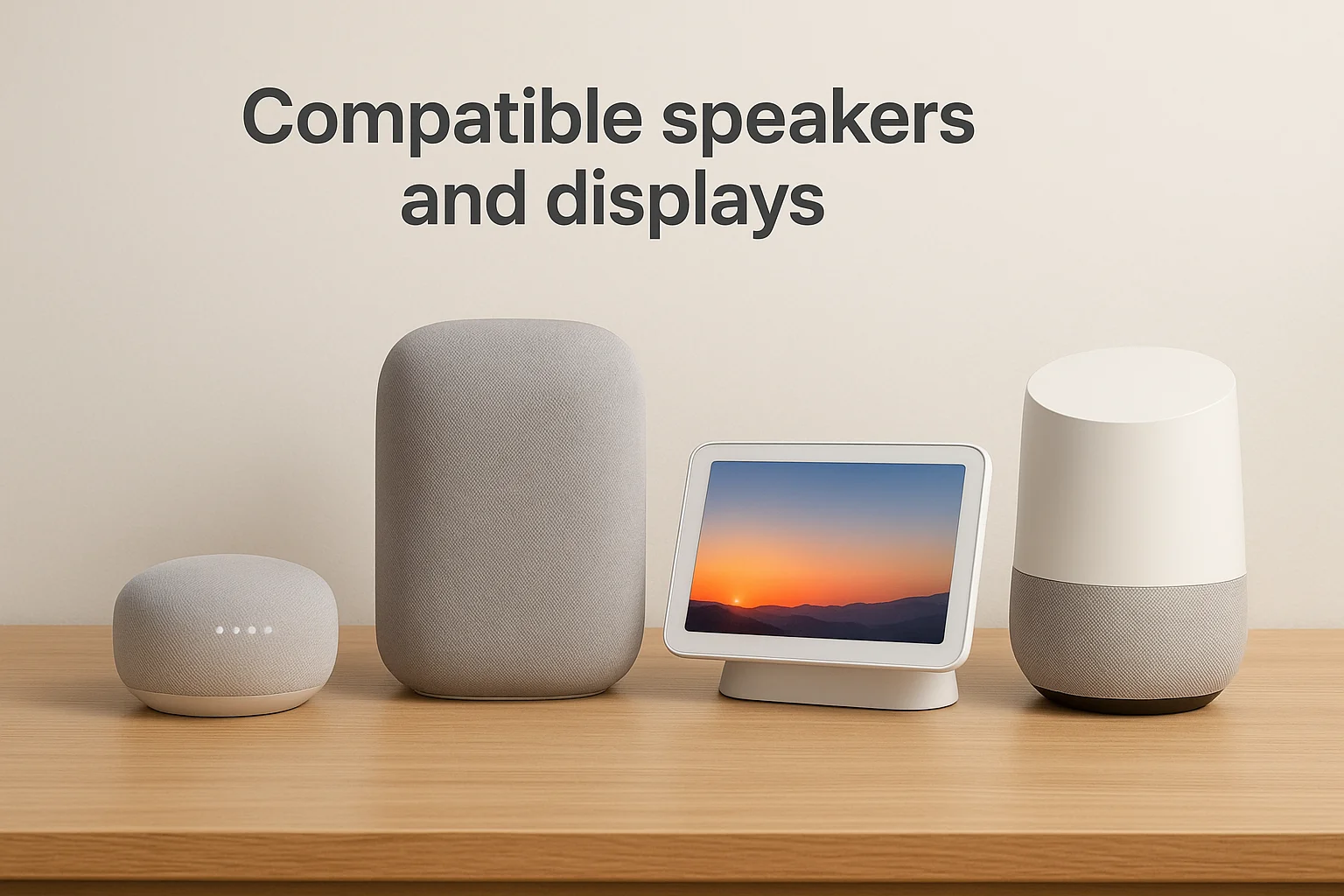
Here's a quick reference for device compatibility:
| Device Type | Works in Speaker Groups? |
|---|---|
| Google Nest Mini / Audio | Yes |
| Google Nest Hub / Hub Max | Yes |
| Chromecast with Google TV | Yes (audio only) |
| Third-party Chromecast speakers | Yes |
| Bluetooth-only speakers | No |
Network requirements
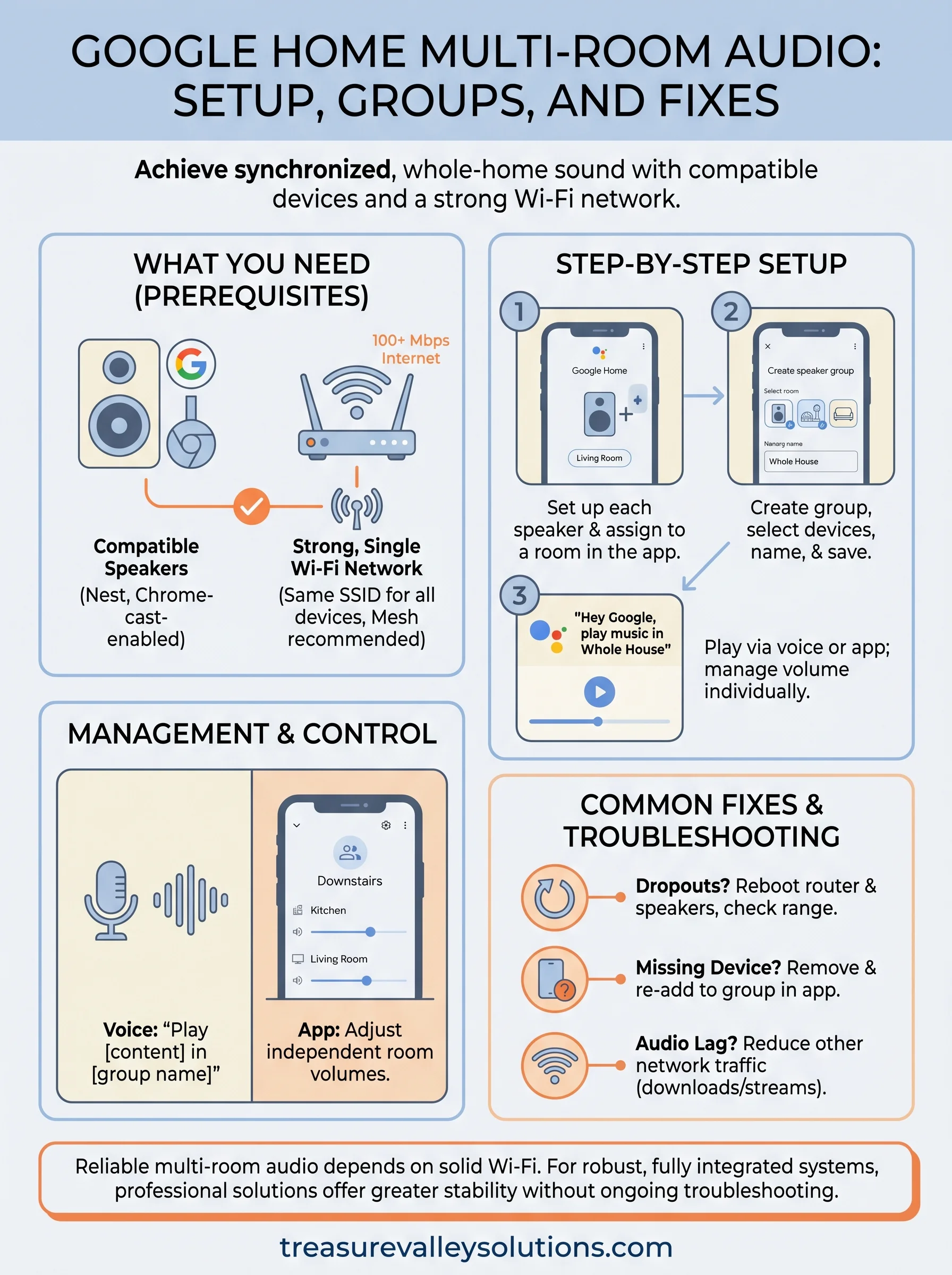
Your Wi-Fi network carries every audio stream, so its quality directly determines your results. All speakers should connect to the same network name (SSID), not split between a 2.4 GHz and 5 GHz band listed under different names. A mesh system like Google Nest Wifi works well here because it manages device handoffs without interrupting the stream.
For a setup covering multiple rooms, aim for at least a 100 Mbps internet connection and a router placed centrally in the home. If you have dead zones in far corners or on a different floor, add a mesh node before you add another speaker to the group.
Step 1. Set up speakers and Wi-Fi in Google Home
Getting each speaker added to the Google Home app is your foundation. Every device you plan to use for google home multi-room audio must be set up individually, connected to the same Wi-Fi network, and assigned to a room before groups will work.
Add your speaker to the app
Open the Google Home app, tap "+", select "Set up device," then "New device." The app will find nearby devices automatically. Follow these steps for each speaker:
- Plug in the speaker and wait for the startup tone
- Tap "+" > "Set up device" > "New device" in the app
- Connect the device to your Wi-Fi network
- Assign it to a room
Confirm your network assignment
Check each speaker's network by opening device settings in the Google Home app and looking at the network name listed under "Wi-Fi." Mismatched networks are the most common reason devices refuse to group together.
If a speaker shows the wrong network, delete it from the app and run setup again on the correct network.
Your room labels also matter here. Name each device clearly by location, like "Kitchen" or "Bedroom," so the app organizes them correctly before you build groups.
Step 2. Create speaker groups that stick
Once all your speakers are set up individually, creating a speaker group takes about two minutes. Groups in google home multi-room audio let you play synchronized audio across multiple rooms from a single voice command or tap.
Groups only stay reliable when every device in them shares the same Wi-Fi network and runs current firmware.
Build your first group
Open the Google Home app, tap "+", then select "Create speaker group." The app lists every compatible device on your network. Pick your speakers, name the group something clear like "Downstairs" or "Whole House," and tap "Save."
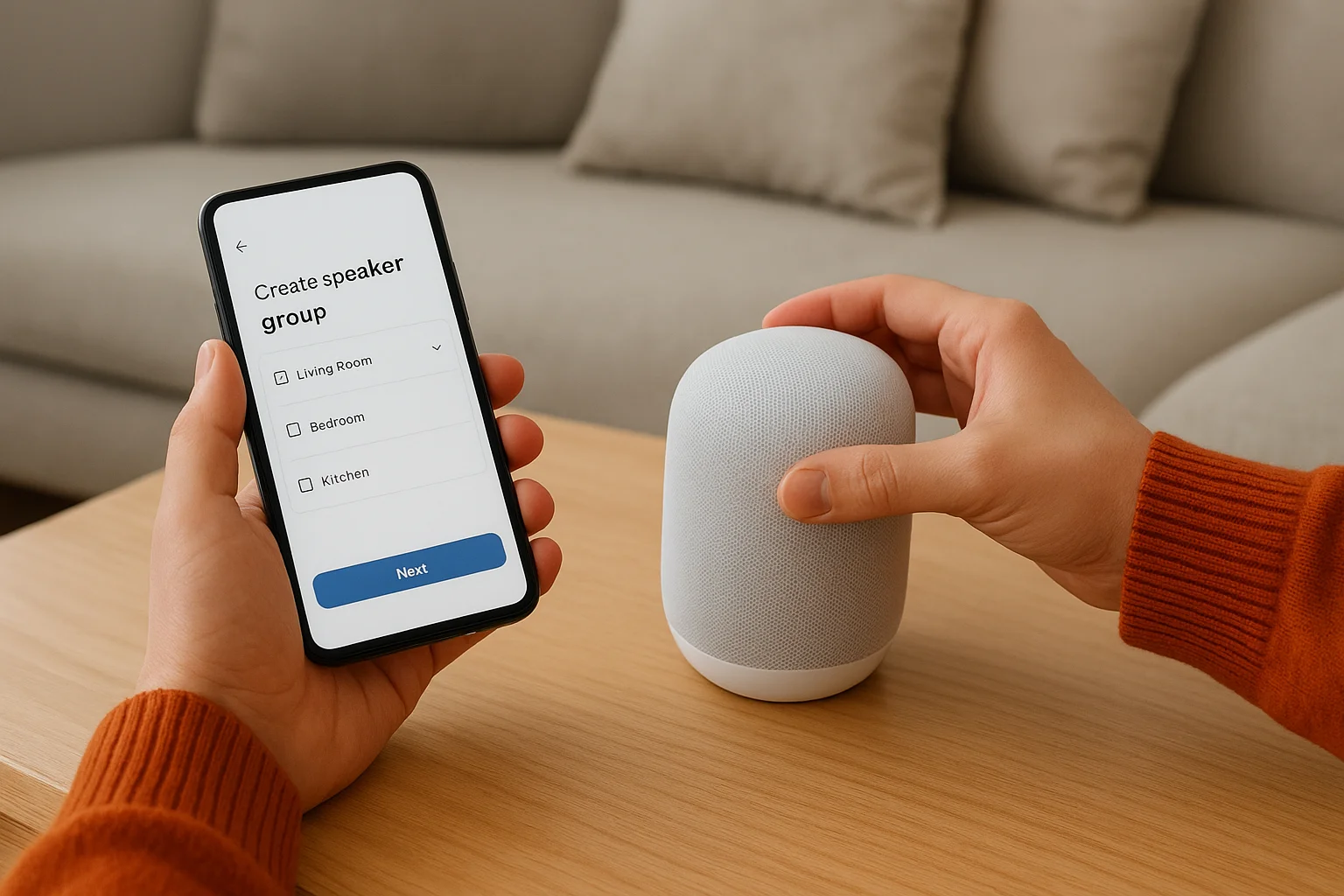
Follow these steps:
- Tap "+" > "Create speaker group"
- Select each speaker for the group
- Name the group clearly by location
- Tap "Save"
Keep groups working over time
Groups break most often when a device goes offline or misses a firmware update. Before each listening session, confirm every speaker shows "Connected" status in the app.
If a device shows offline, try these quick fixes:
- Unplug the speaker for 10 seconds, then reconnect
- Remove the device from the group and re-add it
- Confirm the speaker is still on the correct Wi-Fi network
Step 3. Play and manage audio across rooms
With your groups built, sending synchronized audio to every room takes a single command or tap. Open the Google Home app, find your group under "Speakers & displays," and tap play to start casting from Spotify, YouTube Music, or any other linked service to all speakers in that group at the same time.
The fastest way to trigger group playback is a voice command: say "Hey Google, play [artist or genre] in the Whole House."
Play audio via voice or app
You can control google home multi-room audio two ways: voice commands through any active Google speaker, or manual control inside the Google Home app. Both options work in real time when your network is solid. Choose whichever fits the moment.
- Voice: Address the group by its exact name, like "Hey Google, play jazz in Downstairs"
- App: Tap the group tile, pick a music service, and press play
Adjust volume per room
One of the most practical features is independent volume control for each speaker inside a group. Open the Google Home app, tap your group tile, then scroll down to see individual device sliders. You can pull the "Kitchen" slider down while keeping "Living Room" at full volume without interrupting playback for the rest of the house. This lets you match the audio level to what's actually happening in each space.
Step 4. Fix dropouts, missing devices, and lag
Three problems show up most often with google home multi-room audio: speakers dropping mid-playback, devices disappearing from groups, and noticeable audio lag between rooms. Each one has a specific cause and a direct fix.
Audio lag between rooms almost always points to a congested Wi-Fi network or outdated firmware on one of the devices in the group.
Fix audio dropouts
Dropouts happen when a speaker loses its Wi-Fi connection momentarily, even if it still shows as connected in the app. Start by rebooting your router and each affected speaker. Then confirm no speaker sits more than 30 feet from a Wi-Fi access point with walls or appliances blocking the signal path.
- Reboot your router and modem fully
- Unplug each dropping speaker for 15 seconds, then reconnect
- Move the speaker closer to a mesh node or router
- Set your network to a single broadcast SSID so devices do not split between bands
Resolve missing devices and lag
A missing device almost always means it rebooted after a firmware update and lost its group assignment. Open the Google Home app, remove it from the group, restart the speaker physically, then re-add it.
For persistent lag, reduce the number of active streaming devices on your network during playback. Competing video streams and downloads consume bandwidth that your audio group needs to stay synchronized.
Wrap it up and keep it working
Google Home multi-room audio works well when your network is solid, your devices share the same SSID, and your speaker groups include only compatible, connected devices. Follow the steps in this guide once, and the system mostly takes care of itself. Reboot your router monthly, keep firmware current, and check group assignments after any device update to catch issues before they interrupt playback.
When dropouts keep returning or you want synchronized audio in every room without ongoing troubleshooting, a professionally designed system delivers that reliability. At Treasure Valley Solutions, we design and install whole-home audio systems built specifically for homes in the Boise and Meridian area. Every install is custom, clean, and fully supported after the job is done, so you never have to dig through app settings to figure out why a room went silent.
Ready to move beyond speaker groups? See examples of our audio and smart home work and find out what a purpose-built system looks like in a real Treasure Valley home.